

Overview
The Submission flow in UDI Hub is started from UDI Management, typically from the Basic UDI-DI Status Overview page. From there, you can:- submit a Basic UDI-DI (BUDI) and one device for an Initial Registration
- automatically queue (waitlist) additional devices for submission once the initial registration is accepted
- submit additional devices later as Follow Up / New Device
- submit updates for either the Basic UDI-DI or for individual devices (after initial registration)
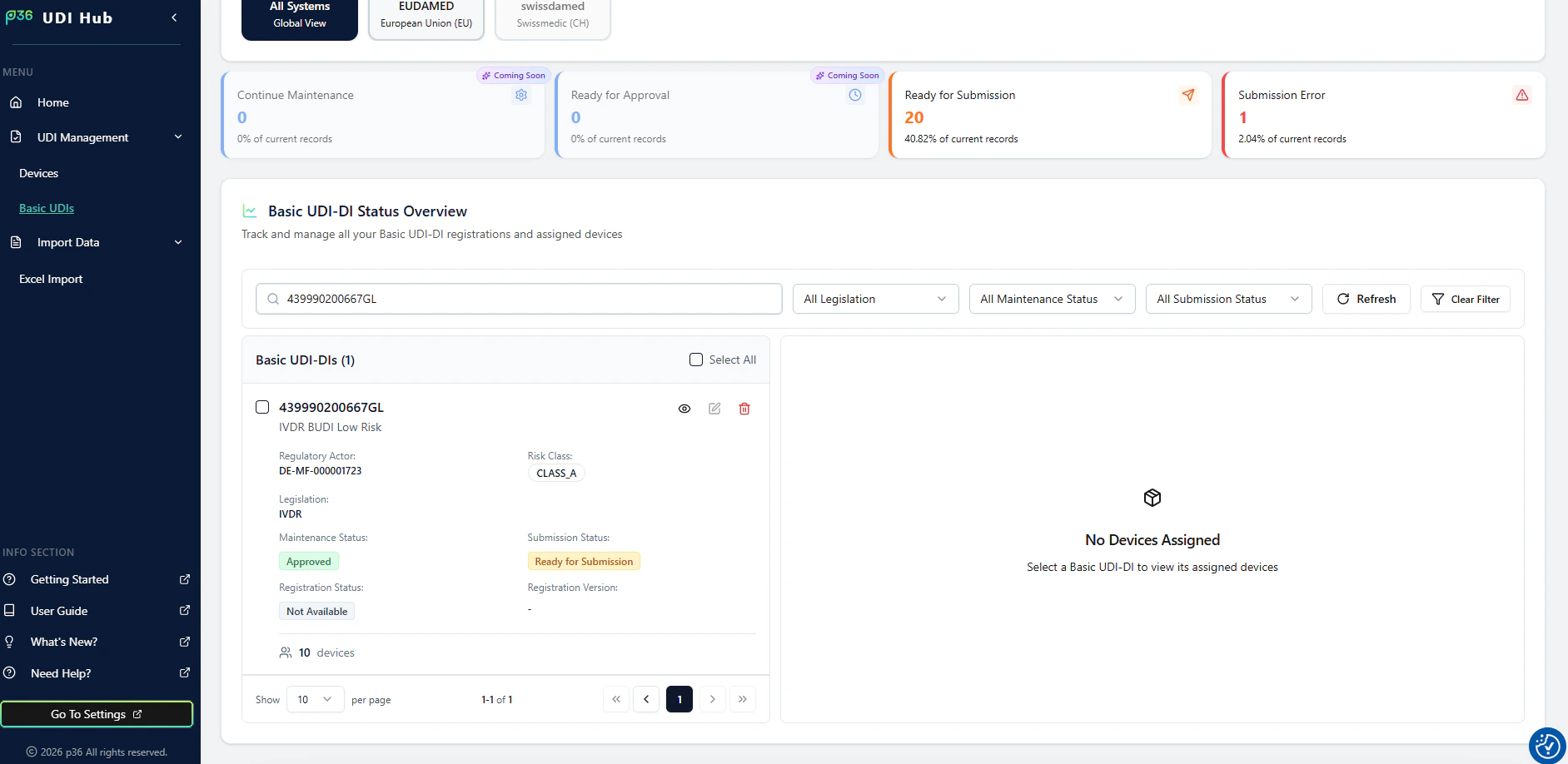
Step-by-step: Start a Submission from UDI Management
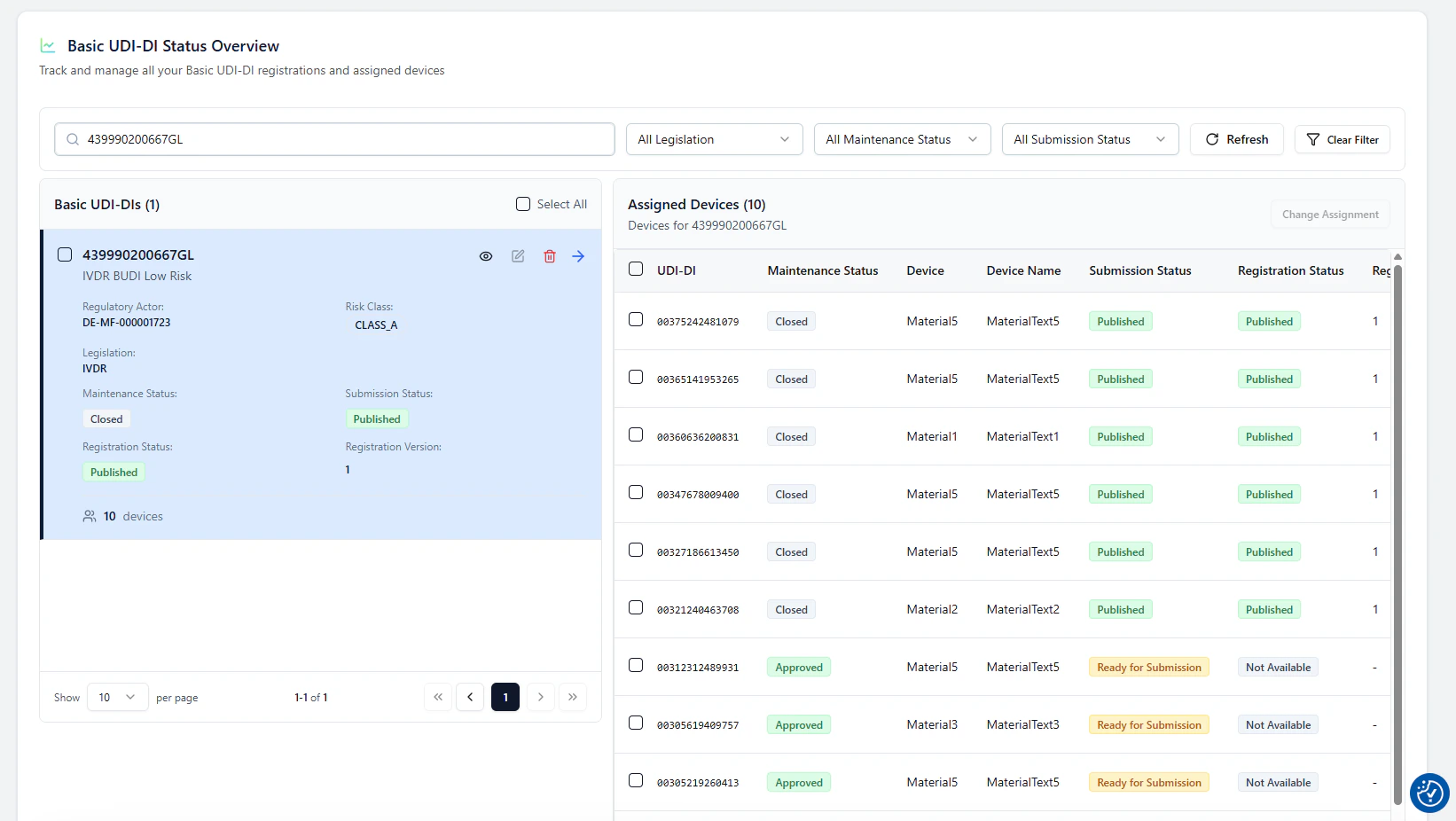
1. Open the Basic UDI-DI and view assigned devices
In Basic UDI-DI Status Overview, select a Basic UDI-DI card.The assigned devices for this Basic UDI-DI are shown on the right side.
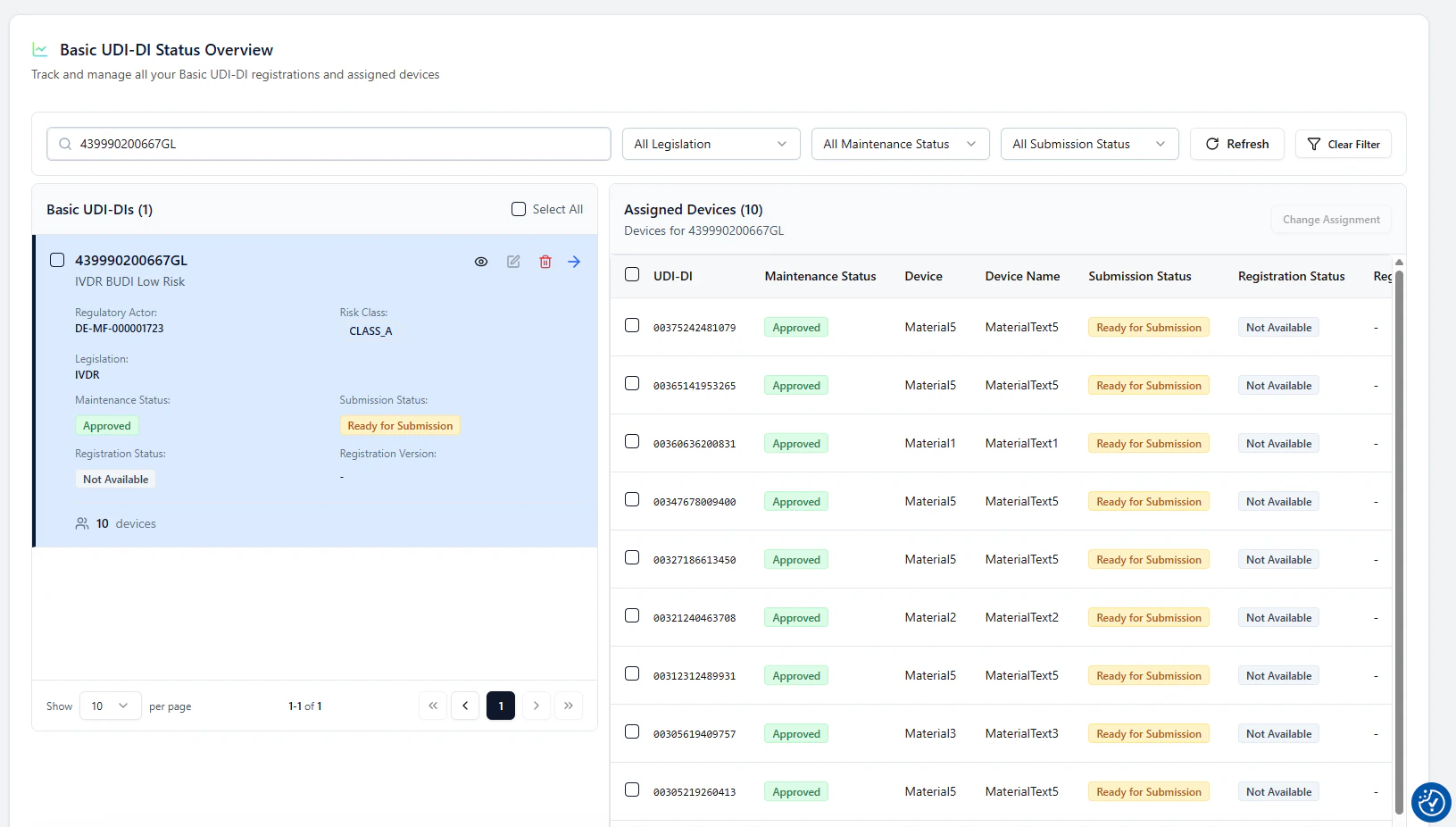
2. Select what you want to submit (BUDI and/or devices)
Use the checkboxes to select:- the Basic UDI-DI (left)
- one or more devices (right)
4 items selected).
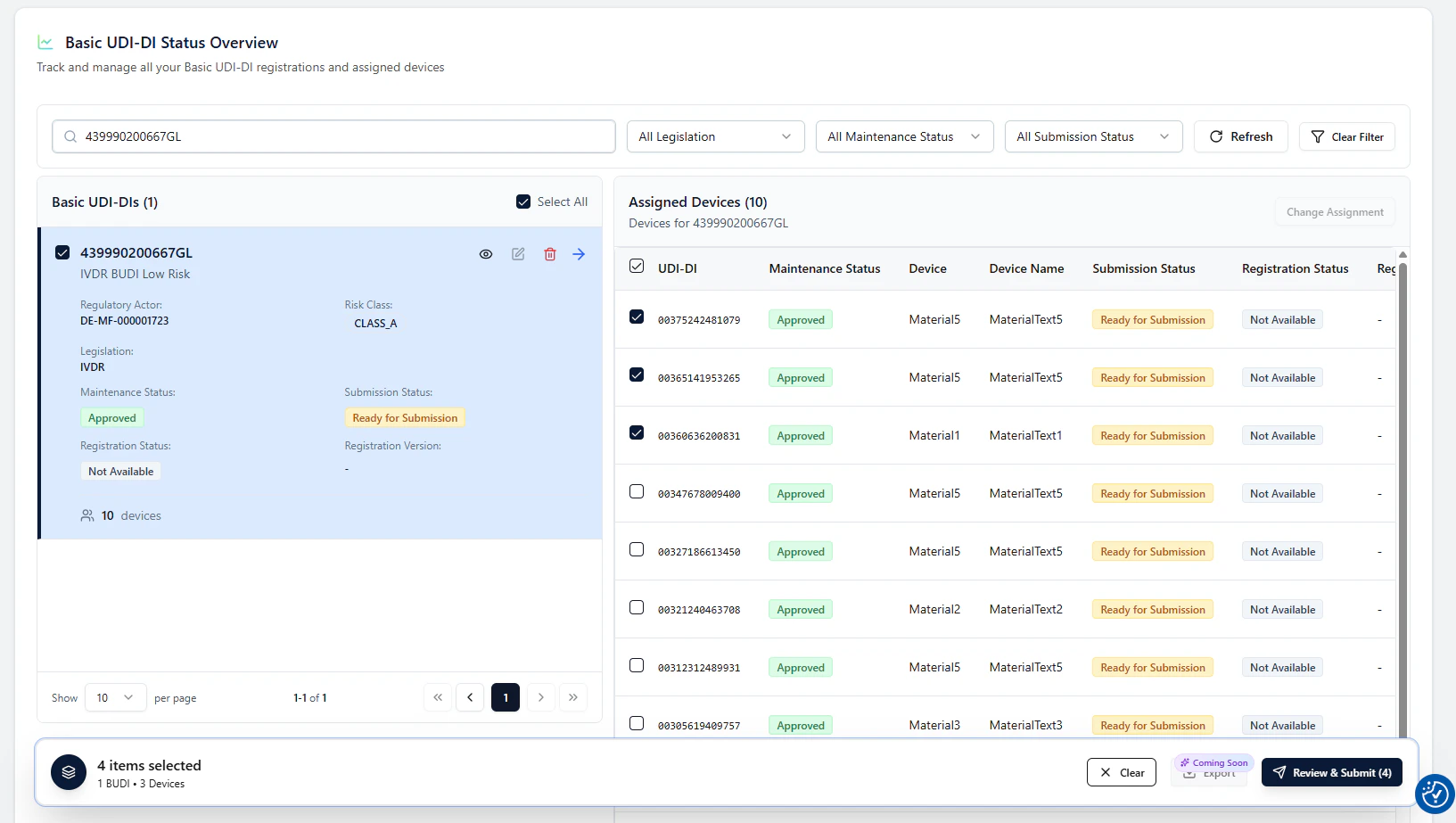
3. Start the guided flow with Review & Submit
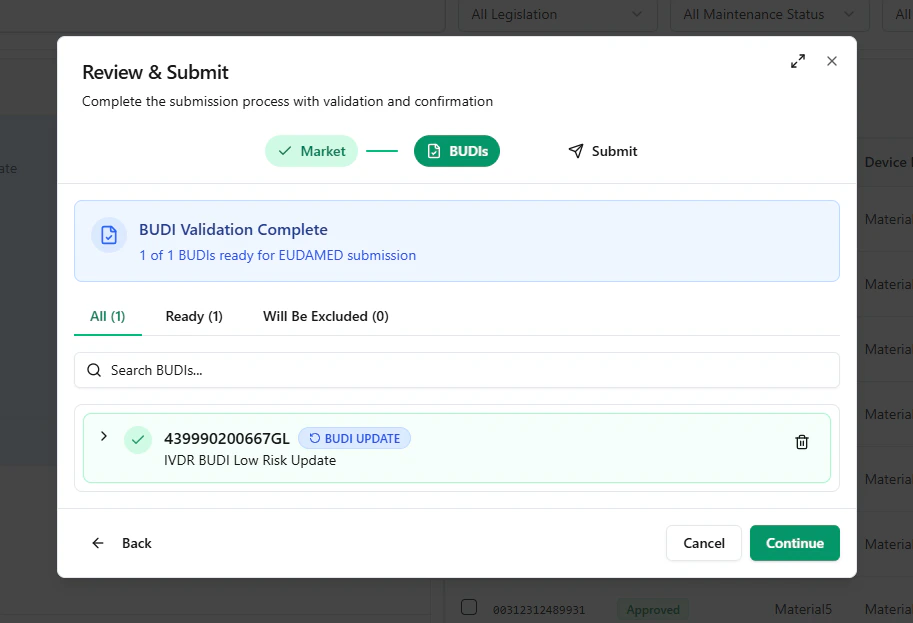
Click Review & Submit to open a guided modal.This modal validates your selection, explains what will happen, and lets you submit.
Guided Modal: Market → BUDIs → Devices → Submit
Step A — Select target market (currently EUDAMED)
First, confirm the target authority/market.Today the flow shows EUDAMED, but the UI is designed to support multiple authorities later.
Initial Registration: Basic UDI-DI + paired Device (EUDAMED rule)
If your selection includes a Basic UDI-DI that has never been successfully submitted to EUDAMED, the modal runs the Initial Registration path.Step B — BUDI validation & submission type (INITIAL)
UDI Hub validates that the Basic UDI-DI is:- in a Ready for Submission state, and
- eligible for the required submission type
- 1 Basic UDI-DI + exactly 1 device (paired device)
- the system automatically preselects the first valid device
- you can change the paired device here if needed
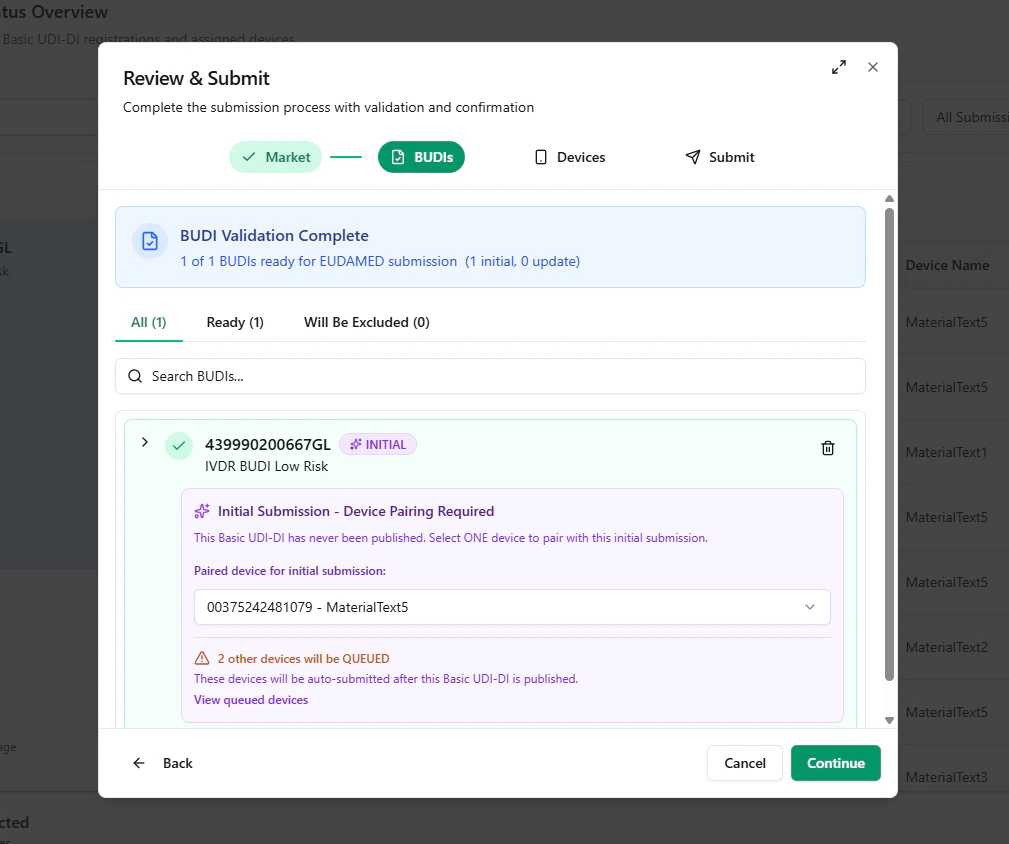
Step C — Device validation, grouping, and waitlisting
Next, UDI Hub validates the selected devices and groups them by their parent Basic UDI-DI. In an Initial Registration scenario:- the paired device will be submitted now
- any additional selected devices are placed in a QUEUE / Waitlist
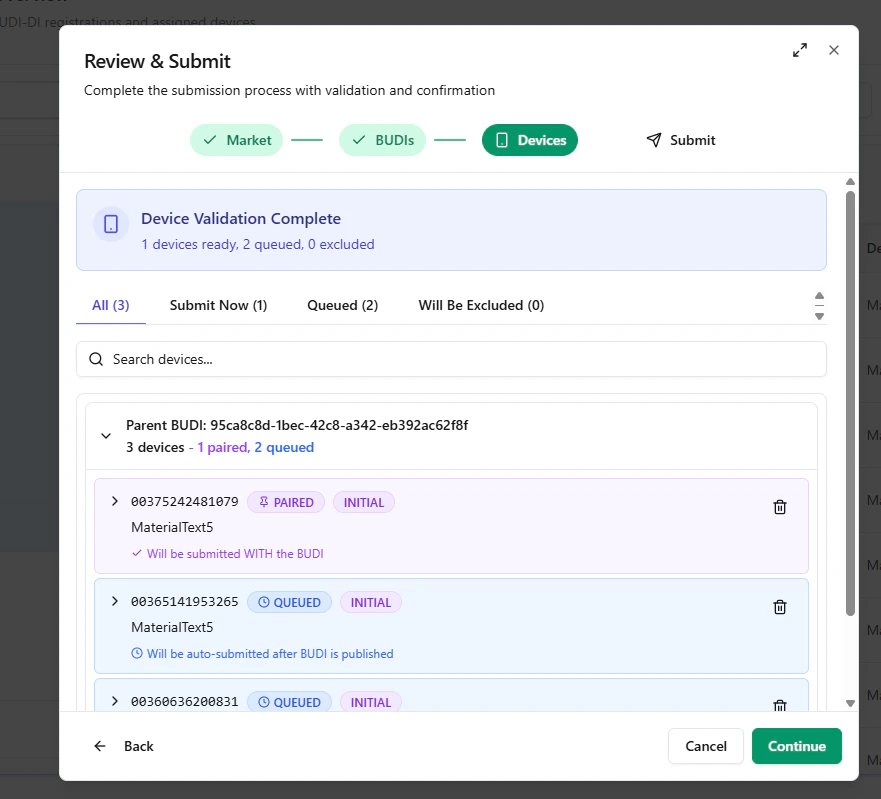
Step D — Submit to EUDAMED
In the final step, review the summary and click Submit to EUDAMED to initialize the submission.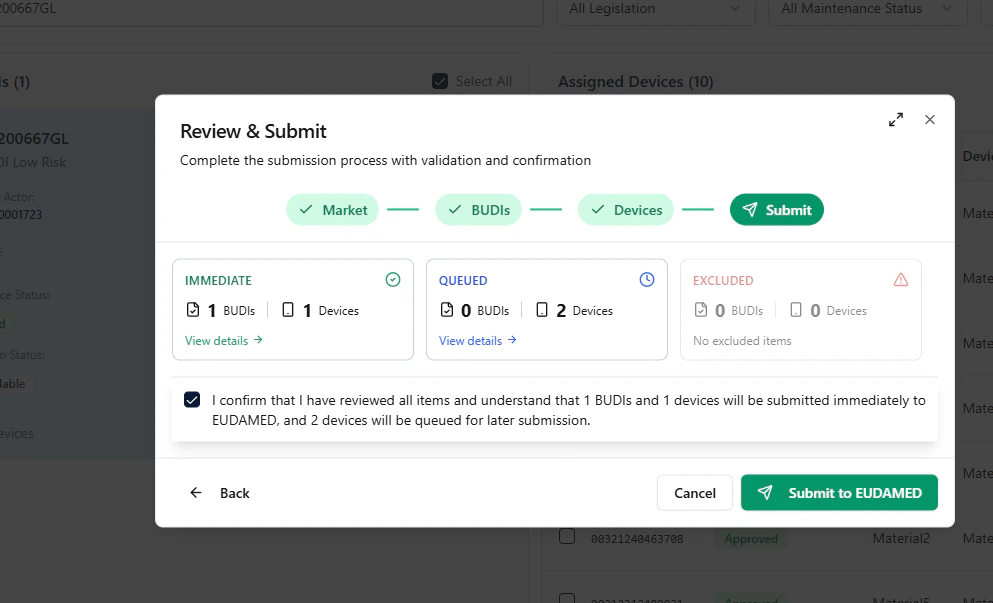
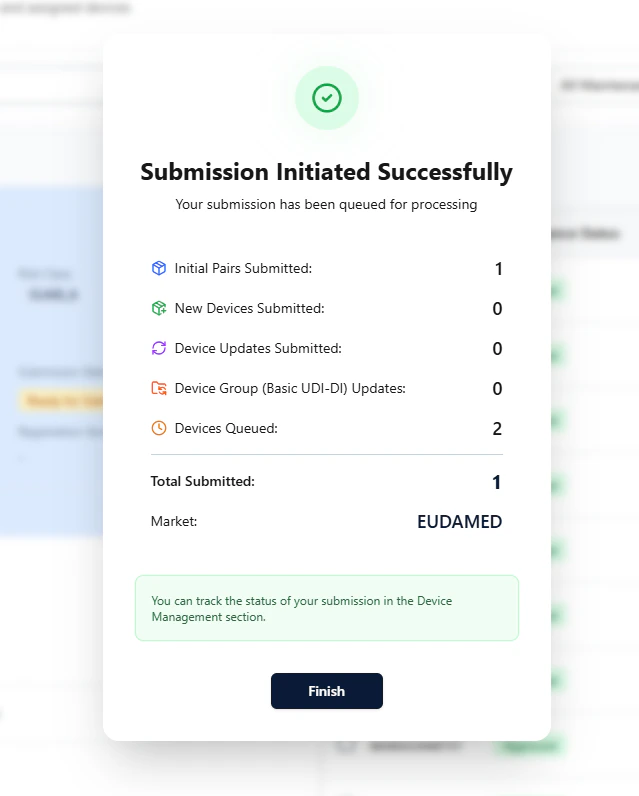
Observe the process (Refresh)
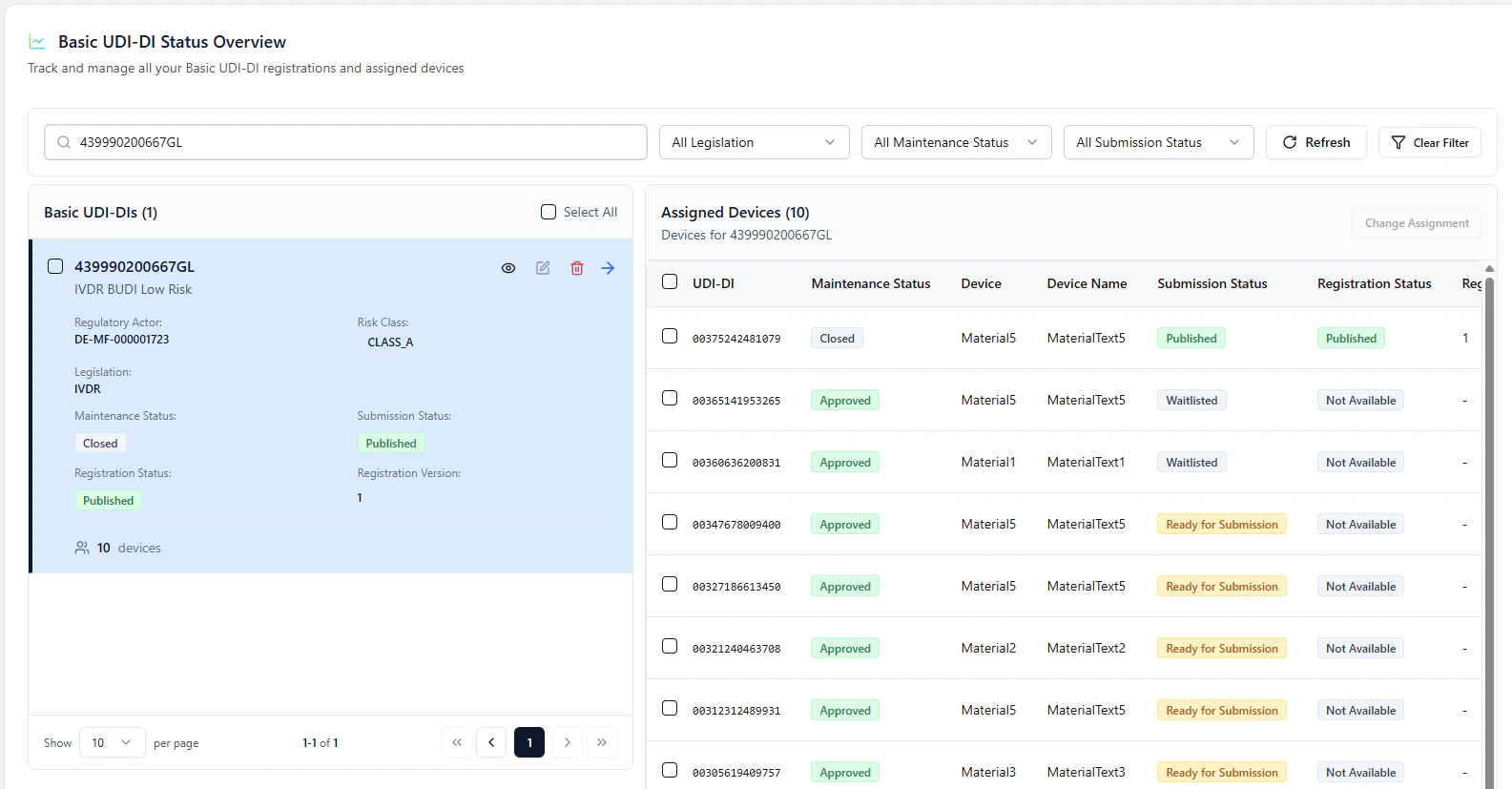
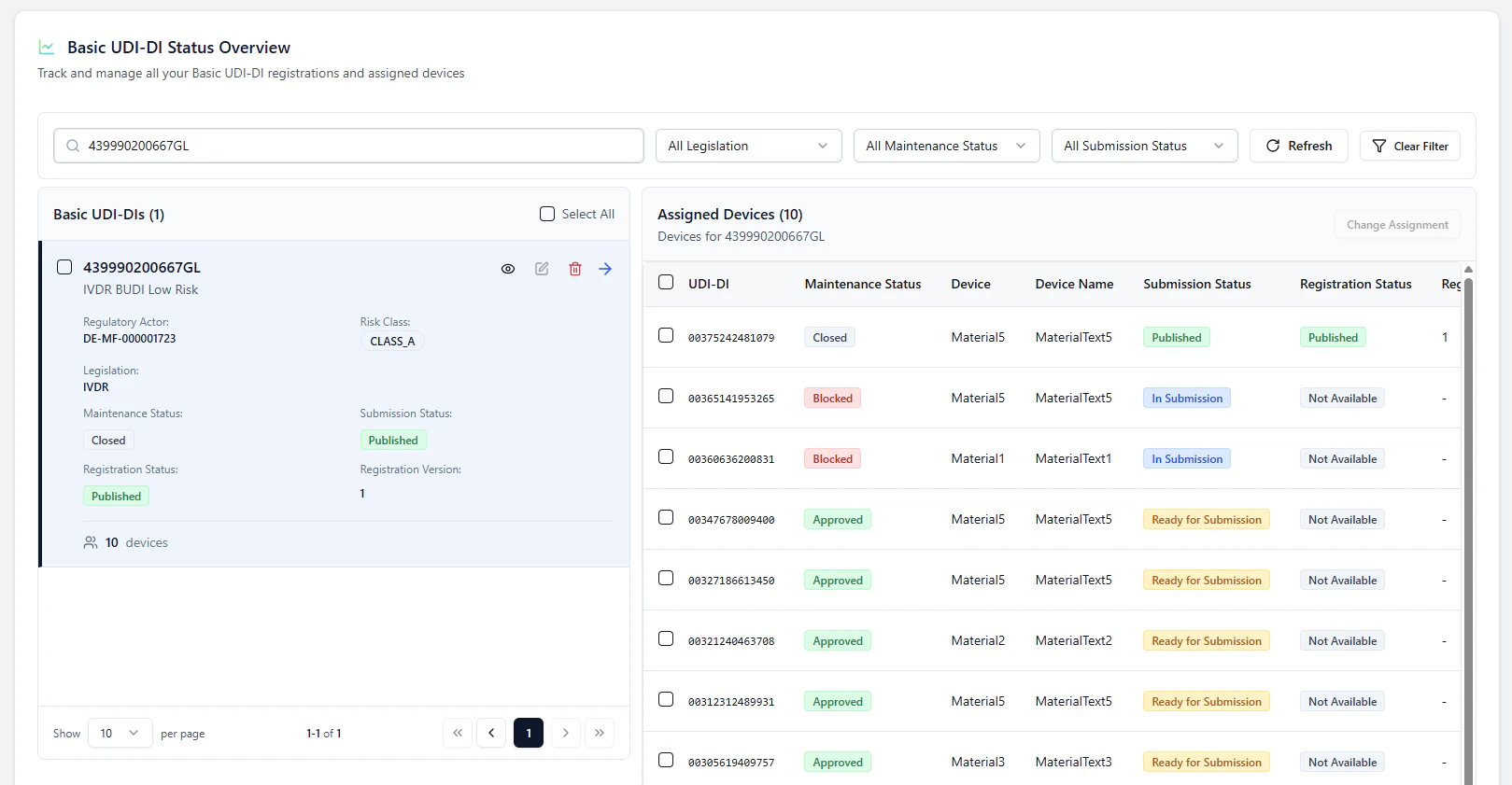
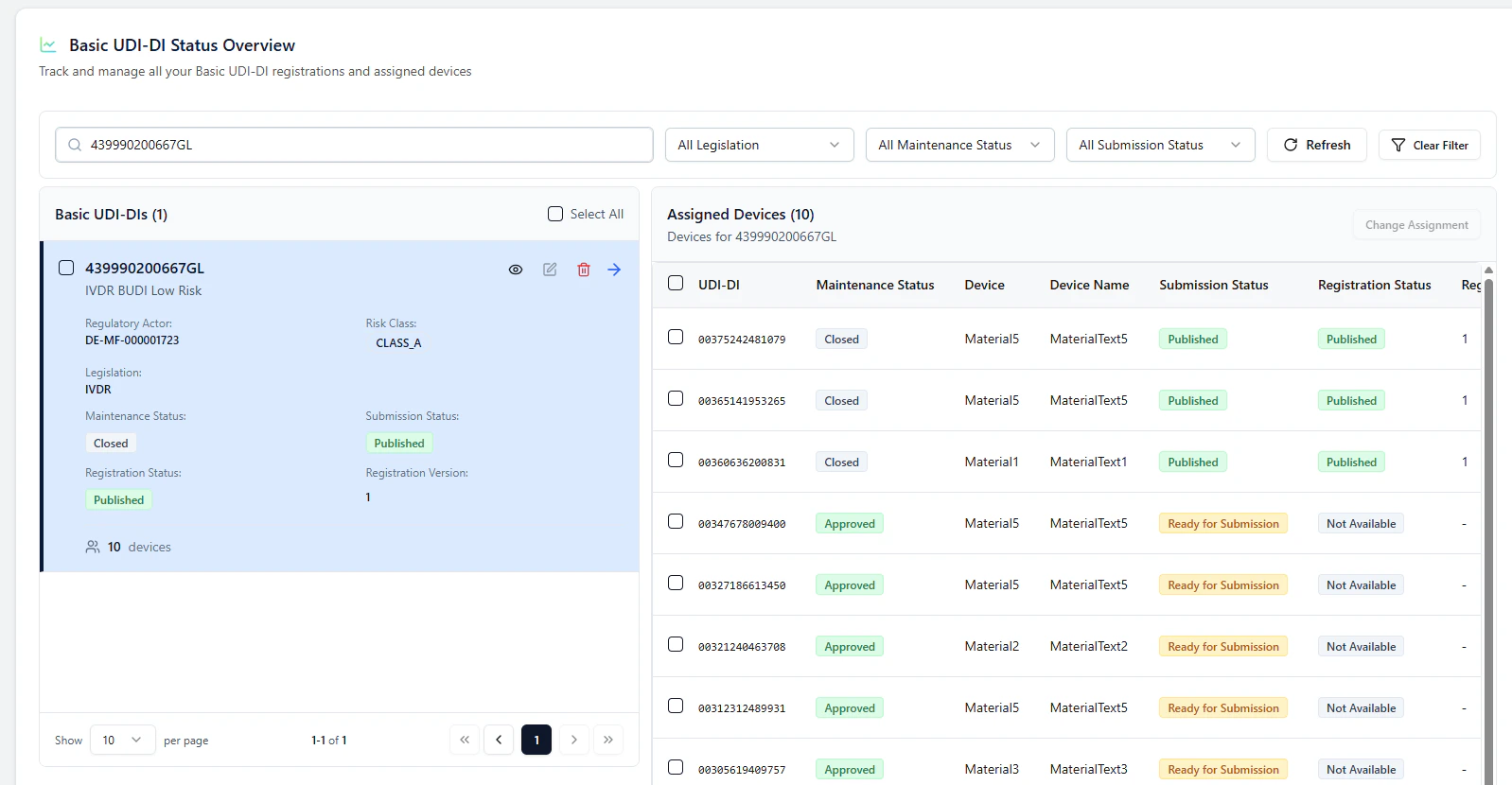
Back on the overview page, you can use Refresh to observe status changes:- the paired Basic UDI-DI + device go In Submission
- once successful, they switch to Published
- waitlisted devices are then automatically triggered and submitted
Follow Up: Submit additional devices as NEW DEVICE
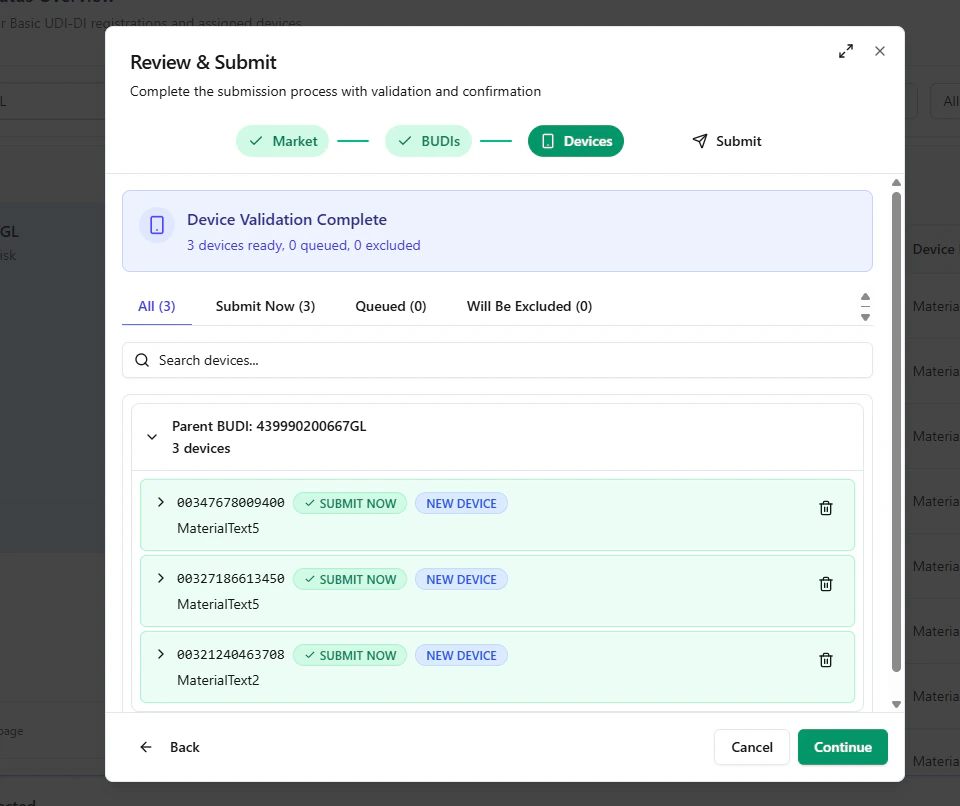
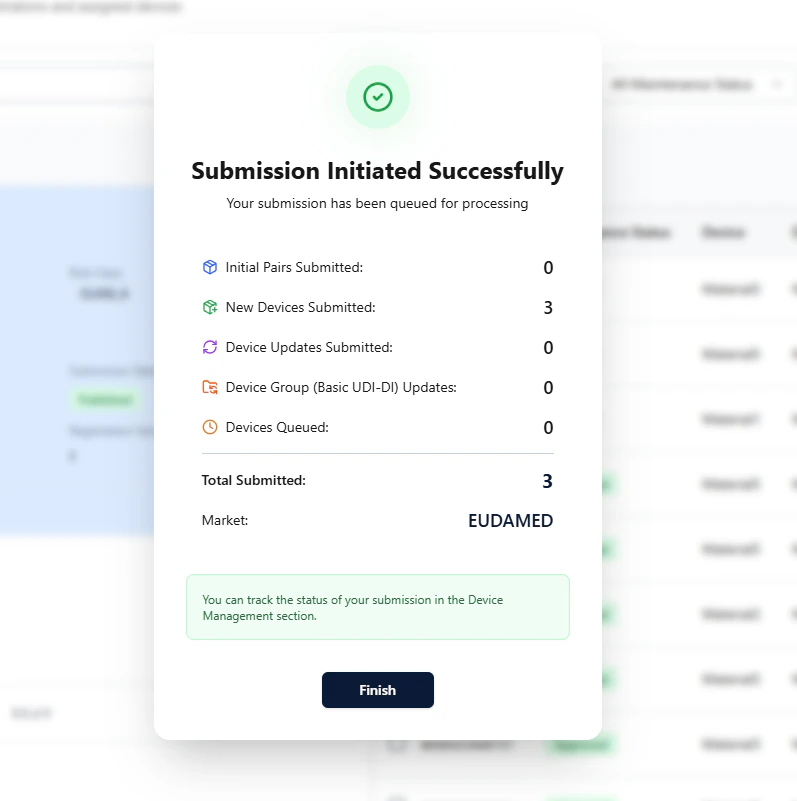
After a Basic UDI-DI is successfully Published, you can submit additional devices later as a Follow Up.What changes compared to INITIAL?
- you select devices only (no Basic UDI-DI selection required)
- the BUDI step is skipped in the modal
- devices are labeled as NEW DEVICE
- devices are submitted directly (no waitlist needed if BUDI is already published)
- SUBMIT NOW
- NEW DEVICE
Working strategy
You can either submit all devices at once (managed via Waitlisted during INITIAL) or submit devices in portions via follow-ups.
For reliability, currently keep each batch ≤ 500 devices while performance optimizations are ongoing.
For reliability, currently keep each batch ≤ 500 devices while performance optimizations are ongoing.
Updates after initial registration (BUDI and devices become independent)
After the initial registration is successful (BUDI and at least one device are Published):- Basic UDI-DI and Devices are considered decoupled for updates
- you can submit BUDI updates and device updates independently
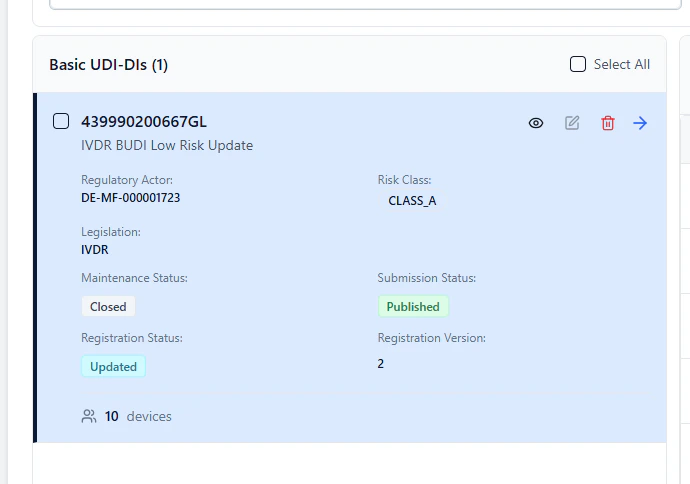
- each update creates a new Registration Version for the updated entity
How updates are triggered
Typically, an update starts when you change data via Excel upload/import:- Maintenance Status changes (e.g., to Approved)
- Submission Status becomes Ready for Submission
Example: Basic UDI-DI update
If the Basic UDI-DI is Ready for Submission, select the Basic UDI-DI and click Review & Submit.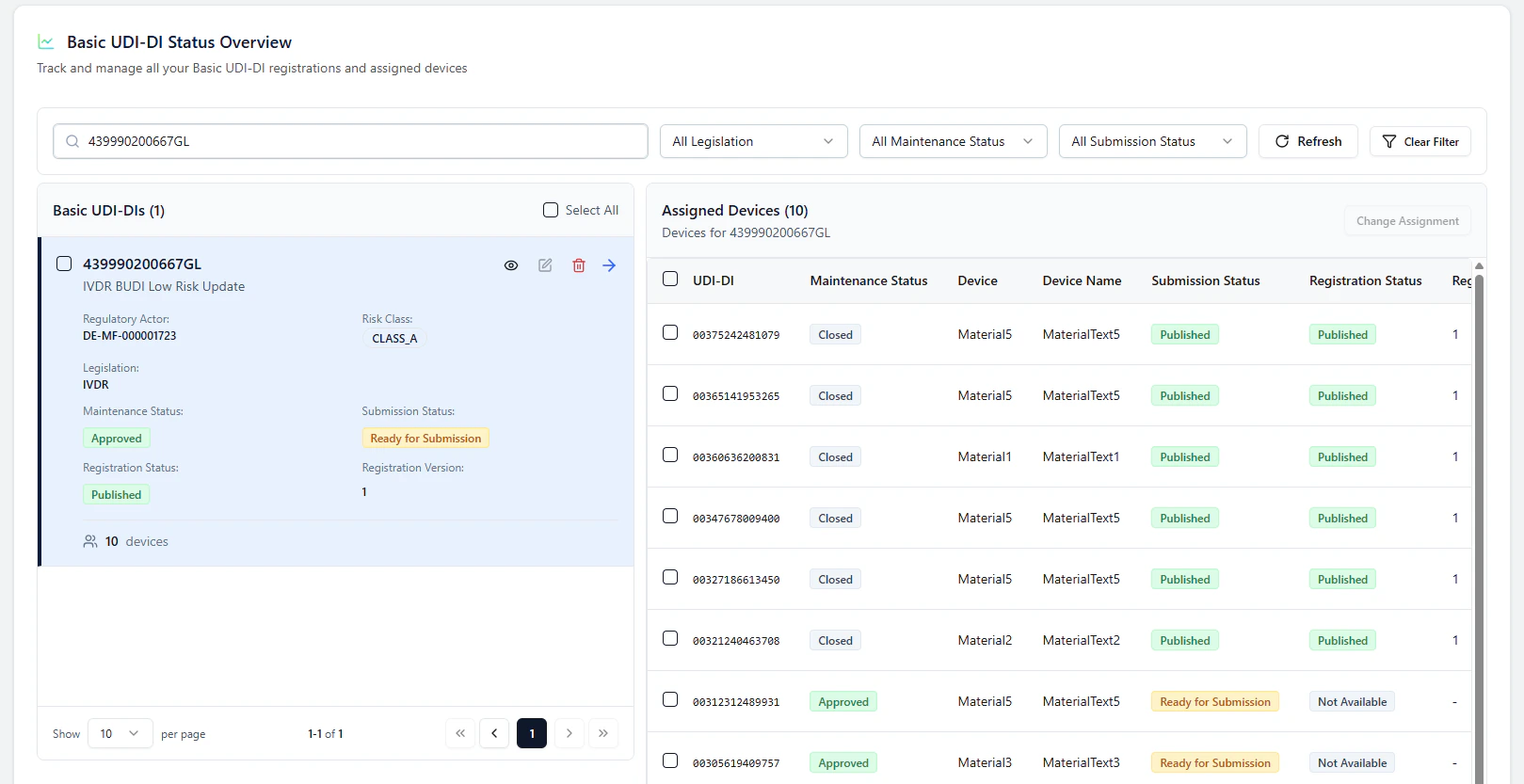
- Registration Status: Updated
- Registration Version: 2 (or higher for subsequent updates)
Blocked / excluded items and filtering
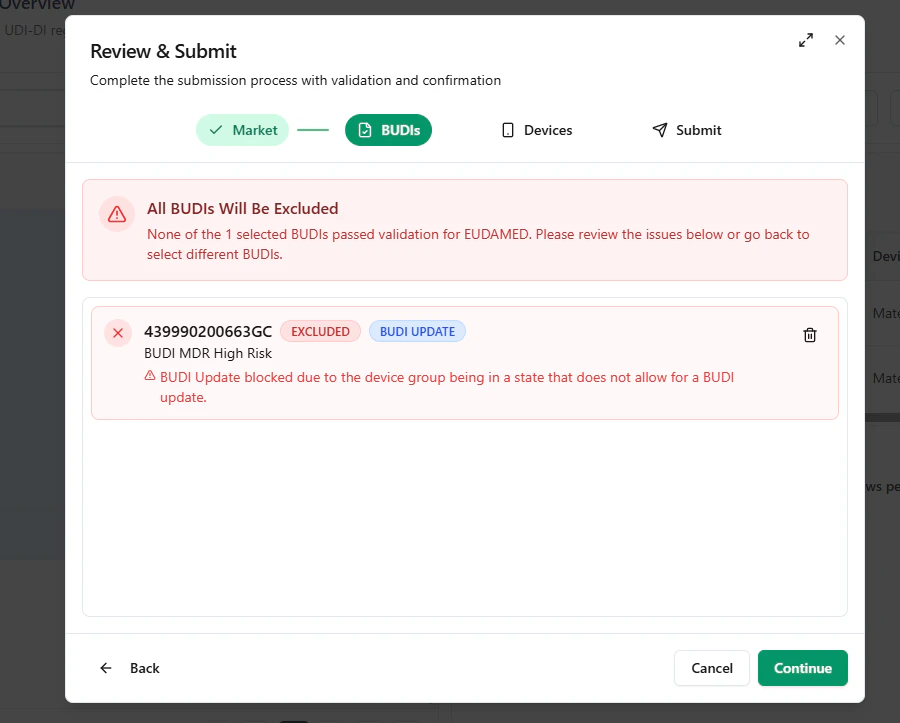
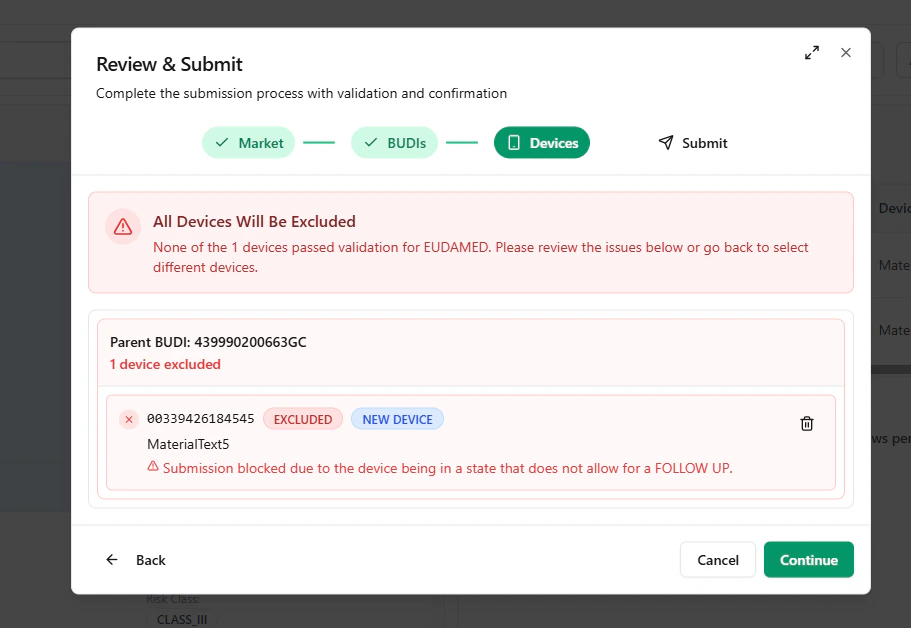
UDI Hub can validate mixed selections (BUDIs and/or devices).If some items cannot be submitted (e.g., invalid status or rule violations), the modal highlights them as excluded.
Blocked BUDI example
Blocked device example
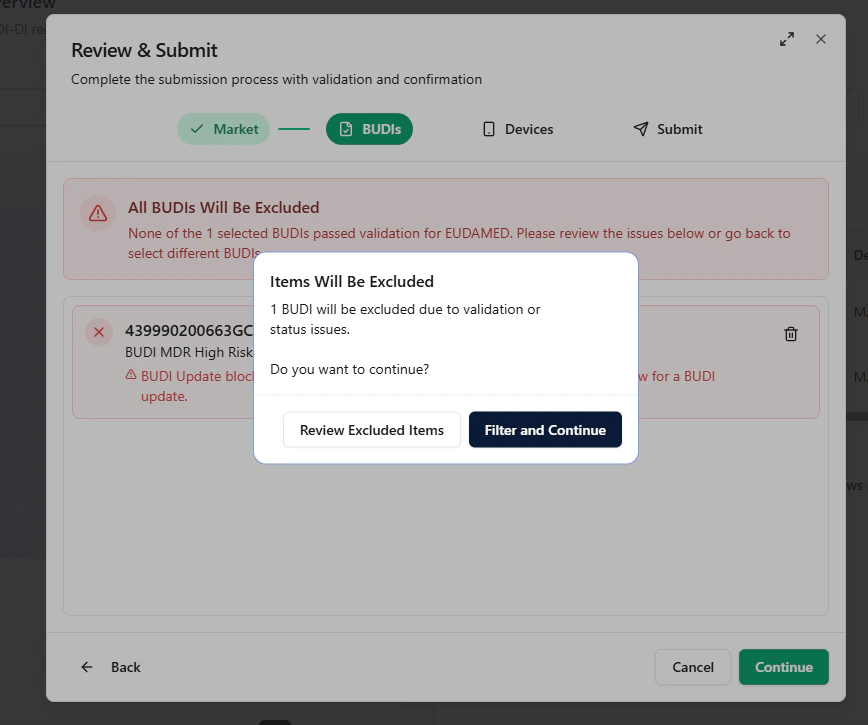
- Review Excluded Items (inspect the issues), or
- Filter and Continue (proceed only with valid items)
Important note: High Risk devices with certificates (feature gap)
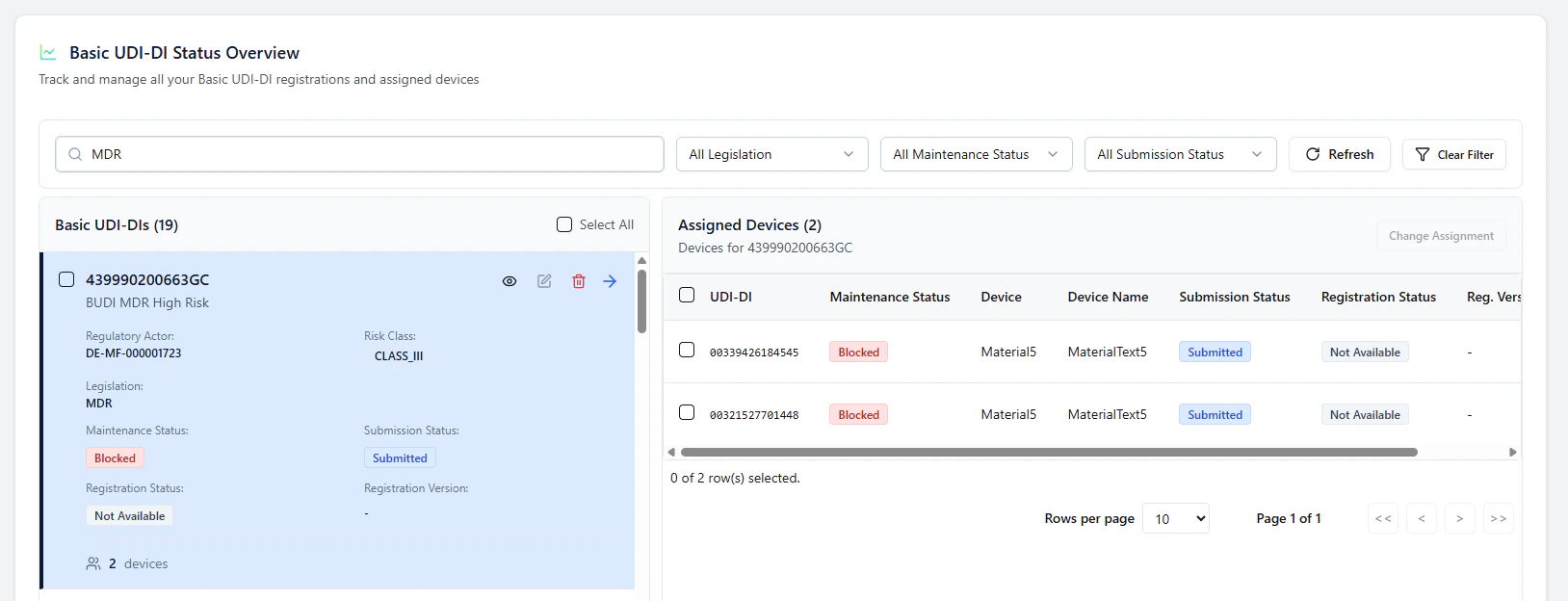
For Basic UDI-DIs / devices where certificates are provided and a Notified Body approval is required, the end-to-end status synchronization is not fully implemented yet. Current behavior:- the item may remain in Submitted
- follow-up updates may be blocked until the authoritative status is retrieved
- a GET Device Status feature to pull the final status back into UDI Hub automatically
Known limitation
If certificates / Notified Body approval are involved, UDI Hub may currently not transition items from Submitted to Published automatically.
This can prevent subsequent updates until status retrieval is available.
This can prevent subsequent updates until status retrieval is available.
Submission types & concepts (cheat sheet)
Tip
For an INITIAL registration, decide early whether you want to submit all devices at once (managed via waitlisting) or in smaller follow-up batches.
Until performance improvements are complete, stay below 500 devices per submission for best reliability.
Until performance improvements are complete, stay below 500 devices per submission for best reliability.