

Overview
The Import Data (Upload and Import Data) section in UDI Hub allows you to upload, pre‑validate, and import Excel templates into the system.This is the central point for managing your UDI data entry process — from initial validation to the final import into the productive database. The purpose of this area are two‑steps:
- Upload – Validate and review data before committing it to the system.
- Import – Transfer validated and compliant data into the UDI Hub database.
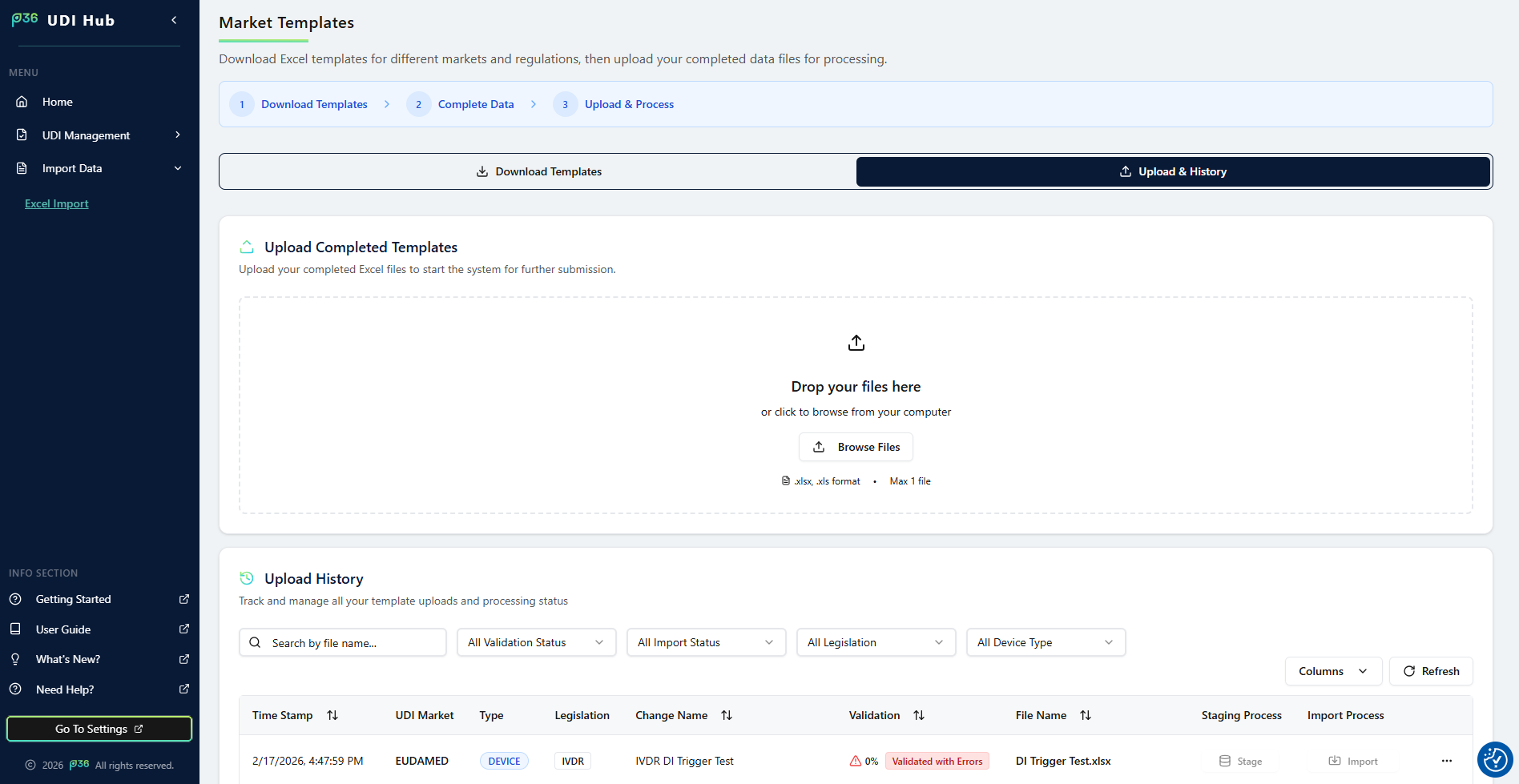
Upload Area
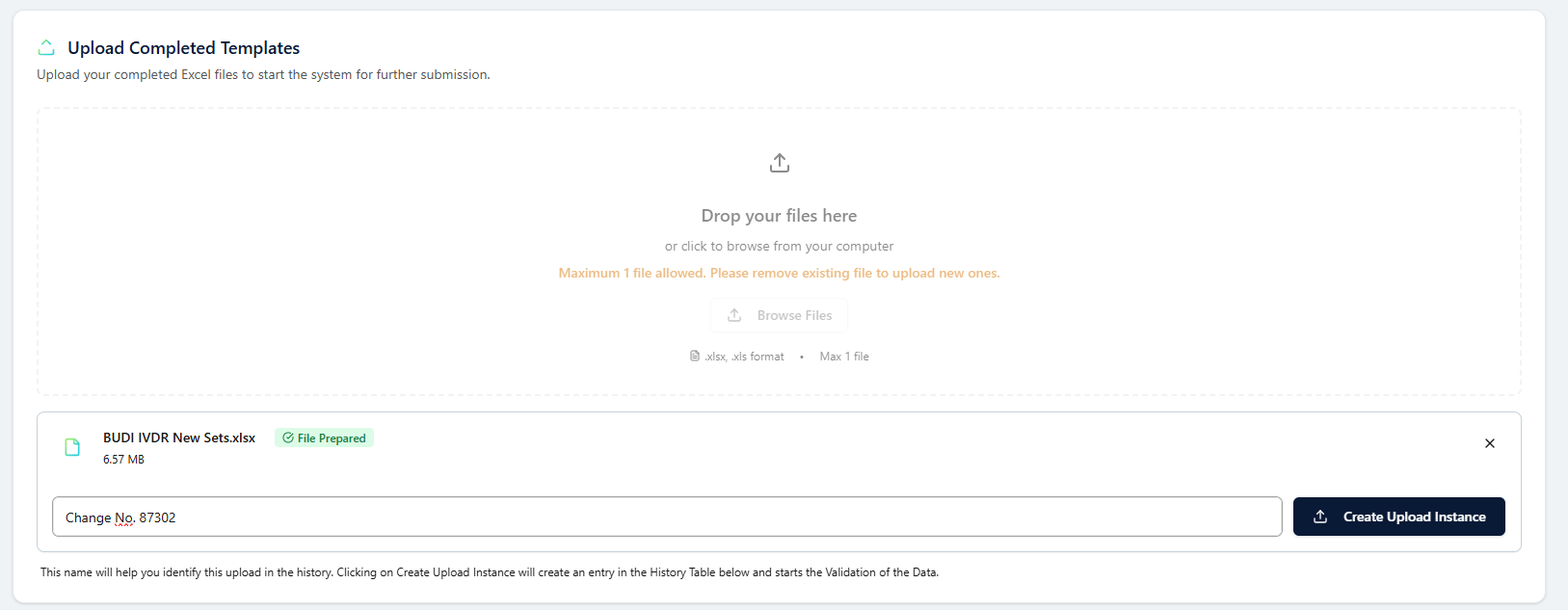
At the top of the page, you will find the upload zone.Here you can drag and drop your prepared Excel file (e.g., Device or Basic UDI‑DI template). After a file has been dropped:
- You can add a Change Name — a custom label that helps track modifications and provides clear traceability in the history log.
- Click Generate Instance to create a new upload instance.
This step triggers an entry in the Upload History table below.
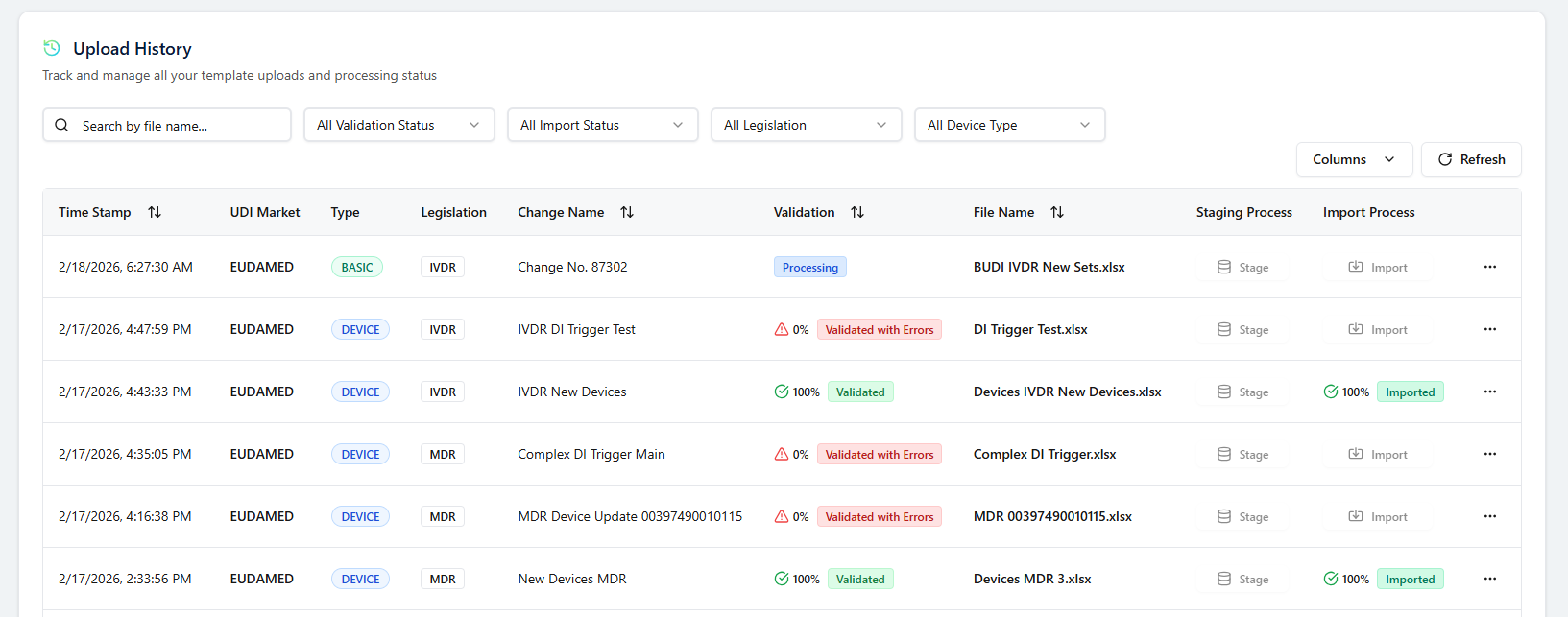
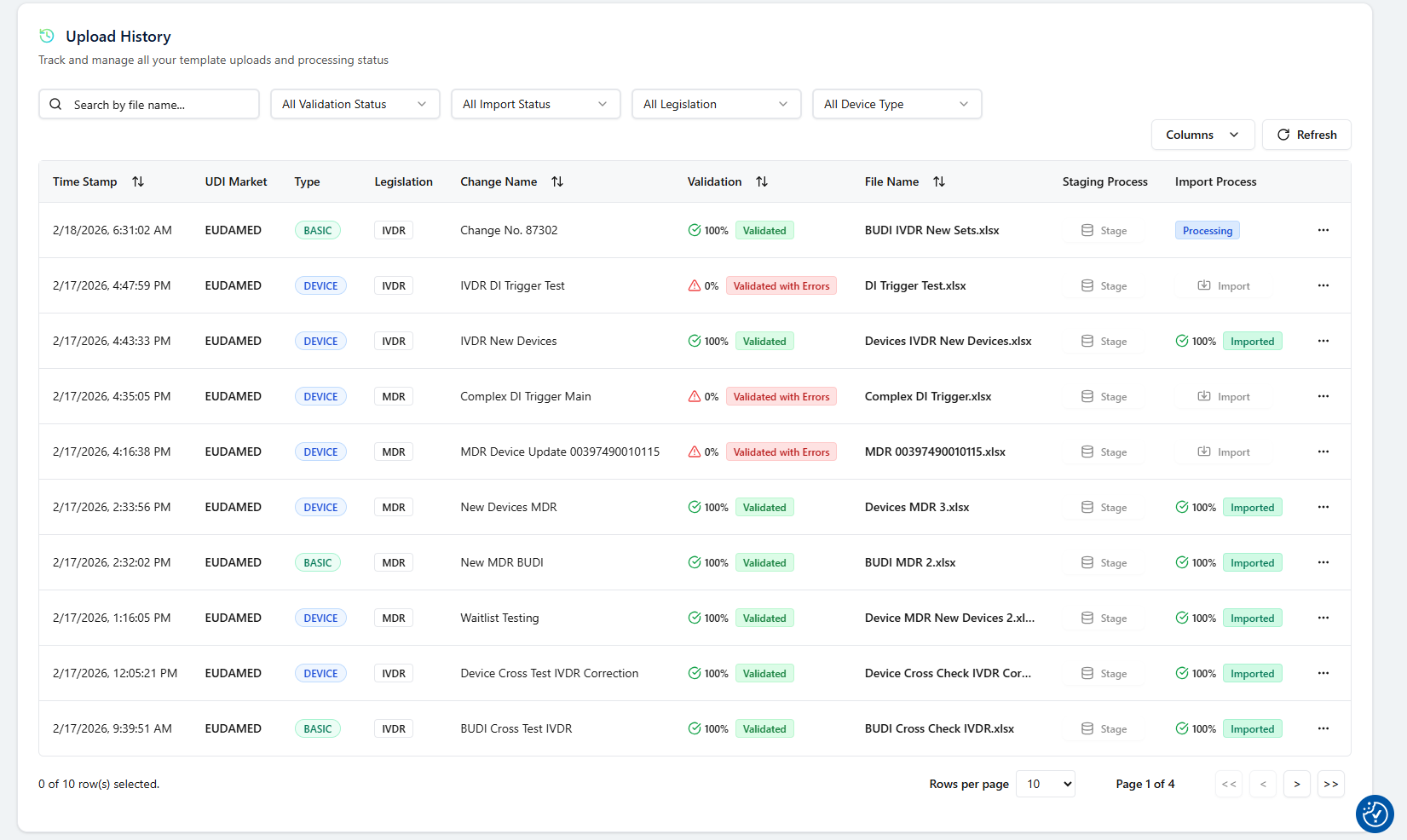
- Processing… – The uploaded data is being checked.
- Validated – All business rules and mandatory fields are fulfilled.
- Validated with Errors – The file contains errors or missing data that must be corrected.
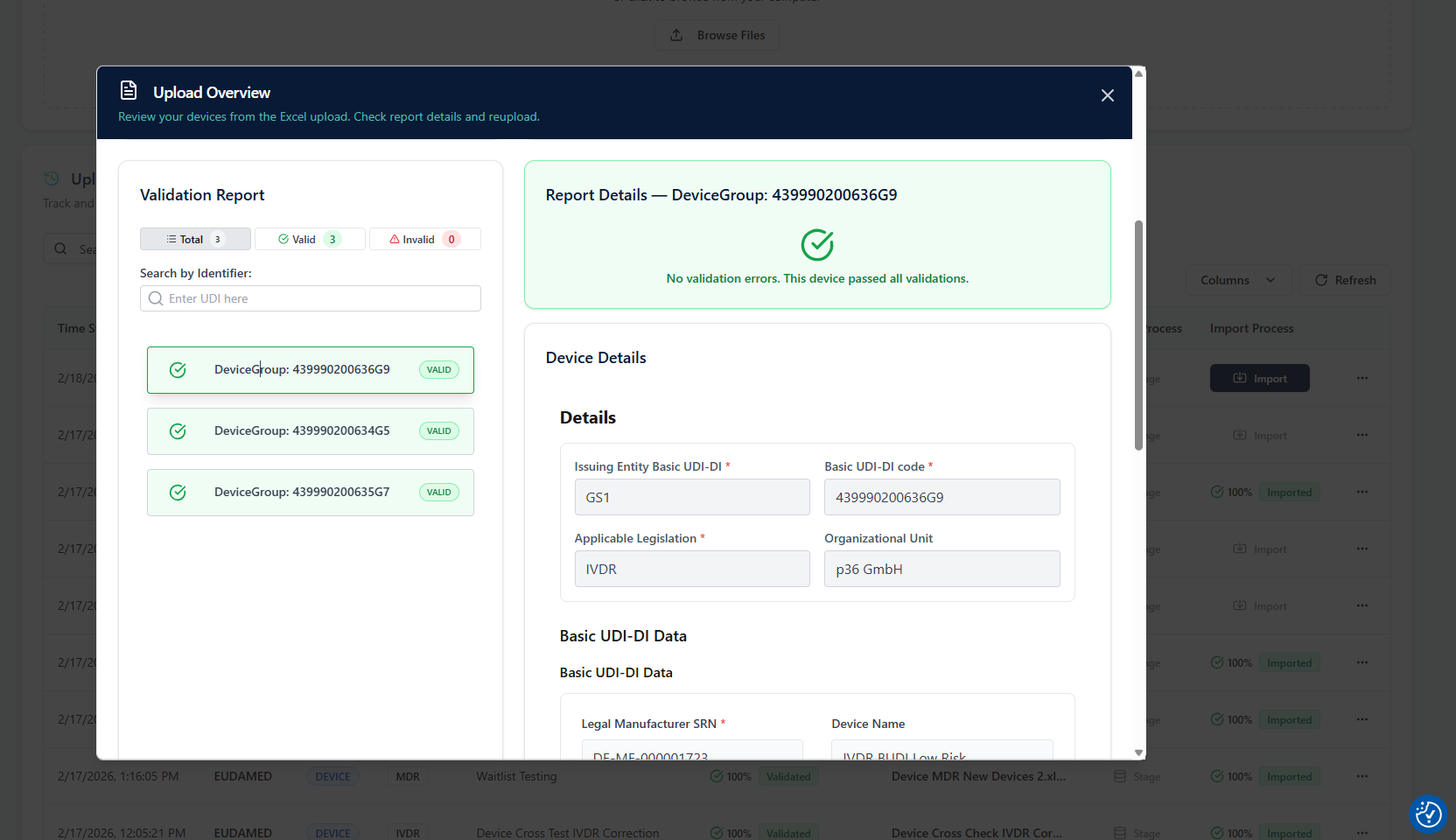
Validation Results and Error Review
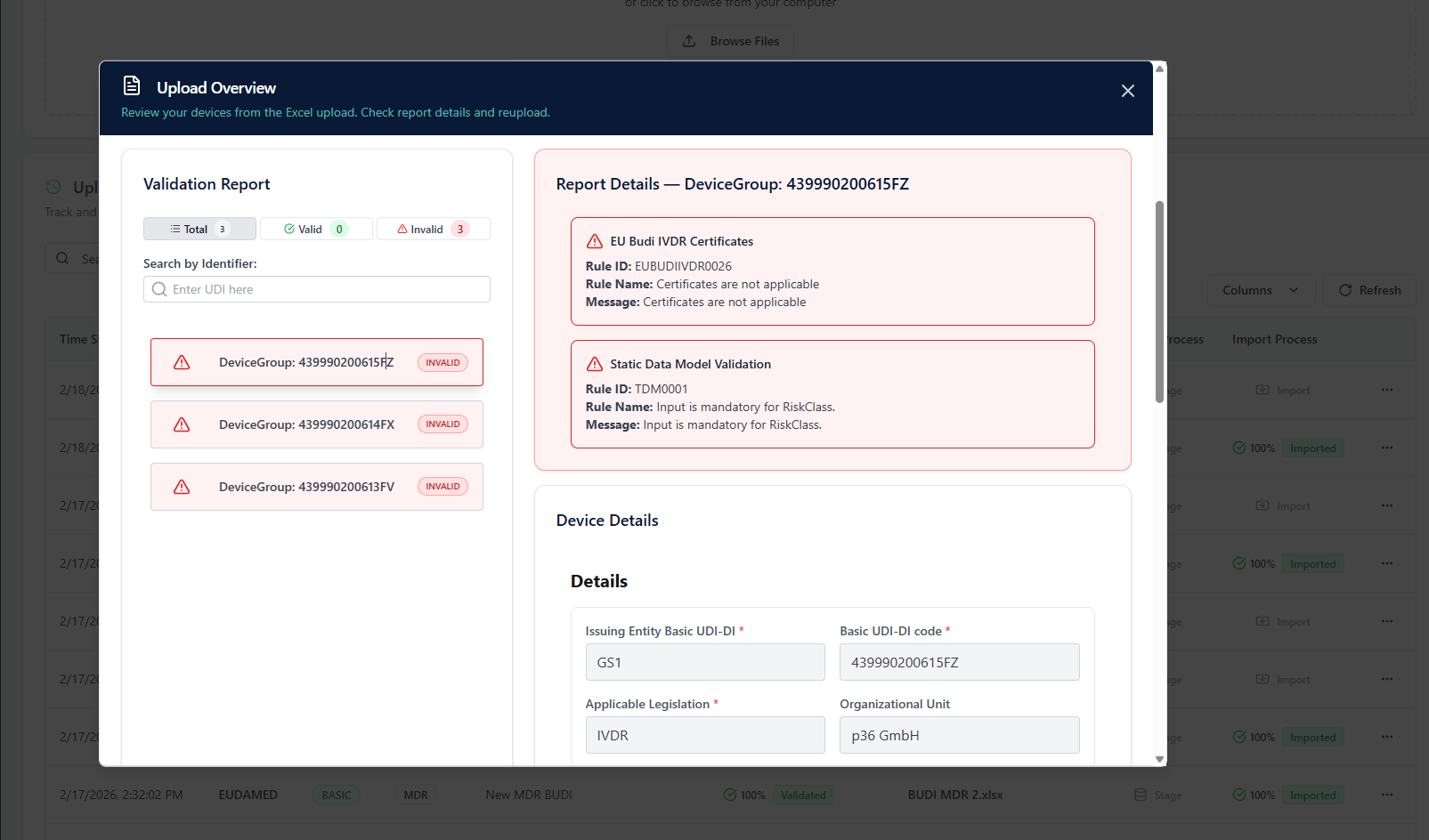
When validation is completed, you can click on the status (e.g., Validated with Errors) to open detailed feedback. You will see a list of all identifiers included in the uploaded file, categorized into:- Valid – entries that passed validation and are ready for import.
- Invalid – entries that failed mandatory or business‑rule validations.
Below that, the Details section lets you review all data values that will be written into the system.
This enables quick iteration and revalidation without losing historical traceability. In the header, the uploaded file name (e.g.,
Name.xlsx) appears as a blue, clickable link — allowing you to download exactly the file that was uploaded.You can also adjust the Change Name later if needed for better documentation.
Import Process
Once a dataset is fully validated and has no remaining errors, the Import Process button becomes active in the Upload History list. Clicking Import transfers the validated data into the UDI Hub system.At this stage, the data becomes visible and usable under UDI Management.
Until the import is completed successfully, uploads don’t create or change data within the system.
Upload vs. Import — What Happens in Each Step
Before data becomes part of the UDI Hub database, it goes through two separate stages: Upload and Import.Upload
During Upload, the system extracts and validates data from the Excel file and stores it as an upload instance in the database.However, this step does not yet generate a data record or version in the productive Data Management area. To support data entry, each Excel template provides three built‑in user aids:
- Each column header includes a short description that explains the purpose of the field.
- A red asterisk (*) marks mandatory fields that must always be filled in for successful validation.
- Bold column headers indicate DI Triggers — fields that, when changed, can trigger a new version after publication.
- During upload, validation runs against the UDI Hub data model, ensuring correct structure, field formats, and mandatory or dependent mandatory fields.
- DI Trigger rules are checked to ensure no restricted updates after publication.
- It also applies business rules defined in the internal validation rule catalog aligned with authority requirements.
- Since no active record or version is created yet, users can safely delete or replace an upload instance if data needs to be corrected.
Import
Once a file has been successfully validated, the Import step transfers its content into the productive data layer, creating a new version of the data.At this point, the data becomes active and visible within UDI Management.
- Before import, a brief re‑validation ensures the file still aligns with the current data model (important if changes occurred since the initial upload).
- The import focuses on system integrity and process control, including:
- Ensuring that referenced Basic UDI‑DIs already exist before device data is imported.
- Blocking imports if an existing record (e.g., a device) is still in process or submission, to prevent inconsistencies between UDI Hub and external authority systems.
- Only after all checks pass is the data written as a new version to the system.
Upload History Table
Deleting an unimported instance ensures that no outdated files remain in the system and that change logs stay consistent.
Change Tracking and Re‑Uploads
Every upload generated in UDI Hub is stored with its timestamp and change name for complete traceability.When multiple uploads for the same dataset occur, the latest instance replaces earlier versions but keeps the historical log for auditing. If a correction file is uploaded, the system automatically re‑validates it and updates the status accordingly.
This ensures that validation feedback is always based on the current version of your Excel file.
Tip
Use the Upload step to validate your data early in the process.
By detecting and correcting issues ahead of time, you can avoid last‑minute delays, ensure smoother imports, and maintain reliable data quality across long‑term cycles.
By detecting and correcting issues ahead of time, you can avoid last‑minute delays, ensure smoother imports, and maintain reliable data quality across long‑term cycles.