

Overview
The Manage Devices section in UDI Hub provides a comprehensive overview of all imported and validated device records.It allows users to track maintenance, submission, and registration statuses for each individual UDI‑DI and manage lifecycle actions such as corrections, reviews, and deletions. While devices are automatically linked to their corresponding Basic UDI‑DI, this area focuses on individual device entries and their regulatory progress within the system.
This view helps users ensure data integrity, identify failed submissions, and monitor compliance readiness for each item.
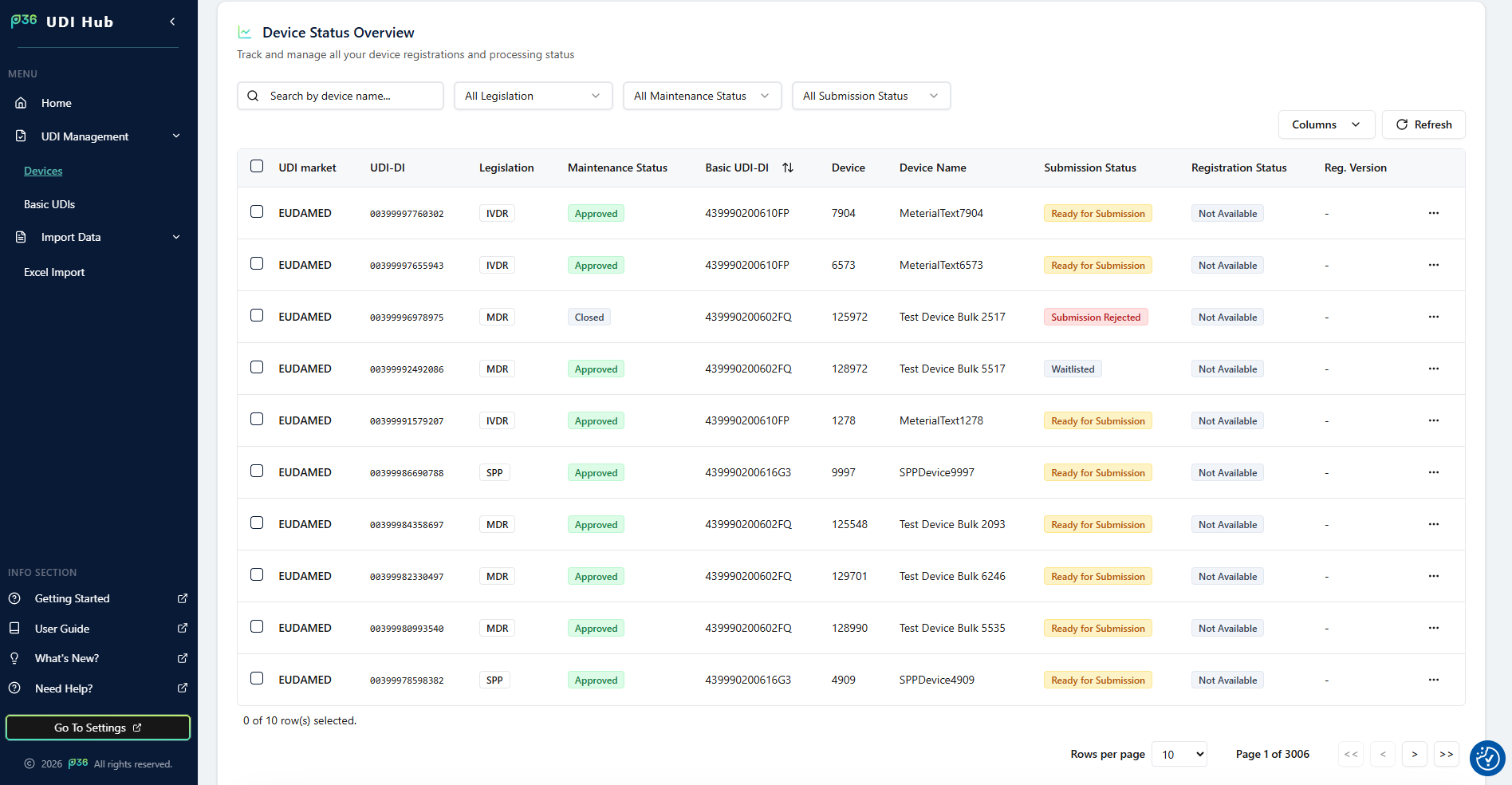
Device Overview Table
All device entries are displayed in a tabular layout, providing a quick and detailed insight into all available records. Each row represents one device and contains the following main columns:- UDI Market – Market or authority to which the device applies (currently EUDAMED).
- UDI‑DI – Device identifier as listed in the imported Excel file.
- Legislation – Shows the regulation type such as MDR or IVDR.
- Basic UDI‑DI – The parent Basic UDI‑DI the device belongs to.
- Device / Device Name – Internal identifier and descriptive name of the device.
- Maintenance Status – Displays the current system state of the dataset.
- Submission Status – Indicates the current submission stage.
- Registration Status – Displays whether the device has been successfully registered.
- Reg. Version – Shows how many times the device registration has been updated.
Status Indicators
Devices share the same core status concepts as Basic UDI‑DIs, providing consistent tracking across both levels.Maintenance Status
Defines the current data lifecycle of the device record within the system.- Draft - Will be implemented later for in app edit functionalities.
- Approved – The device has passed validation and is ready for submission (set automatically after import).
Submission Status
Shows progress in the submission workflow:- Ready for Submission – The Basic UDI‑DI can be submitted to the authority.
- In Progress – Submission has been triggered.
- Error – A submission error occurred; details are available in the submission tab.
- Published – Submission has been successfully processed and is accepted by authority.
Registration Status
Indicates the registration result within the authority database:- Not Available – Not yet submitted or registered.
- Published – Successfully registered and published.
- Updated – A previously registered device has been updated successfully.
Registration Version
Displays how many successful registrations or updates exist for the device.This number helps users identify revised data versions and ensures traceability over time.
Detail View and Data Tabs
To review and manage the details of a device entry, click the eye icon at the end of a row.This opens the Device Details modal that contains all device‑specific information divided into three tabs.
1. Device Data
Displays the complete dataset as imported from the Excel template, including all validated attributes such as identifiers, manufacturer SRN, reference numbers, classification, and physical properties.This view represents the active version of the data currently stored in UDI Hub.
2. Submission Status
Shows the current submission process and any associated feedback from the authority.Users can check when a submission was triggered, monitor its progress, and review authority response messages or error details when applicable.
3. Change Log
Provides a complete audit trail of changes for this device, including timestamps, responsible users, and prior version information.Older data versions remain available for traceability and audit purposes.
Delete Function
A device entry can be deleted only under specific compliance conditions:- The device has not yet been successfully submitted or registered with an authority.
- It is not linked to any higher dependencies that would cause traceability conflicts.
Working With Product Groups
Although the Manage Devices table focuses on individual device entries, the system maintains a clear link between Basic UDI‑DIs and their corresponding devices.This connection allows users to:
- Filter and review devices per Basic UDI‑DI.
- Identify product‑group‑level issues quickly (e.g., if several related devices show the same error status).
- Maintain group consistency by aligning maintenance and submission activities across all connected devices.
Tip
Use the Manage Devices view to monitor the health of your device data portfolio.
By regularly reviewing validation and registration statuses, you can identify issues early, ensure group consistency with linked Basic UDIs, and keep your product data always submission‑ready or closed.
By regularly reviewing validation and registration statuses, you can identify issues early, ensure group consistency with linked Basic UDIs, and keep your product data always submission‑ready or closed.