1
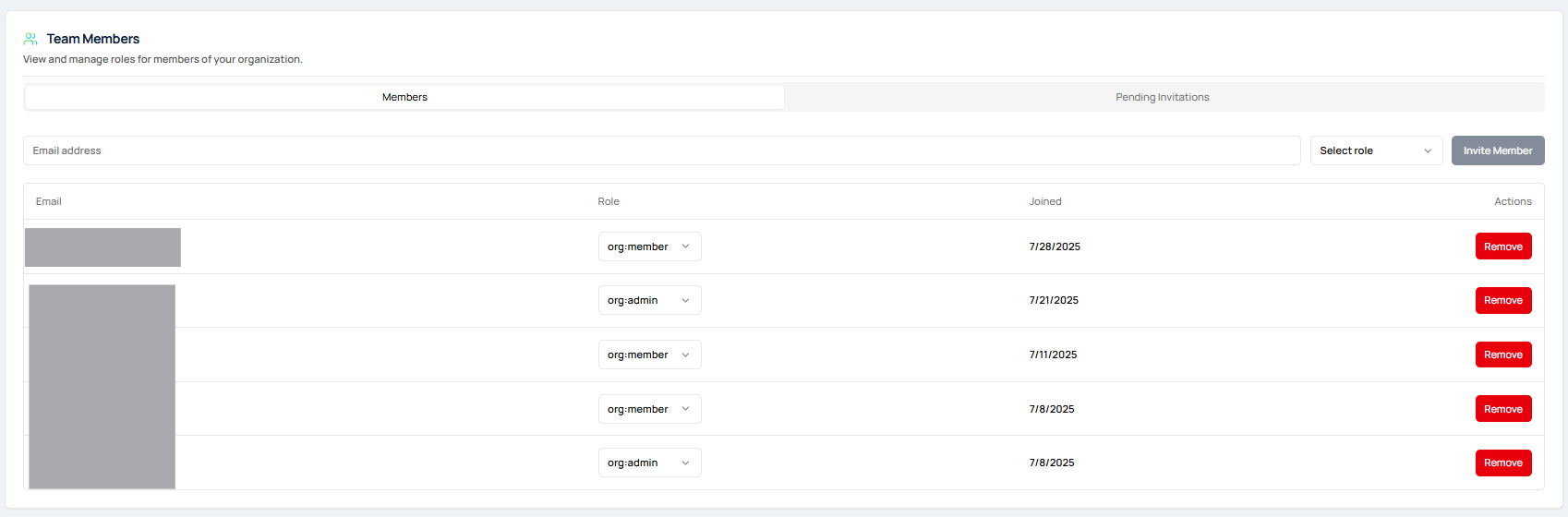
1. Go to Team Settings
- Navigate to the Settings section in the sidebar.
- Click on Team to view and manage your organization’s members.
2
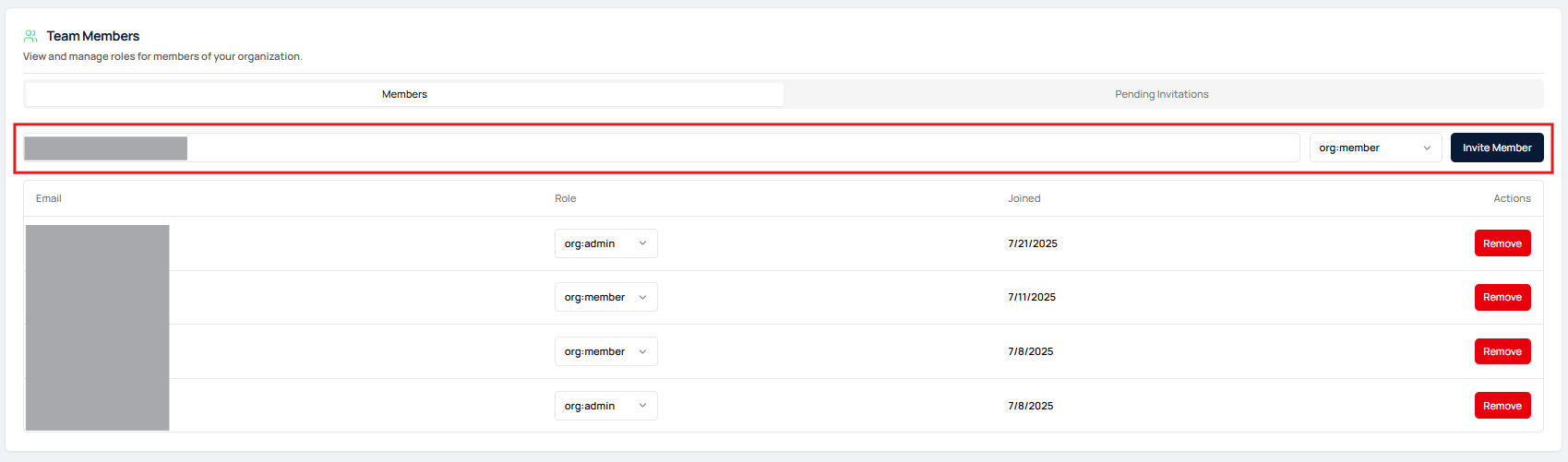
2. Enter Member Details
- In the Team Members section, enter the email address of the person you want to invite.
- Select the appropriate role (org:member or org:admin) from the dropdown.
- Once both fields are filled, the Invite Member button becomes active.
3
3. Send Invitation
- Click Invite Member to send the invitation.
- The invited user will receive an email with a link to join your organization.
4
4. Manage Pending Invitations
- Pending invitations appear under the Pending Invitations tab.
- You can resend the invitation by clicking Resend or cancel it by clicking Cancel if needed.

5
5. Accept Email Invitation
- The invited user needs to click on the link in the email invitation.
- Please check your SPAM folder if you don’t see it in your usual inbox.
- The link will open a screen to set up a password.
- After setting up an account, they are redirected to the application.
6
6. Member Joins Organization
- Once the invited user accepts the invitation, they will appear under Members.
- The new member now has access to the system according to their assigned role.