

Overview
The EUDAMED Test Submission automates the submission test process to simplify onboarding.Once the key data — SRN, Role, Regulatory Actor, and Security Token — are available, the system can execute a background test submission using a predefined payload.
This minimizes manual effort and ensures that the required Proof of Testing is automatically generated.
1
Add Economic Operator
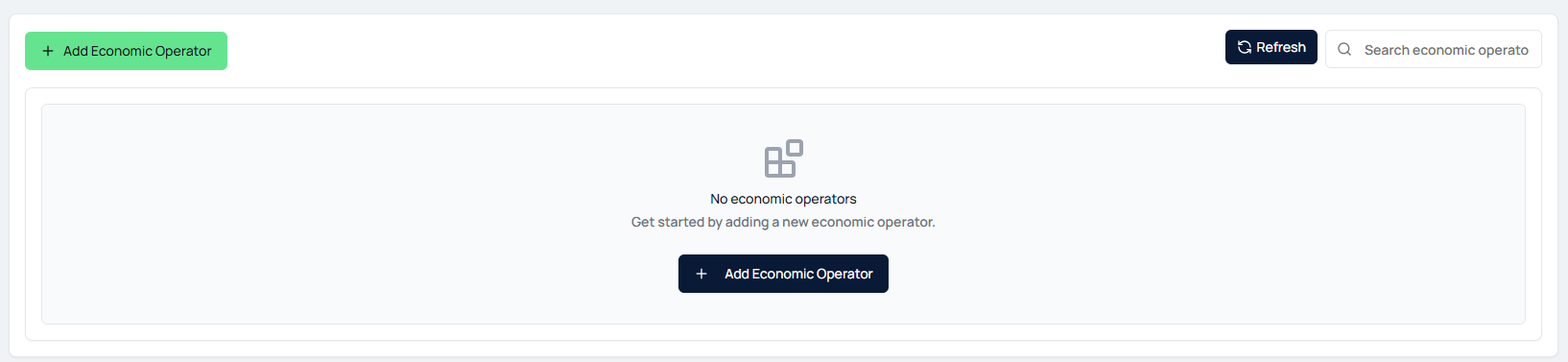
- Start by navigating to the EUDAMED Test Submission section.
- If no economic operators are available yet, click Add Economic Operator to create a new entry.
2
Enter Actor Details
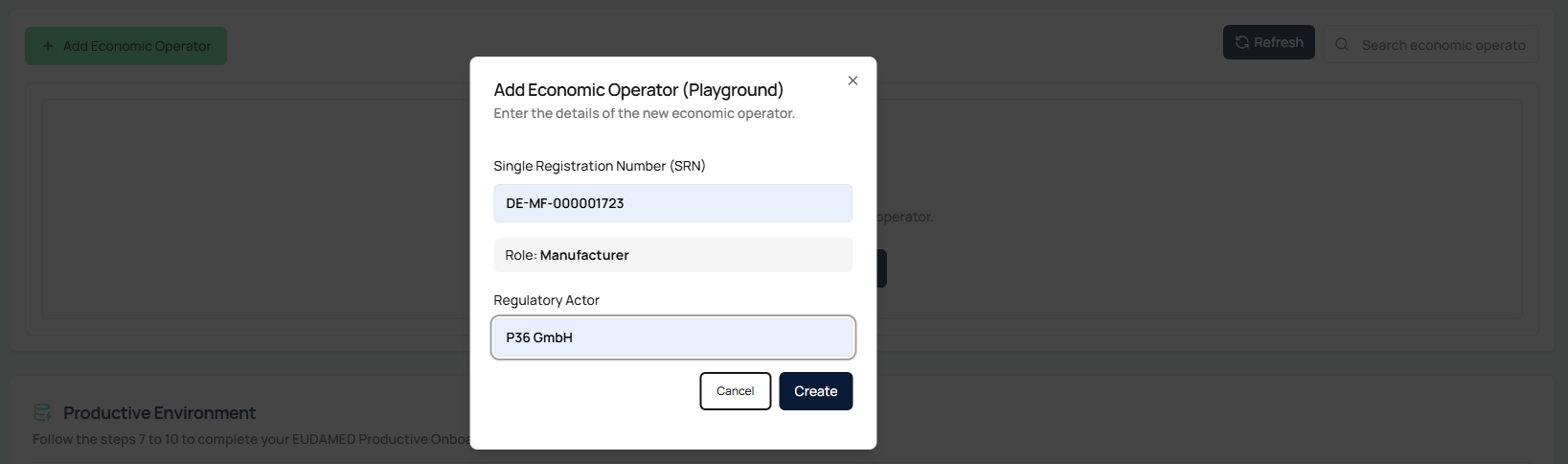
- In the pop-up window, provide the following:
- Single Registration Number (SRN)
- Role (e.g., Manufacturer, System and Procedure Pack Producer)
- Regulatory Actor Name
- Ensure that all information matches the data registered in EUDAMED.
We check the SRN format and country code to define if an Authorized Representative needs to be added as well. System and Procedure Pack Producer outside of EU do not need an Authorized Representative, only manufacturers need to comply.
3
Add Authorized Representative (if applicable)
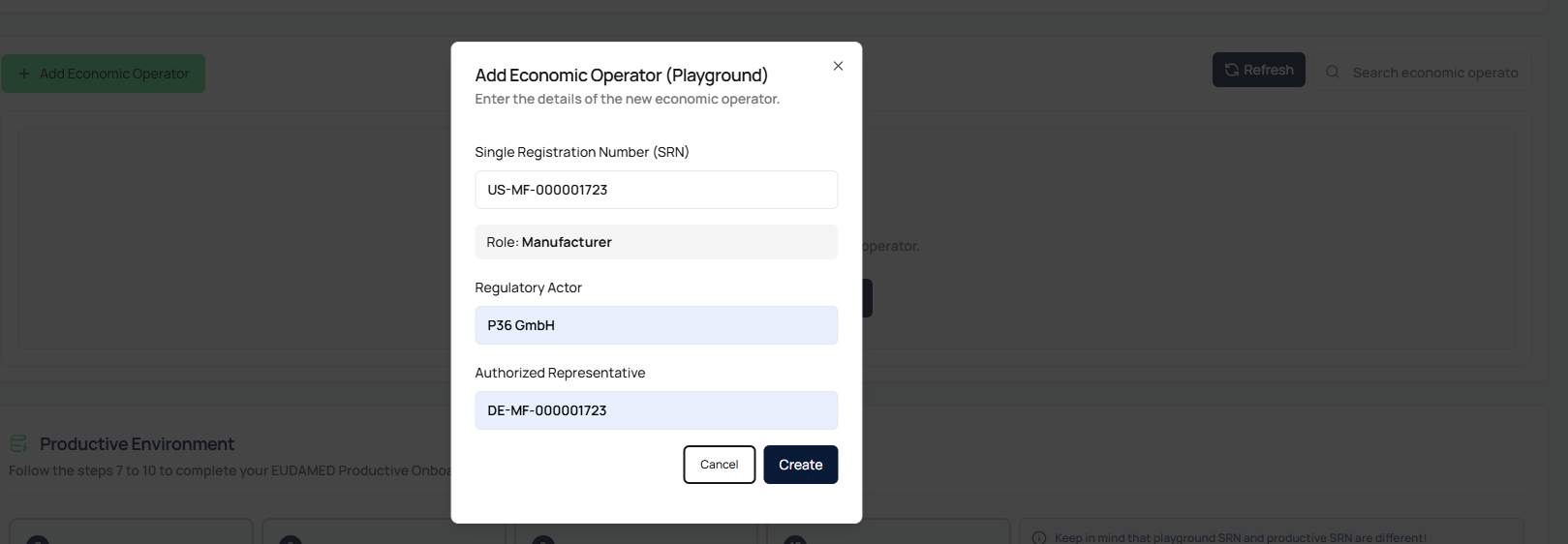
- When adding an actor outside the EU, an additional field for Authorized Representative will appear automatically.
- Enter the SRN of the EU-based Authorized Representative.
- This information is mandatory for non-EU operators.
We check the SRN format and only allow european country codes used for Authorized Representative.
4
Provide Security Token
- After successfully adding the actor, a table entry will appear.
- Paste the EUDAMED Playground Security Token for the corresponding SRN into the designated field.
- The token is securely stored in the background and not visible afterwards.

5
Execute Test Submission
- Once the token is entered, the Test Submission button becomes active.
- Click the button to start the automatic submission.
- The button will display:
- Submission in Progress while running
- Successful (green) once the process completes successfully

6
Download Proof of Testing
- After a successful test submission, the system will automatically generate a Proof of Testing document.
- You can download this document directly from the interface.
- It serves as a prerequisite for configuring the access point in the Productive EUDAMED environment.

7
Handle Errors and Re-run
- If a submission fails, you can correct the SRN or Security Token in the Actions menu.
- After updating the details, restart the test submission process.