1
Go to API Keys
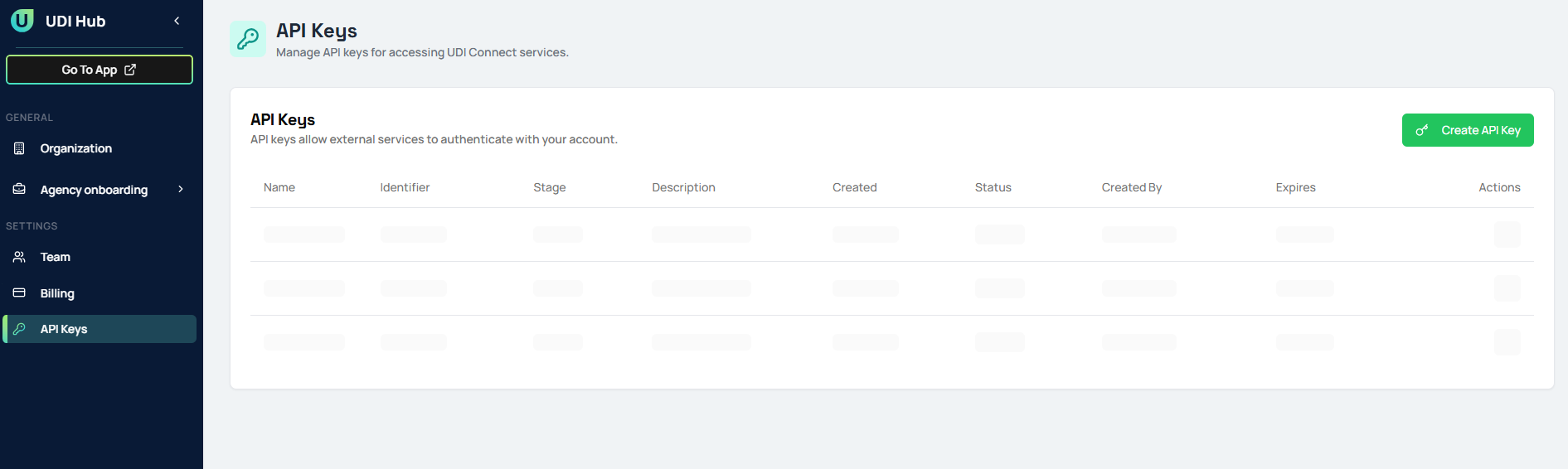
- In the sidebar, navigate to API Keys under the Settings section.
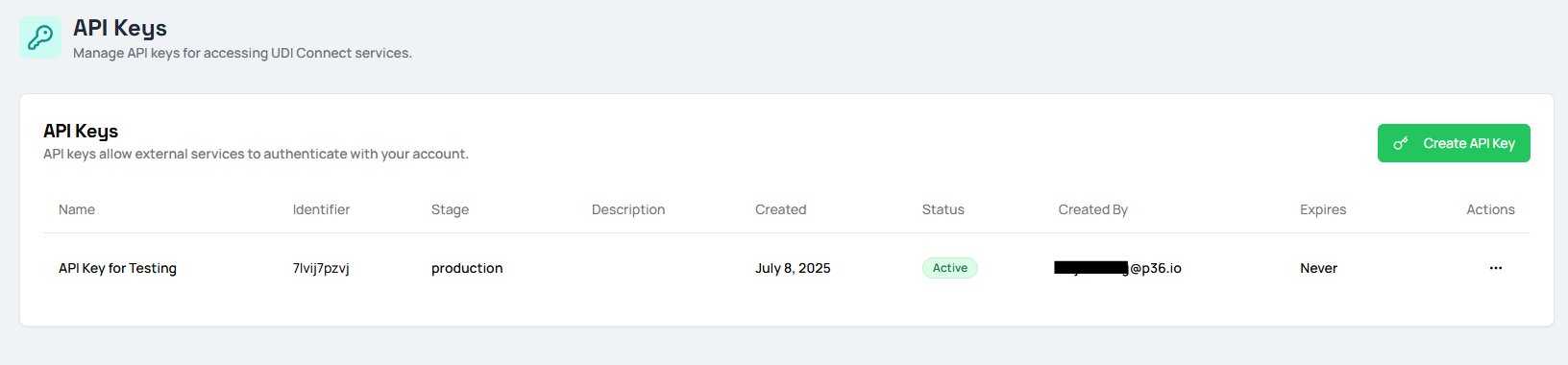
- Here you can view and manage all API keys for your organization.
2
Create a New API Key
- Click the Create API Key button in the top right corner.
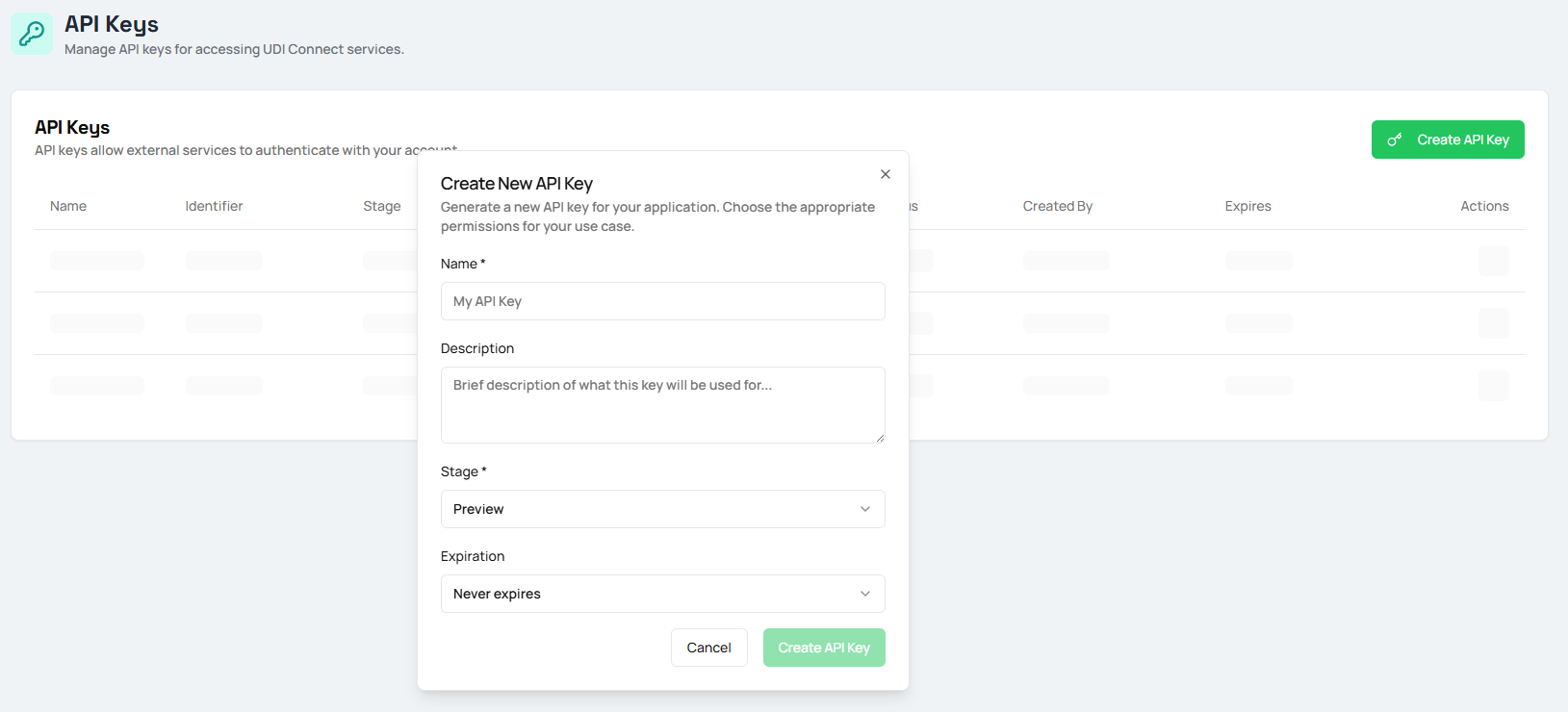
- A dialog will appear to enter details for your new API key.
3
Enter API Key Details
- Enter a Name for your API key.
- Optionally, add a Description for what this key will be used for.
- Select the Stage (e.g., Preview, Production).
- Set an Expiration if desired, or leave as “Never expires”.
- Click Create API Key to generate the key.
4
Copy and Store Your API Key
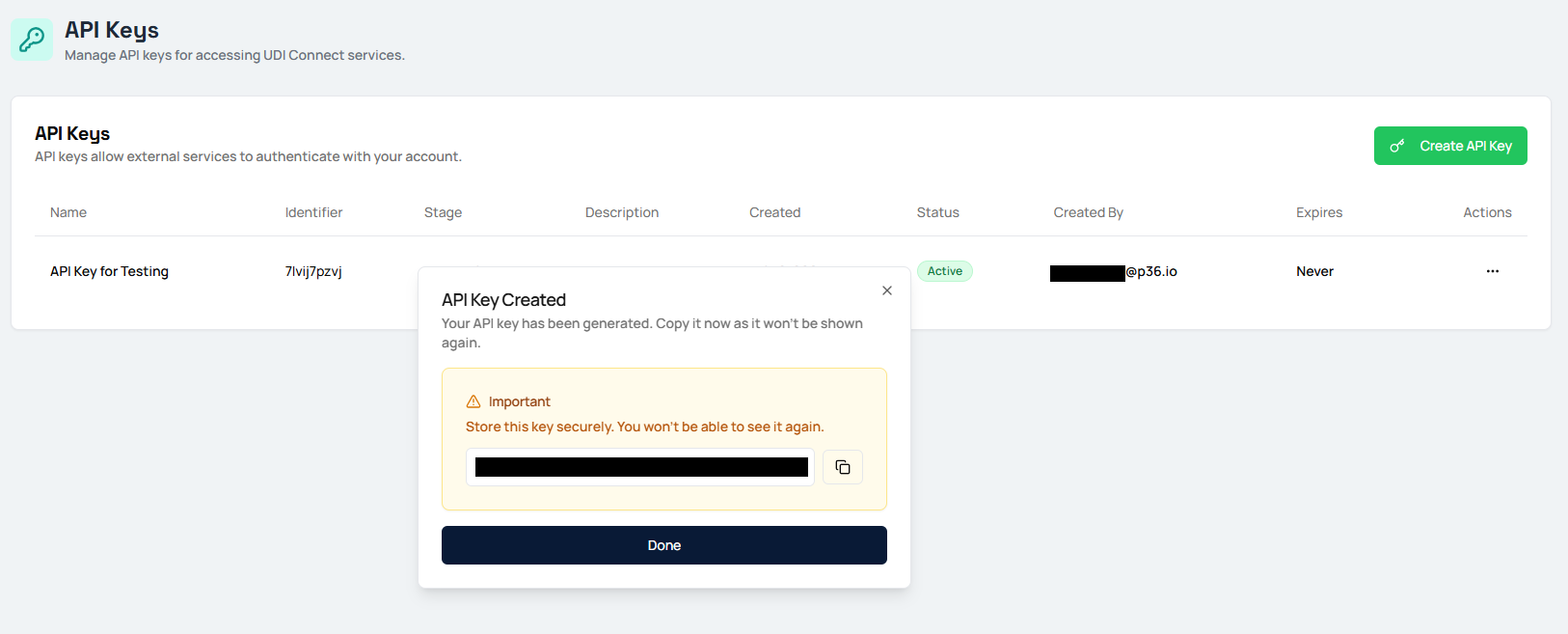
- Once the key is generated, a popup will display your new API key.
- Click Done to finish.
Important: Copy and store this key securely. You will not be able to see it again after closing the popup.
5
Use Your API Key
- After closing the popup, your API key will appear in the list of API keys.
- Use this key for authenticating and authorizing your API requests with UDI Connect.
6
Manage Multiple API Keys
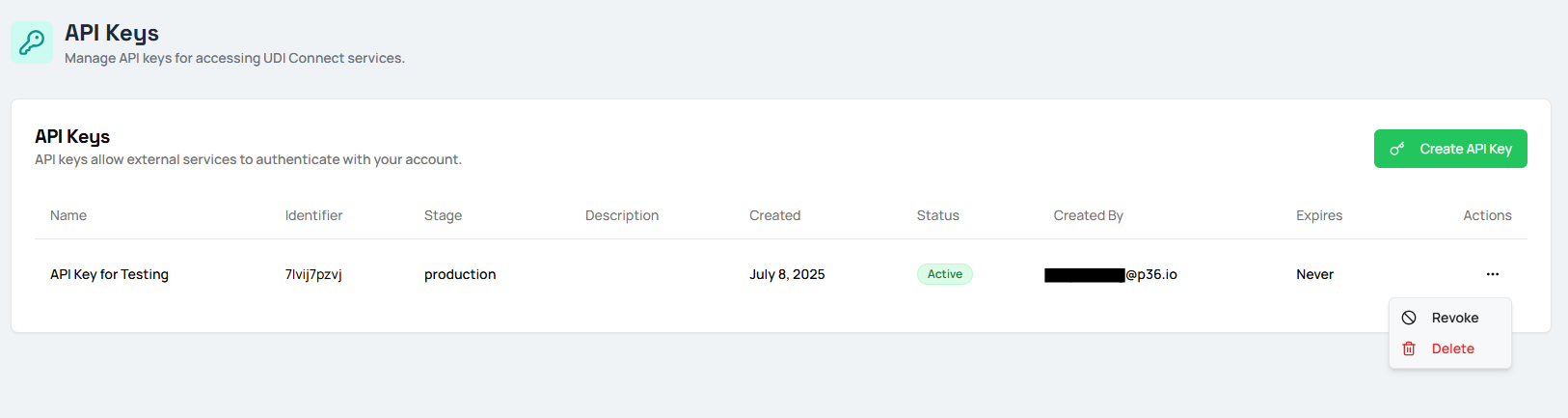
- You can generate and manage multiple API keys for different use cases or environments.
- Each key can be revoked (temporarily disable) or deleted (permanently remove) from the Actions menu.