> ## Documentation Index
> Fetch the complete documentation index at: https://docs.udiconnect.io/llms.txt
> Use this file to discover all available pages before exploring further.
# Import Data (Upload and Import Data)
> Learn how to upload, validate, and import Excel data files in UDI Hub, including version handling, error management, and import logic.
## Overview
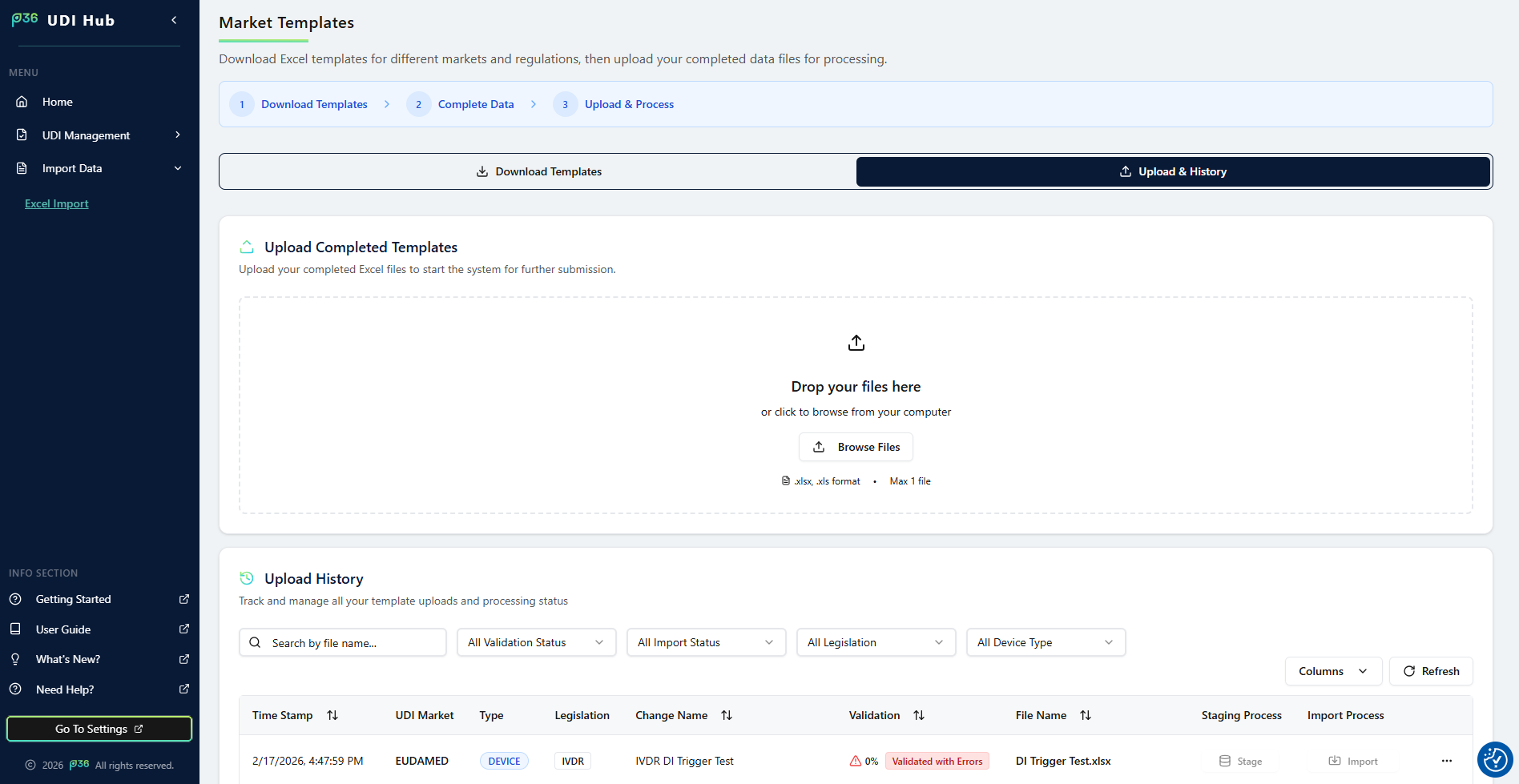
The **Import Data (Upload and Import Data)** section in **UDI Hub** allows you to upload, pre‑validate, and import Excel templates into the system.\
This is the central point for managing your UDI data entry process — from initial validation to the final import into the productive database.
The purpose of this area are two‑steps:
1. **Upload** – Validate and review data before committing it to the system.
2. **Import** – Transfer validated and compliant data into the UDI Hub database.
Validations are performed to ensure that all mandatory information is provided, data follows business rules defined by the authorities, and that relationships between Basic UDI‑DIs and Devices remain consistent.
 ***
## Upload Area
At the top of the page, you will find the **upload zone**.\
Here you can drag and drop your prepared Excel file (e.g., Device or Basic UDI‑DI template).
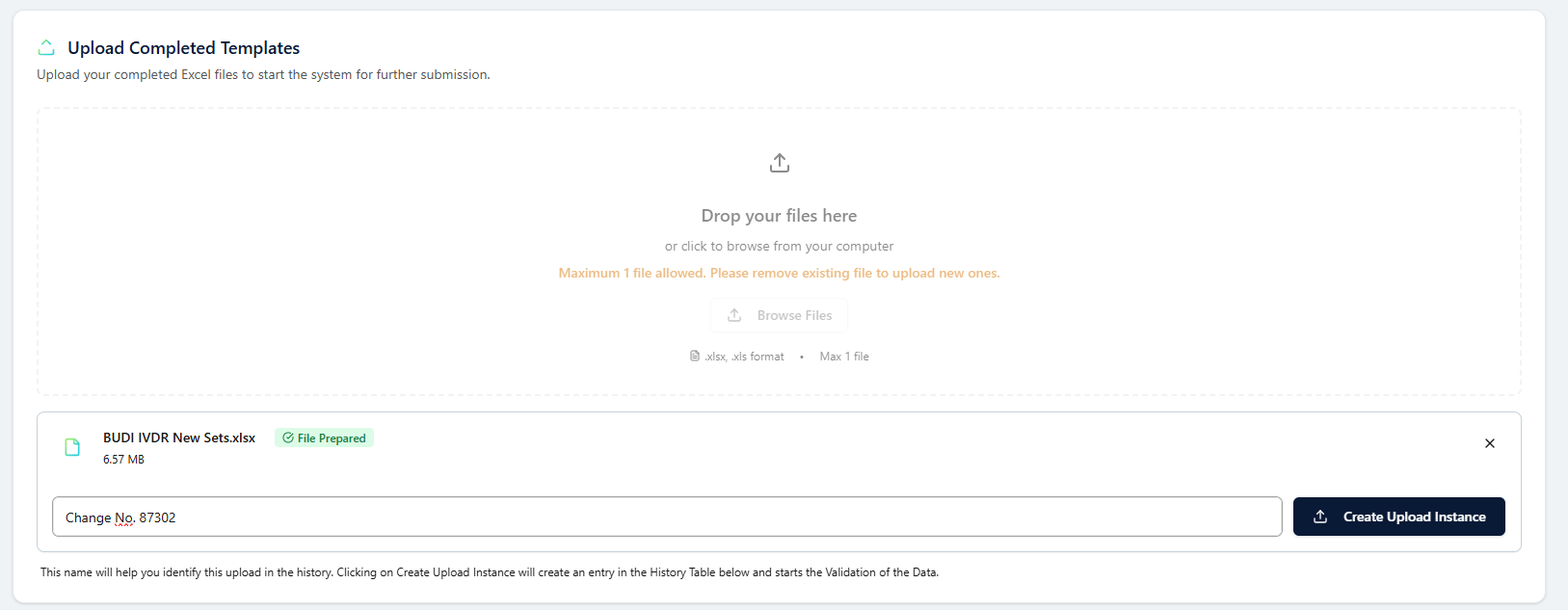
After a file has been dropped:
1. You can add a **Change Name** — a custom label that helps track modifications and provides clear traceability in the history log.
2. Click **Generate Instance** to create a new upload instance.\
This step triggers an entry in the **Upload History** table below.
***
## Upload Area
At the top of the page, you will find the **upload zone**.\
Here you can drag and drop your prepared Excel file (e.g., Device or Basic UDI‑DI template).
After a file has been dropped:
1. You can add a **Change Name** — a custom label that helps track modifications and provides clear traceability in the history log.
2. Click **Generate Instance** to create a new upload instance.\
This step triggers an entry in the **Upload History** table below.
 Once the instance is generated, the system automatically starts the **validation process**.
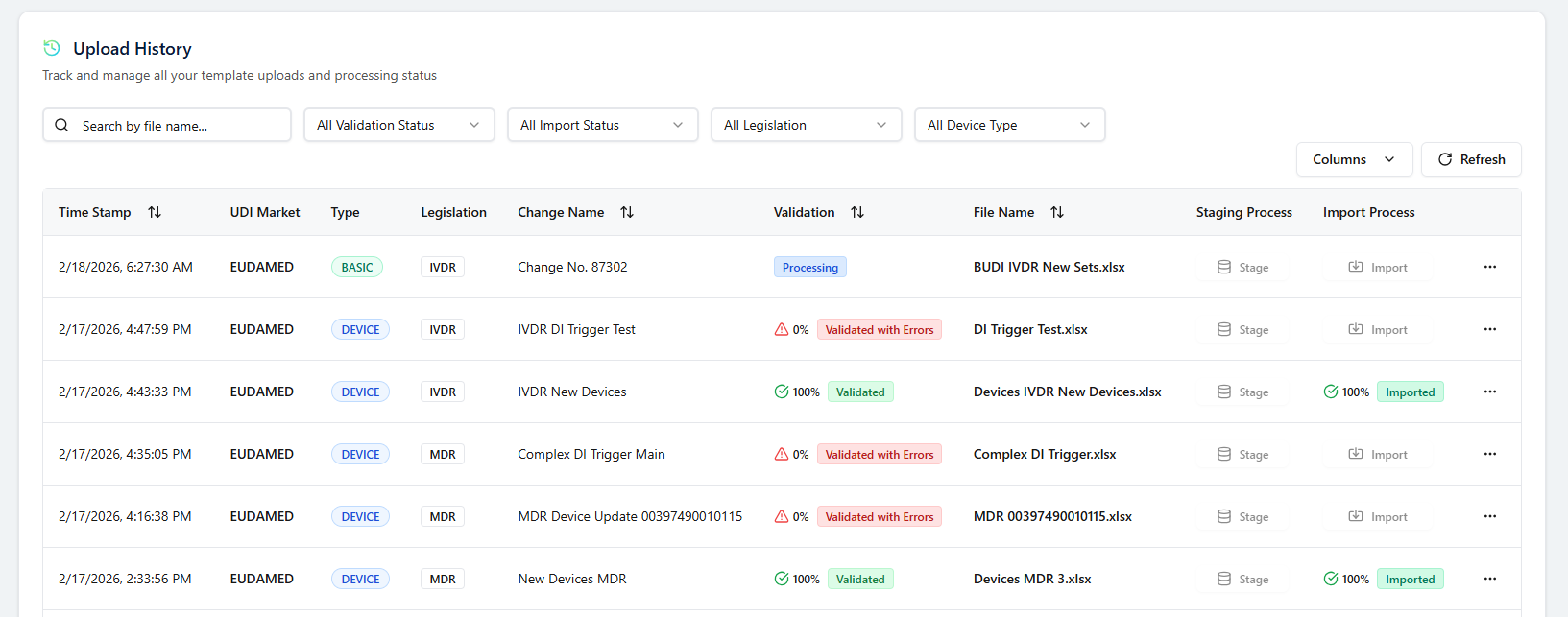
In the **Validate** column, you will see the current validation status:
* **Processing...** – The uploaded data is being checked.
* **Validated** – All business rules and mandatory fields are fulfilled.
* **Validated with Errors** – The file contains errors or missing data that must be corrected.
The validation time depends on the file size and the amount of data being processed.
Once the instance is generated, the system automatically starts the **validation process**.
In the **Validate** column, you will see the current validation status:
* **Processing...** – The uploaded data is being checked.
* **Validated** – All business rules and mandatory fields are fulfilled.
* **Validated with Errors** – The file contains errors or missing data that must be corrected.
The validation time depends on the file size and the amount of data being processed.
 ***
## Validation Results and Error Review
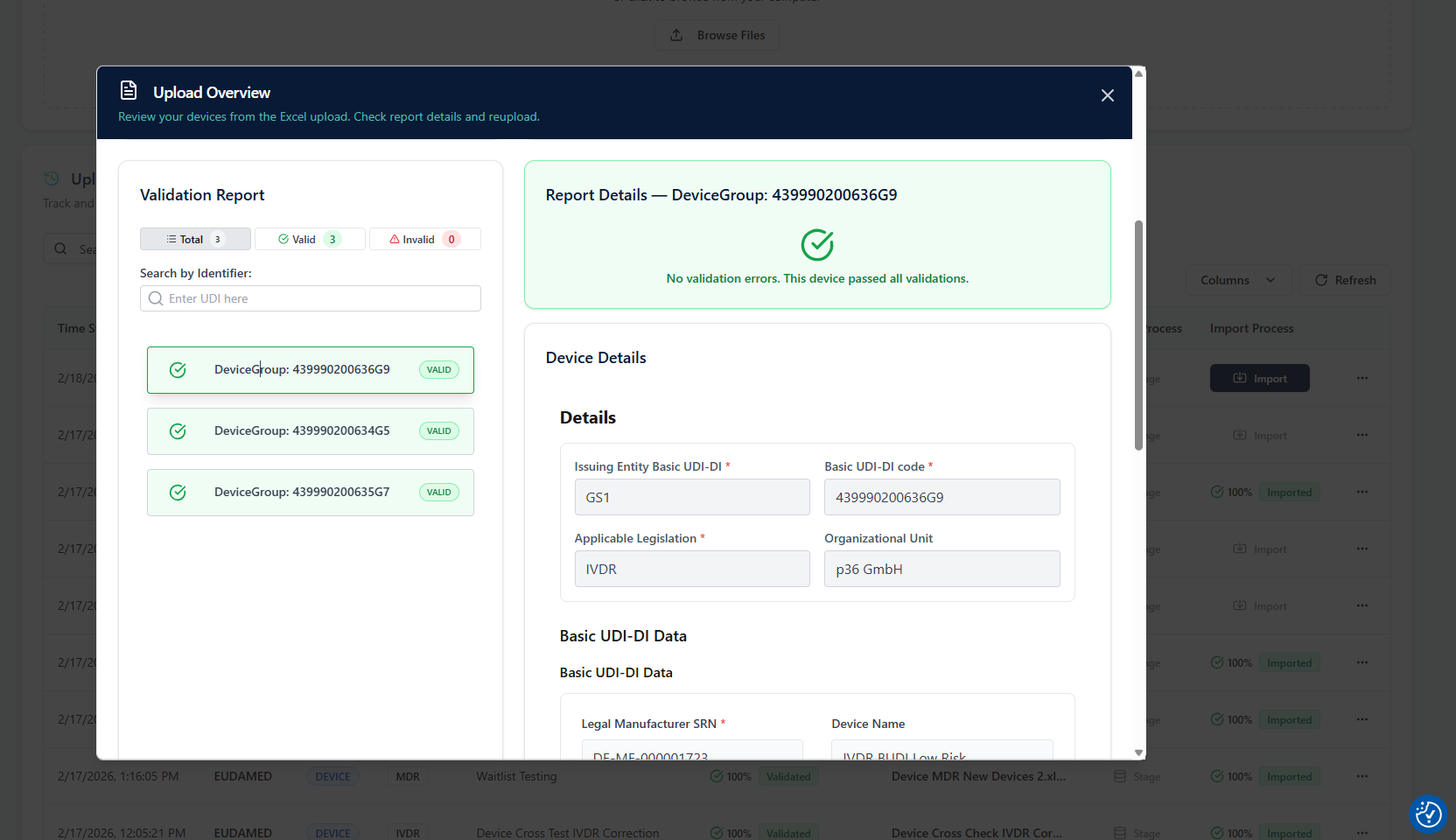
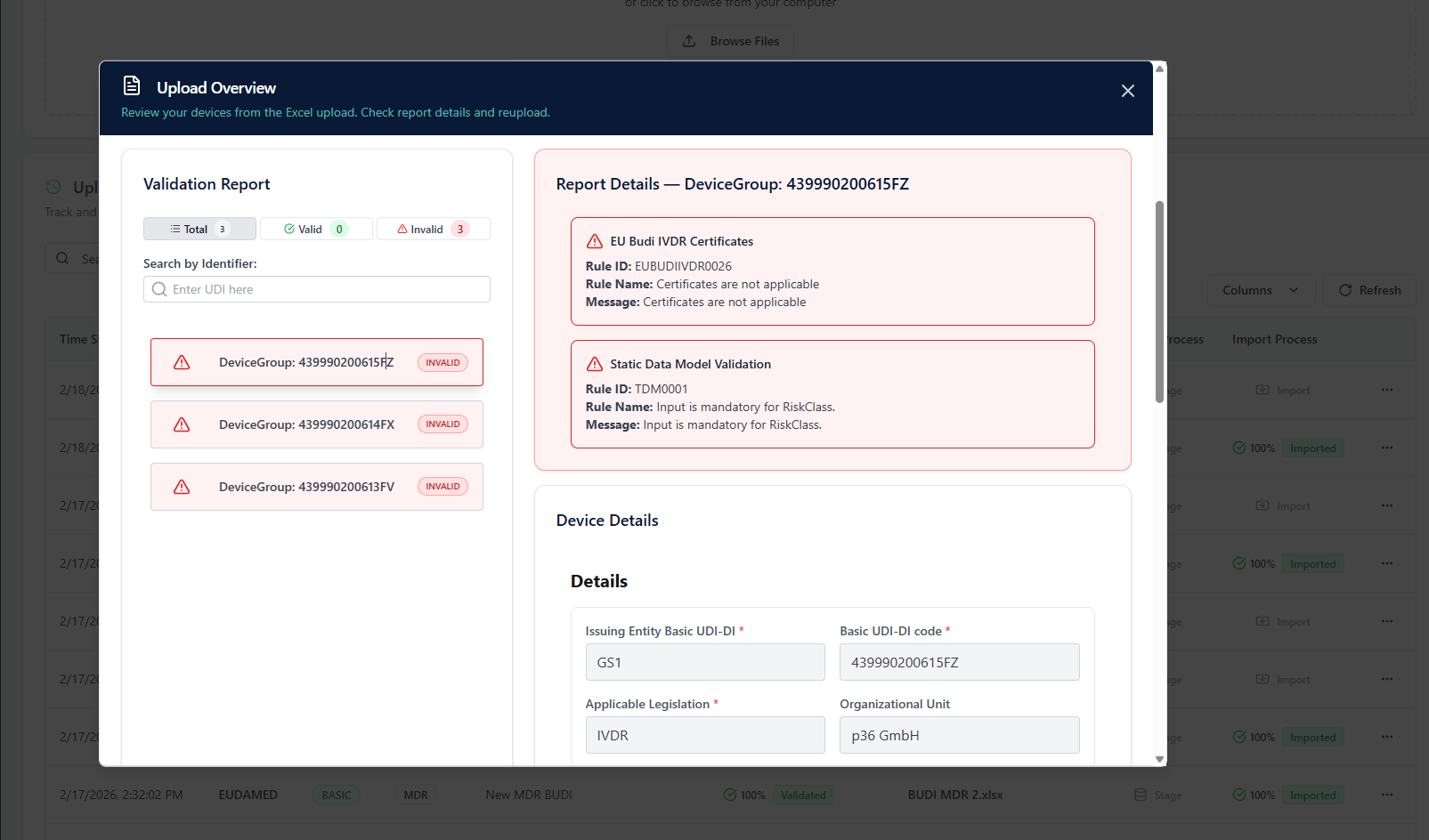
When validation is completed, you can click on the **status** (e.g., Validated with Errors) to open detailed feedback.
You will see a list of all **identifiers** included in the uploaded file, categorized into:
* **Valid** – entries that passed validation and are ready for import.
* **Invalid** – entries that failed mandatory or business‑rule validations.
Selecting a specific identifier opens a detailed error report on the right‑hand side.\
Below that, the **Details** section lets you review all data values that will be written into the system.
***
## Validation Results and Error Review
When validation is completed, you can click on the **status** (e.g., Validated with Errors) to open detailed feedback.
You will see a list of all **identifiers** included in the uploaded file, categorized into:
* **Valid** – entries that passed validation and are ready for import.
* **Invalid** – entries that failed mandatory or business‑rule validations.
Selecting a specific identifier opens a detailed error report on the right‑hand side.\
Below that, the **Details** section lets you review all data values that will be written into the system.
 If corrections are required, you can **drop a new Excel file** directly into the header area to replace or update the current instance.\
This enables quick iteration and revalidation without losing historical traceability.
In the header, the uploaded file name (e.g., `Name.xlsx`) appears as a blue, clickable link — allowing you to download exactly the file that was uploaded.\
You can also adjust the **Change Name** later if needed for better documentation.
If corrections are required, you can **drop a new Excel file** directly into the header area to replace or update the current instance.\
This enables quick iteration and revalidation without losing historical traceability.
In the header, the uploaded file name (e.g., `Name.xlsx`) appears as a blue, clickable link — allowing you to download exactly the file that was uploaded.\
You can also adjust the **Change Name** later if needed for better documentation.
 ***
## Import Process
Once a dataset is fully validated and has no remaining errors, the **Import Process button** becomes active in the Upload History list.
Clicking **Import** transfers the validated data into the UDI Hub system.\
At this stage, the data becomes **visible and usable** under **UDI Management**.\
Until the import is completed successfully, uploads don't create or change data within the system.
***
## Upload vs. Import — What Happens in Each Step
Before data becomes part of the UDI Hub database, it goes through two separate stages: **Upload** and **Import**.
### Upload
During **Upload**, the system extracts and validates data from the Excel file and stores it as an **upload instance** in the database.\
However, this step does **not yet generate a data record or version** in the productive **Data Management** area.
To support data entry, each Excel template provides three built‑in user aids:
1. Each **column header** includes a short description that explains the purpose of the field.
2. A **red asterisk (\*)** marks **mandatory fields** that must always be filled in for successful validation.
3. **Bold column headers** indicate **DI Triggers** — fields that, when changed, can trigger a new version after publication.
These visual indicators help users understand which fields are required and which may have regulatory impact.
* During upload, validation runs against the UDI Hub **data model**, ensuring correct structure, field formats, and mandatory or dependent mandatory fields.
* **DI Trigger rules** are checked to ensure no restricted updates after publication.
* It also applies business rules defined in the internal **validation rule catalog** aligned with authority requirements.
* Since no active record or version is created yet, users can safely delete or replace an upload instance if data needs to be corrected.
This design gives flexibility to correct and re‑validate before committing data to production.
### Import
Once a file has been successfully validated, the **Import** step transfers its content into the **productive data layer**, creating a **new version** of the data.\
At this point, the data becomes active and visible within **UDI Management**.
* Before import, a brief **re‑validation** ensures the file still aligns with the current data model (important if changes occurred since the initial upload).
* The import focuses on **system integrity and process control**, including:
* Ensuring that referenced **Basic UDI‑DIs** already exist before device data is imported.
* Blocking imports if an existing record (e.g., a device) is **still in process or submission**, to prevent inconsistencies between UDI Hub and external authority systems.
* Only after all checks pass is the data written as a new version to the system.
This multi‑step approach ensures data quality, compliance, and consistent synchronization with external systems.
***
## Upload History Table
***
## Import Process
Once a dataset is fully validated and has no remaining errors, the **Import Process button** becomes active in the Upload History list.
Clicking **Import** transfers the validated data into the UDI Hub system.\
At this stage, the data becomes **visible and usable** under **UDI Management**.\
Until the import is completed successfully, uploads don't create or change data within the system.
***
## Upload vs. Import — What Happens in Each Step
Before data becomes part of the UDI Hub database, it goes through two separate stages: **Upload** and **Import**.
### Upload
During **Upload**, the system extracts and validates data from the Excel file and stores it as an **upload instance** in the database.\
However, this step does **not yet generate a data record or version** in the productive **Data Management** area.
To support data entry, each Excel template provides three built‑in user aids:
1. Each **column header** includes a short description that explains the purpose of the field.
2. A **red asterisk (\*)** marks **mandatory fields** that must always be filled in for successful validation.
3. **Bold column headers** indicate **DI Triggers** — fields that, when changed, can trigger a new version after publication.
These visual indicators help users understand which fields are required and which may have regulatory impact.
* During upload, validation runs against the UDI Hub **data model**, ensuring correct structure, field formats, and mandatory or dependent mandatory fields.
* **DI Trigger rules** are checked to ensure no restricted updates after publication.
* It also applies business rules defined in the internal **validation rule catalog** aligned with authority requirements.
* Since no active record or version is created yet, users can safely delete or replace an upload instance if data needs to be corrected.
This design gives flexibility to correct and re‑validate before committing data to production.
### Import
Once a file has been successfully validated, the **Import** step transfers its content into the **productive data layer**, creating a **new version** of the data.\
At this point, the data becomes active and visible within **UDI Management**.
* Before import, a brief **re‑validation** ensures the file still aligns with the current data model (important if changes occurred since the initial upload).
* The import focuses on **system integrity and process control**, including:
* Ensuring that referenced **Basic UDI‑DIs** already exist before device data is imported.
* Blocking imports if an existing record (e.g., a device) is **still in process or submission**, to prevent inconsistencies between UDI Hub and external authority systems.
* Only after all checks pass is the data written as a new version to the system.
This multi‑step approach ensures data quality, compliance, and consistent synchronization with external systems.
***
## Upload History Table
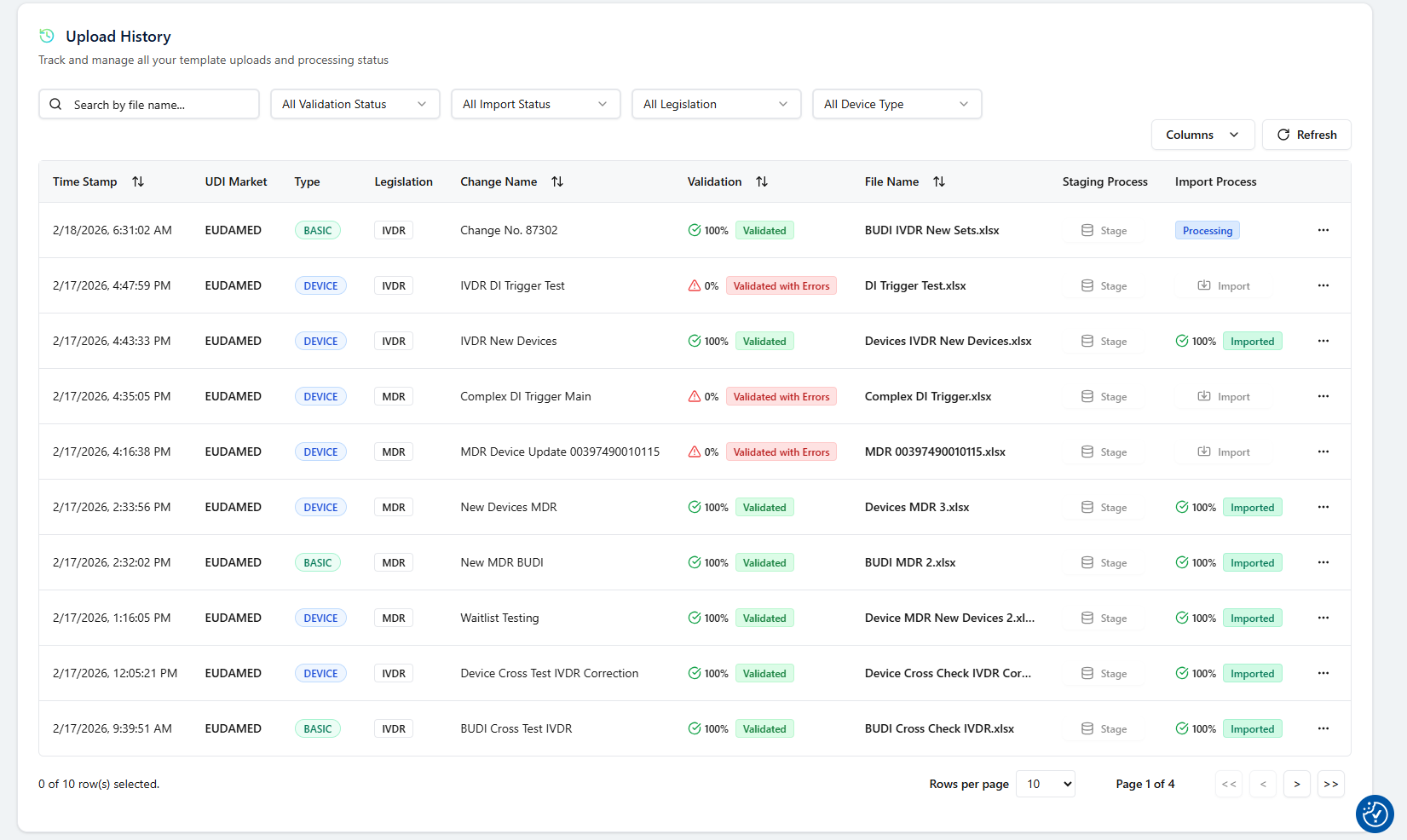 The **Upload History** table lists all upload instances and tracks their complete lifecycle:
| Column | Description |
| ------------------ | ------------------------------------------------------------------------------------------------- |
| **Timestamp** | Date of latest change of upload instance. |
| **UDI Market** | Market for which the identifiers are created or updated. |
| **Type** | Shows if it relates to a Device or Basic UDI-DI. |
| **Legislation** | Shows to which legislation the upload applies (only applicable for EUDAMED until now). |
| **Change Name** | Custom label for version tracking. |
| **Validate** | Displays the current validation state (Processing / Validated / Validated with Errors). |
| **File Name** | Name of the file that was uploaded. |
| **Import Process** | Button to trigger the import for validated instances. |
| **Actions (⋯)** | Options to **Download** the Excel again or **Delete** an instance that has not yet been imported. |
Deleting an unimported instance ensures that no outdated files remain in the system and that change logs stay consistent.
***
## Change Tracking and Re‑Uploads
Every upload generated in UDI Hub is stored with its **timestamp** and **change name** for complete traceability.\
When multiple uploads for the same dataset occur, the latest instance replaces earlier versions but keeps the historical log for auditing.
If a correction file is uploaded, the system automatically re‑validates it and updates the status accordingly.\
This ensures that validation feedback is always based on the current version of your Excel file.
***
Use the **Upload** step to validate your data early in the process.\
By detecting and correcting issues ahead of time, you can avoid last‑minute delays, ensure smoother imports, and maintain reliable data quality across long‑term cycles.
The **Upload History** table lists all upload instances and tracks their complete lifecycle:
| Column | Description |
| ------------------ | ------------------------------------------------------------------------------------------------- |
| **Timestamp** | Date of latest change of upload instance. |
| **UDI Market** | Market for which the identifiers are created or updated. |
| **Type** | Shows if it relates to a Device or Basic UDI-DI. |
| **Legislation** | Shows to which legislation the upload applies (only applicable for EUDAMED until now). |
| **Change Name** | Custom label for version tracking. |
| **Validate** | Displays the current validation state (Processing / Validated / Validated with Errors). |
| **File Name** | Name of the file that was uploaded. |
| **Import Process** | Button to trigger the import for validated instances. |
| **Actions (⋯)** | Options to **Download** the Excel again or **Delete** an instance that has not yet been imported. |
Deleting an unimported instance ensures that no outdated files remain in the system and that change logs stay consistent.
***
## Change Tracking and Re‑Uploads
Every upload generated in UDI Hub is stored with its **timestamp** and **change name** for complete traceability.\
When multiple uploads for the same dataset occur, the latest instance replaces earlier versions but keeps the historical log for auditing.
If a correction file is uploaded, the system automatically re‑validates it and updates the status accordingly.\
This ensures that validation feedback is always based on the current version of your Excel file.
***
Use the **Upload** step to validate your data early in the process.\
By detecting and correcting issues ahead of time, you can avoid last‑minute delays, ensure smoother imports, and maintain reliable data quality across long‑term cycles.