> ## Documentation Index
> Fetch the complete documentation index at: https://docs.udiconnect.io/llms.txt
> Use this file to discover all available pages before exploring further.
# Submission
> Learn how to submit data to EUDAMED.
## Overview
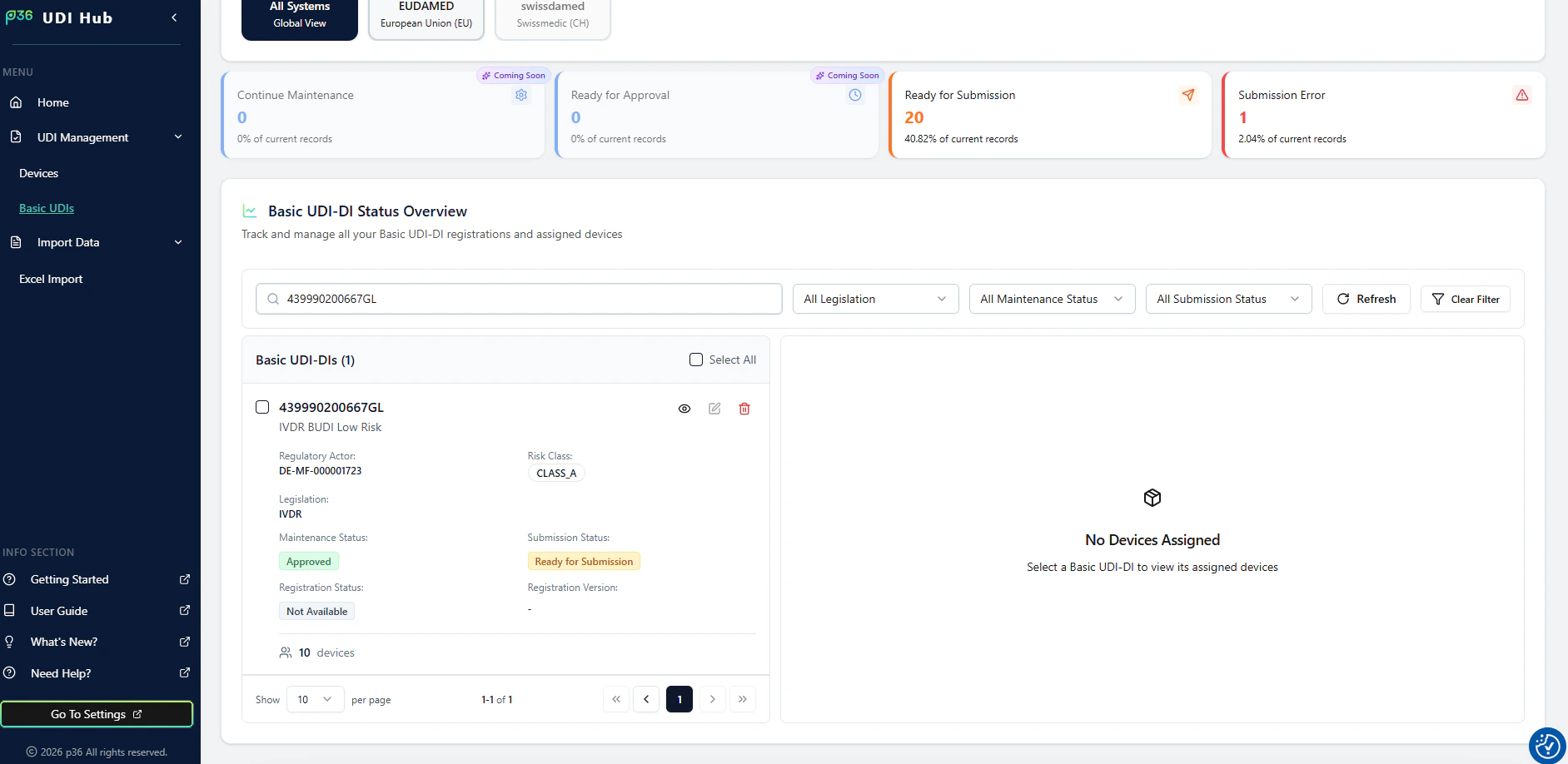
The **Submission** flow in **UDI Hub** is started from **UDI Management**, typically from the **Basic UDI-DI Status Overview** page.
From there, you can:
* submit a **Basic UDI-DI** (BUDI) and one device for an **Initial Registration**
* automatically **queue (waitlist)** additional devices for submission once the initial registration is accepted
* submit additional devices later as **Follow Up / New Device**
* submit **updates** for either the Basic UDI-DI or for individual devices (after initial registration)
 ***
## Step-by-step: Start a Submission from UDI Management
### 1. Open the Basic UDI-DI and view assigned devices
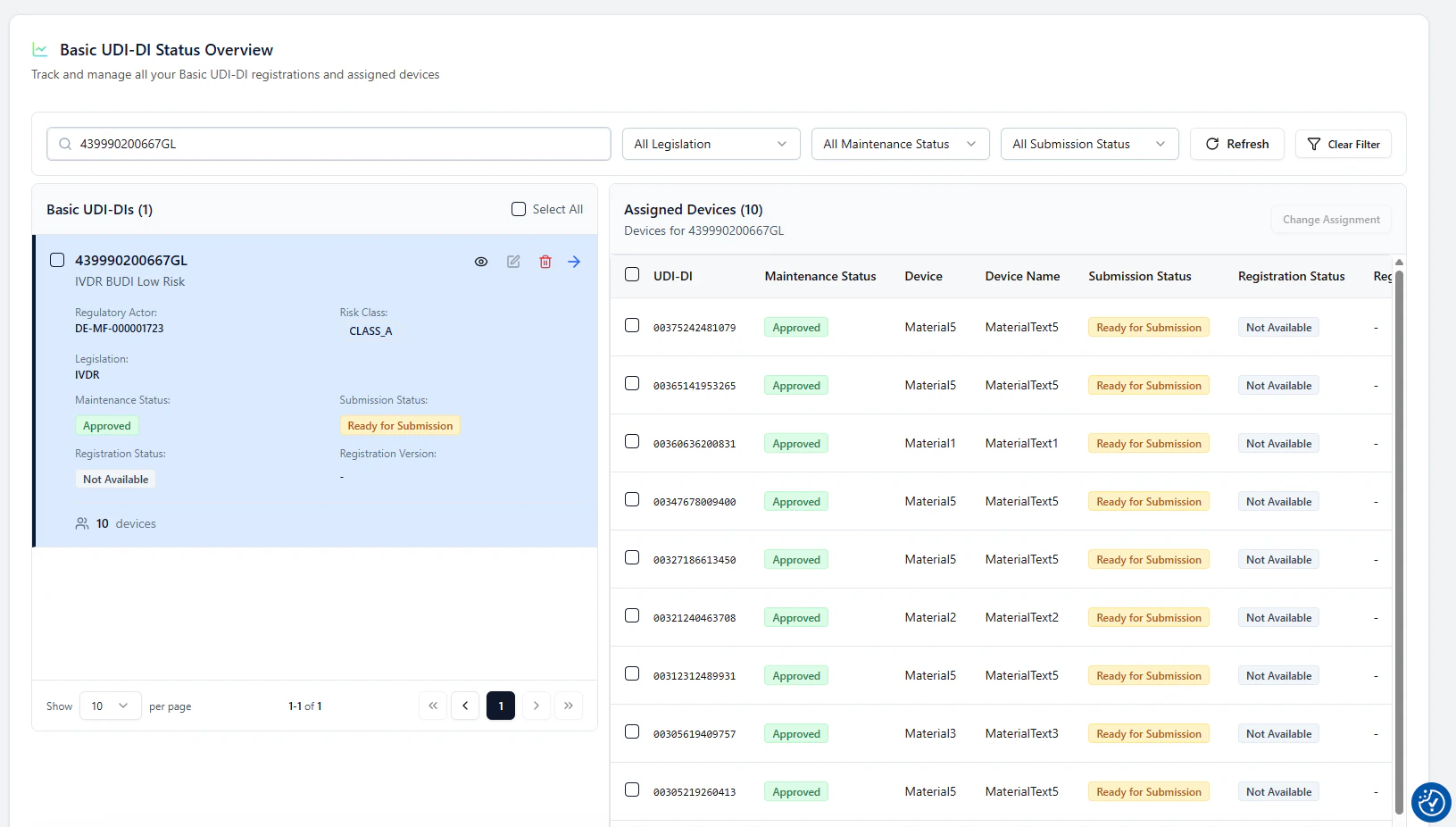
In **Basic UDI-DI Status Overview**, select a **Basic UDI-DI card**.\
The assigned devices for this Basic UDI-DI are shown on the right side.
***
## Step-by-step: Start a Submission from UDI Management
### 1. Open the Basic UDI-DI and view assigned devices
In **Basic UDI-DI Status Overview**, select a **Basic UDI-DI card**.\
The assigned devices for this Basic UDI-DI are shown on the right side.
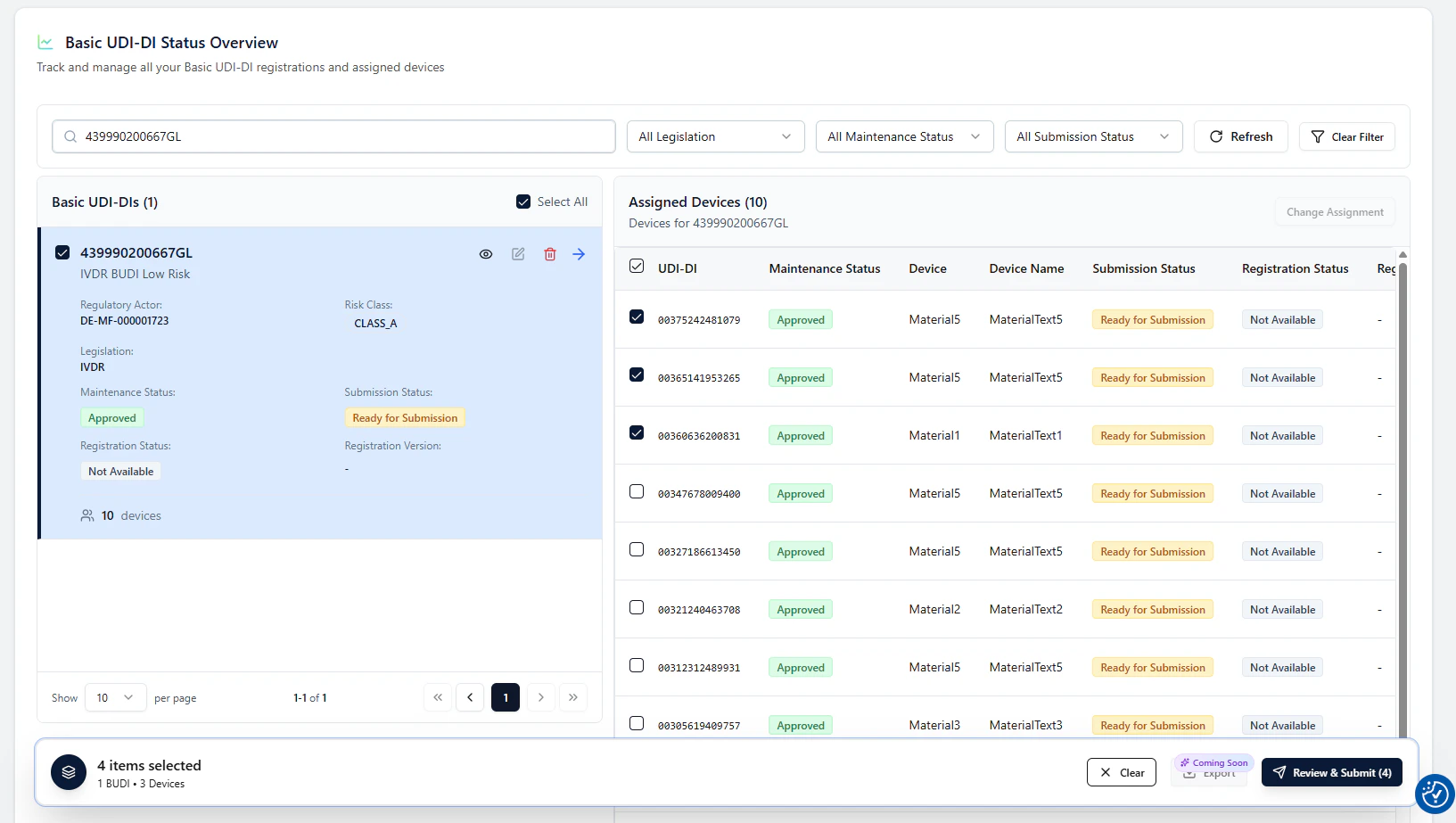
 ### 2. Select what you want to submit (BUDI and/or devices)
Use the checkboxes to select:
* the **Basic UDI-DI** (left)
* one or more **devices** (right)
At the bottom you’ll see a running selection counter (e.g., `4 items selected`).
### 2. Select what you want to submit (BUDI and/or devices)
Use the checkboxes to select:
* the **Basic UDI-DI** (left)
* one or more **devices** (right)
At the bottom you’ll see a running selection counter (e.g., `4 items selected`).
 ### 3. Start the guided flow with **Review & Submit**
Click **Review & Submit** to open a guided modal.\
This modal validates your selection, explains what will happen, and lets you submit.
***
## Guided Modal: Market → BUDIs → Devices → Submit
### Step A — Select target market (currently EUDAMED)
First, confirm the **target authority/market**.\
Today the flow shows **EUDAMED**, but the UI is designed to support multiple authorities later.
Click **Continue**.
***
## Initial Registration: Basic UDI-DI + paired Device (EUDAMED rule)
If your selection includes a Basic UDI-DI that has **never been successfully submitted to EUDAMED**, the modal runs the **Initial Registration** path.
### Step B — BUDI validation & submission type (INITIAL)
UDI Hub validates that the Basic UDI-DI is:
* in a **Ready for Submission** state, and
* eligible for the required **submission type**
For an **INITIAL** registration, EUDAMED allows submission of:
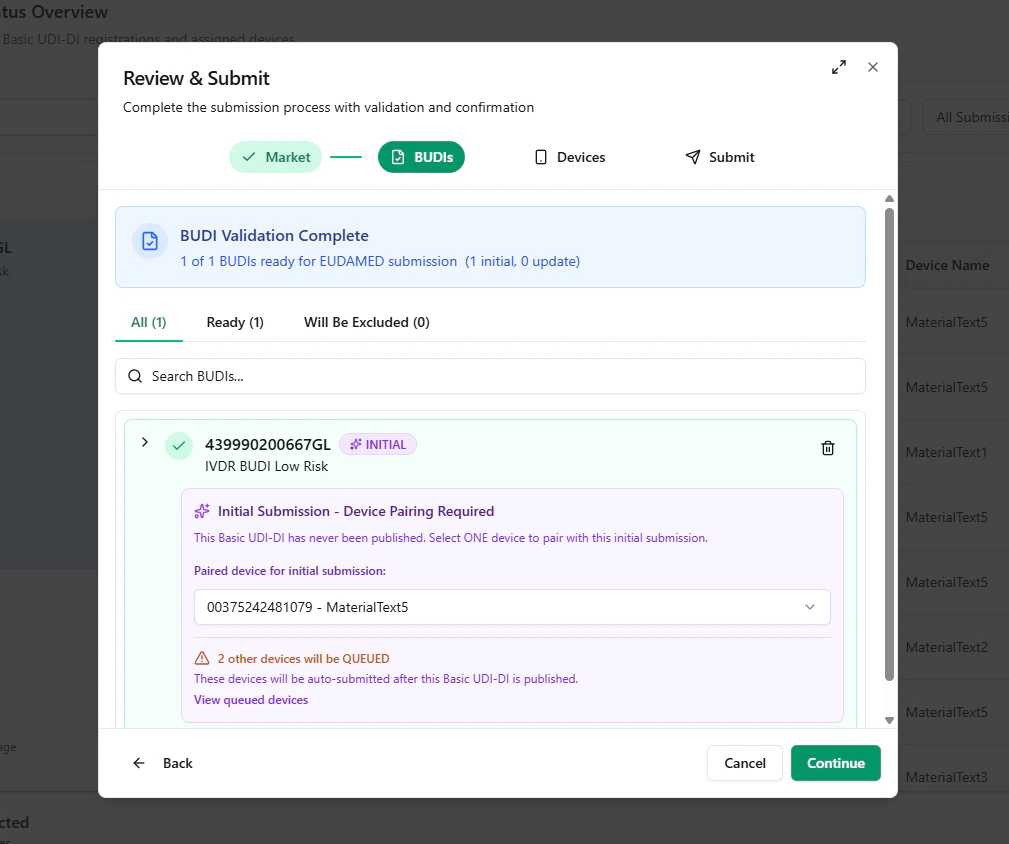
* **1 Basic UDI-DI + exactly 1 device** (paired device)
Therefore, UDI Hub asks you to select the **paired device** for the initial registration:
* the system automatically preselects the **first valid device**
* you can change the paired device here if needed
### 3. Start the guided flow with **Review & Submit**
Click **Review & Submit** to open a guided modal.\
This modal validates your selection, explains what will happen, and lets you submit.
***
## Guided Modal: Market → BUDIs → Devices → Submit
### Step A — Select target market (currently EUDAMED)
First, confirm the **target authority/market**.\
Today the flow shows **EUDAMED**, but the UI is designed to support multiple authorities later.
Click **Continue**.
***
## Initial Registration: Basic UDI-DI + paired Device (EUDAMED rule)
If your selection includes a Basic UDI-DI that has **never been successfully submitted to EUDAMED**, the modal runs the **Initial Registration** path.
### Step B — BUDI validation & submission type (INITIAL)
UDI Hub validates that the Basic UDI-DI is:
* in a **Ready for Submission** state, and
* eligible for the required **submission type**
For an **INITIAL** registration, EUDAMED allows submission of:
* **1 Basic UDI-DI + exactly 1 device** (paired device)
Therefore, UDI Hub asks you to select the **paired device** for the initial registration:
* the system automatically preselects the **first valid device**
* you can change the paired device here if needed
 Click **Continue**.
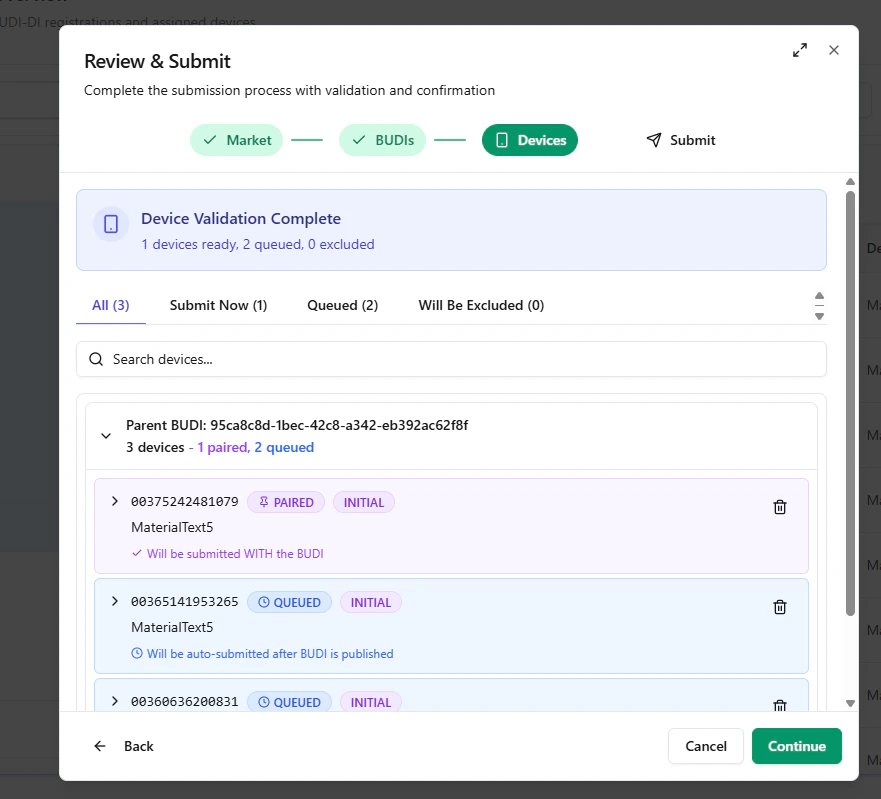
### Step C — Device validation, grouping, and waitlisting
Next, UDI Hub validates the selected devices and groups them by their parent Basic UDI-DI.
In an **Initial Registration** scenario:
* the **paired** device will be **submitted now**
* any additional selected devices are placed in a **QUEUE / Waitlist**
**Waitlisted (Queued)** devices will be submitted automatically as **follow-up registrations** after the initial paired BUDI/device submission has been accepted by EUDAMED.
Click **Continue**.
### Step C — Device validation, grouping, and waitlisting
Next, UDI Hub validates the selected devices and groups them by their parent Basic UDI-DI.
In an **Initial Registration** scenario:
* the **paired** device will be **submitted now**
* any additional selected devices are placed in a **QUEUE / Waitlist**
**Waitlisted (Queued)** devices will be submitted automatically as **follow-up registrations** after the initial paired BUDI/device submission has been accepted by EUDAMED.
 Click **Continue** to reach the summary and then submit.
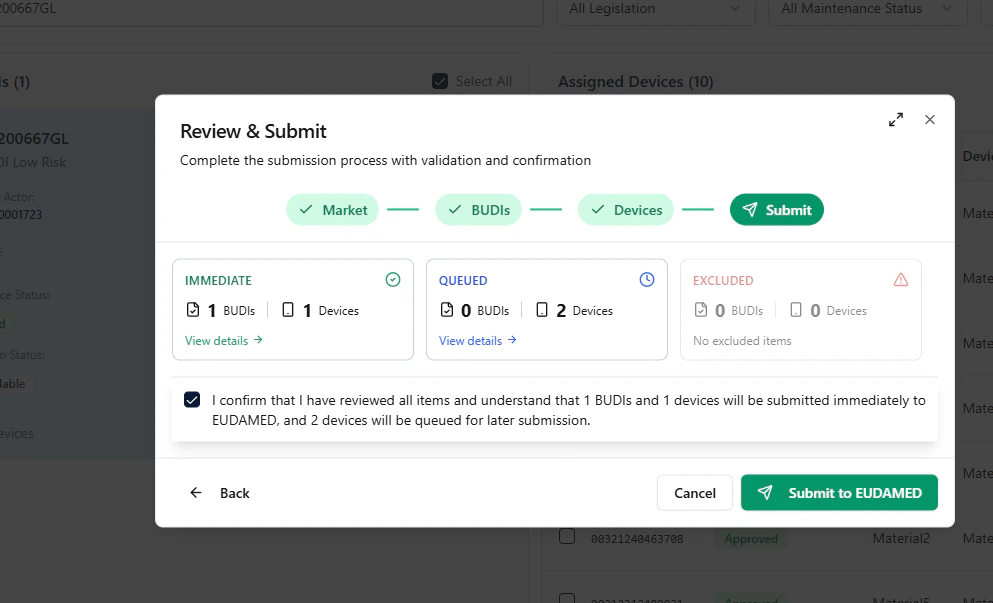
### Step D — Submit to EUDAMED
In the final step, review the summary and click **Submit to EUDAMED** to initialize the submission.
Click **Continue** to reach the summary and then submit.
### Step D — Submit to EUDAMED
In the final step, review the summary and click **Submit to EUDAMED** to initialize the submission.
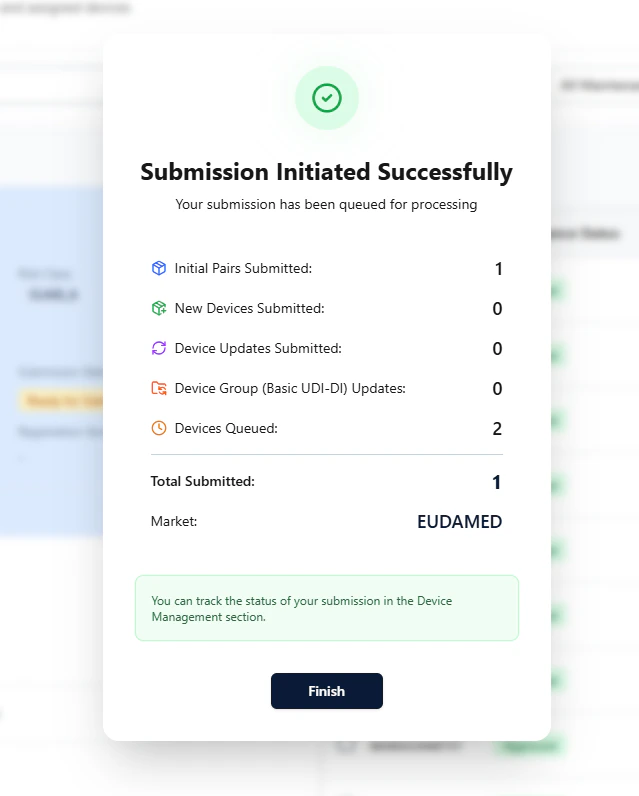
 After submission, a success card confirms which submission types were started.
 ### Observe the process (Refresh)
Back on the overview page, you can use **Refresh** to observe status changes:
* the paired Basic UDI-DI + device go **In Submission**
* once successful, they switch to **Published**
* **waitlisted** devices are then automatically triggered and submitted
### Observe the process (Refresh)
Back on the overview page, you can use **Refresh** to observe status changes:
* the paired Basic UDI-DI + device go **In Submission**
* once successful, they switch to **Published**
* **waitlisted** devices are then automatically triggered and submitted
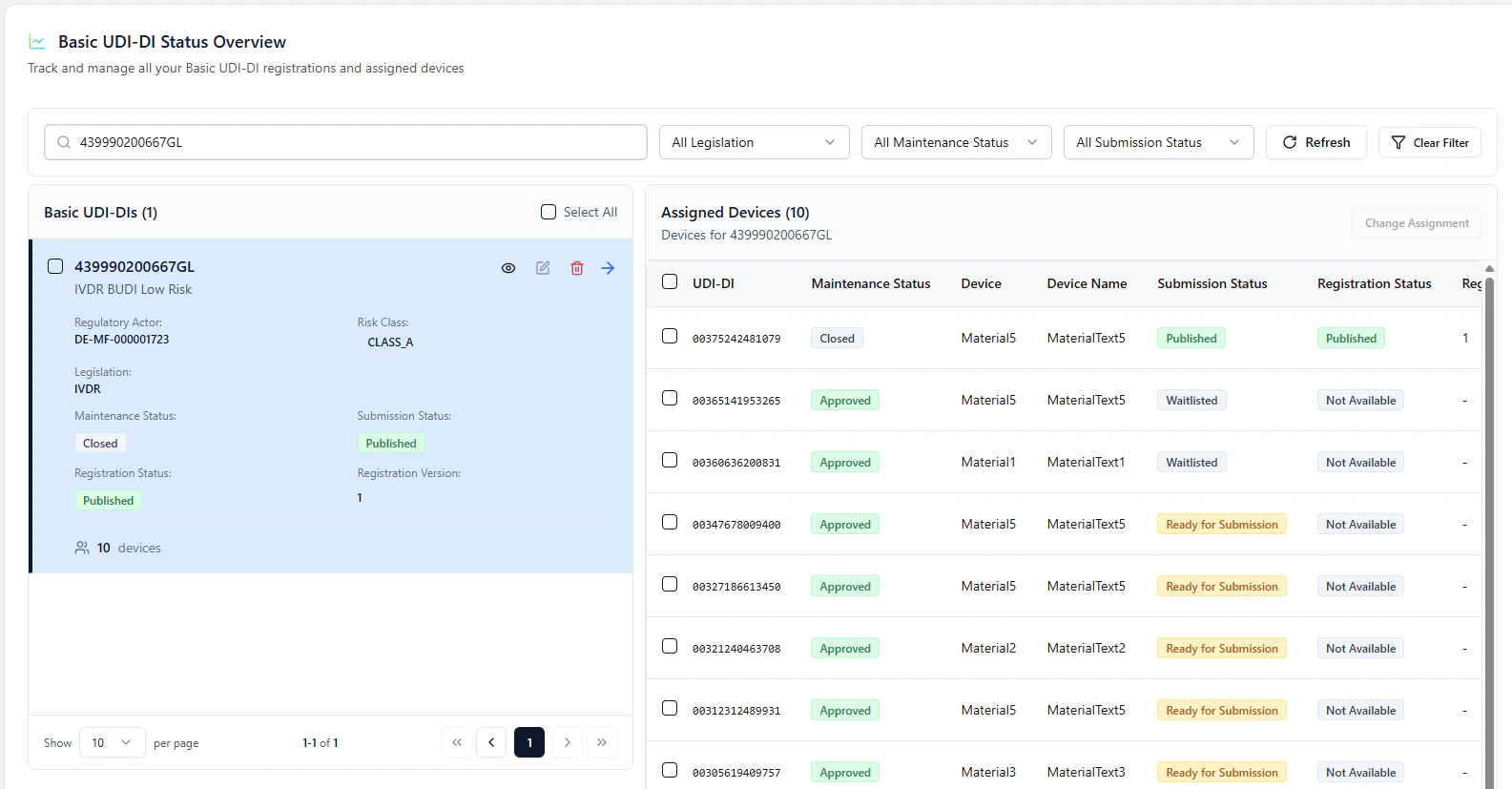 When waitlisted devices are triggered, you will see the follow-up submission start automatically:
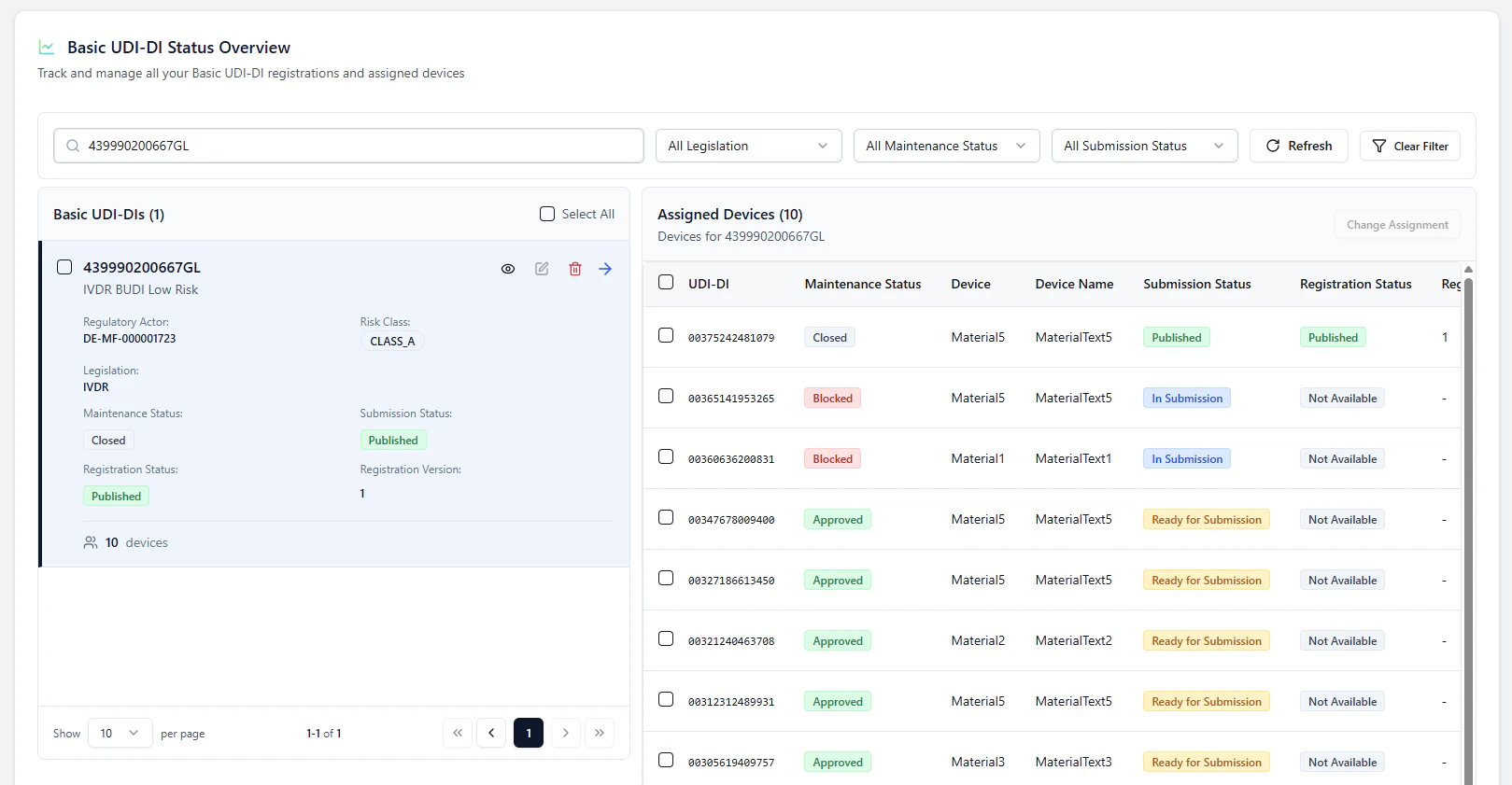 Finally, devices also switch to **Published** after successful processing.
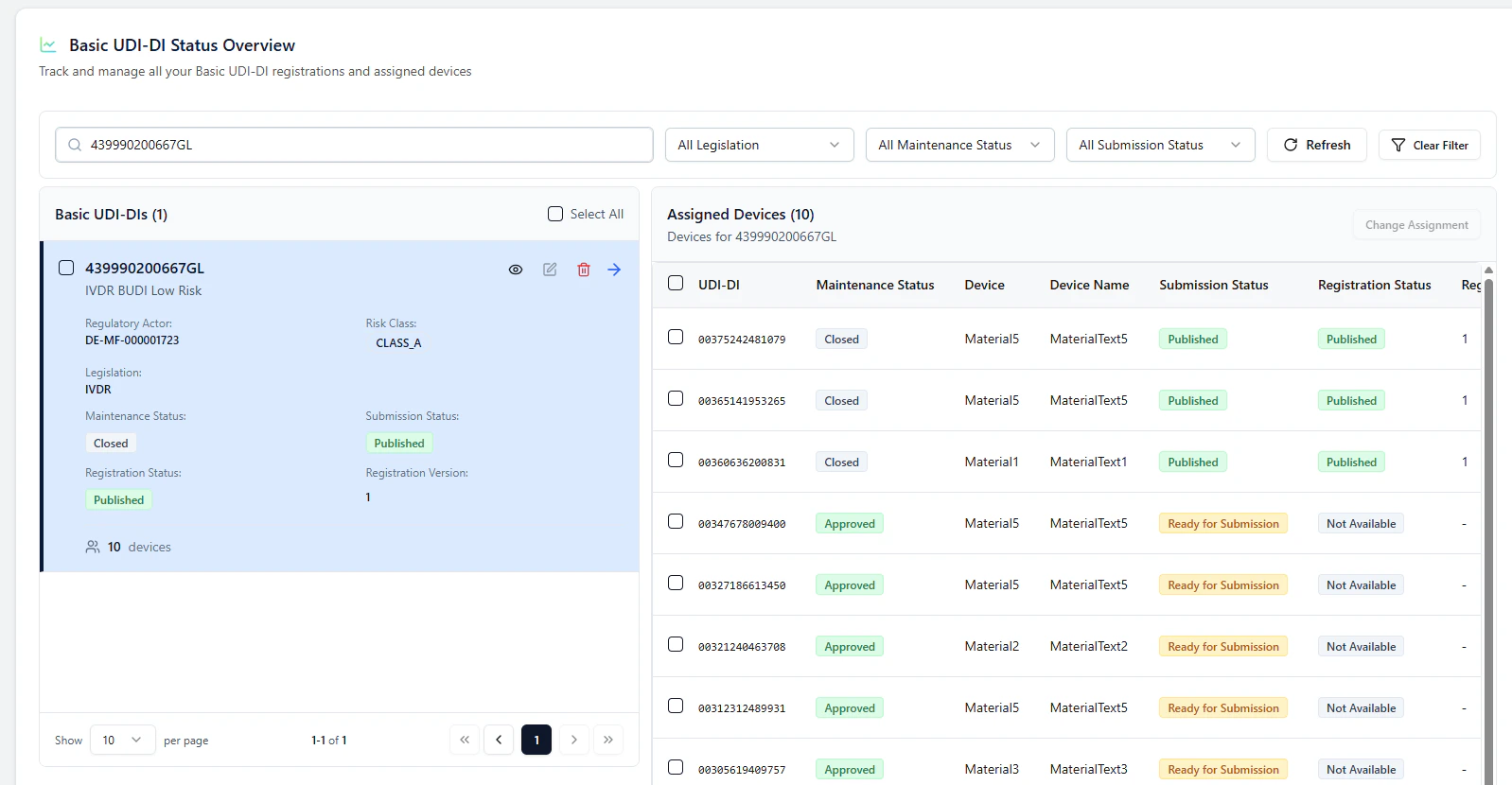 ***
## Follow Up: Submit additional devices as **NEW DEVICE**
After a Basic UDI-DI is successfully **Published**, you can submit additional devices later as a **Follow Up**.
### What changes compared to INITIAL?
* you select **devices only** (no Basic UDI-DI selection required)
* the **BUDI step is skipped** in the modal
* devices are labeled as **NEW DEVICE**
* devices are submitted directly (no waitlist needed if BUDI is already published)
In the **Devices** step, UDI Hub lists the devices under the parent Basic UDI-DI and marks them as:
* **SUBMIT NOW**
* **NEW DEVICE**
***
## Follow Up: Submit additional devices as **NEW DEVICE**
After a Basic UDI-DI is successfully **Published**, you can submit additional devices later as a **Follow Up**.
### What changes compared to INITIAL?
* you select **devices only** (no Basic UDI-DI selection required)
* the **BUDI step is skipped** in the modal
* devices are labeled as **NEW DEVICE**
* devices are submitted directly (no waitlist needed if BUDI is already published)
In the **Devices** step, UDI Hub lists the devices under the parent Basic UDI-DI and marks them as:
* **SUBMIT NOW**
* **NEW DEVICE**
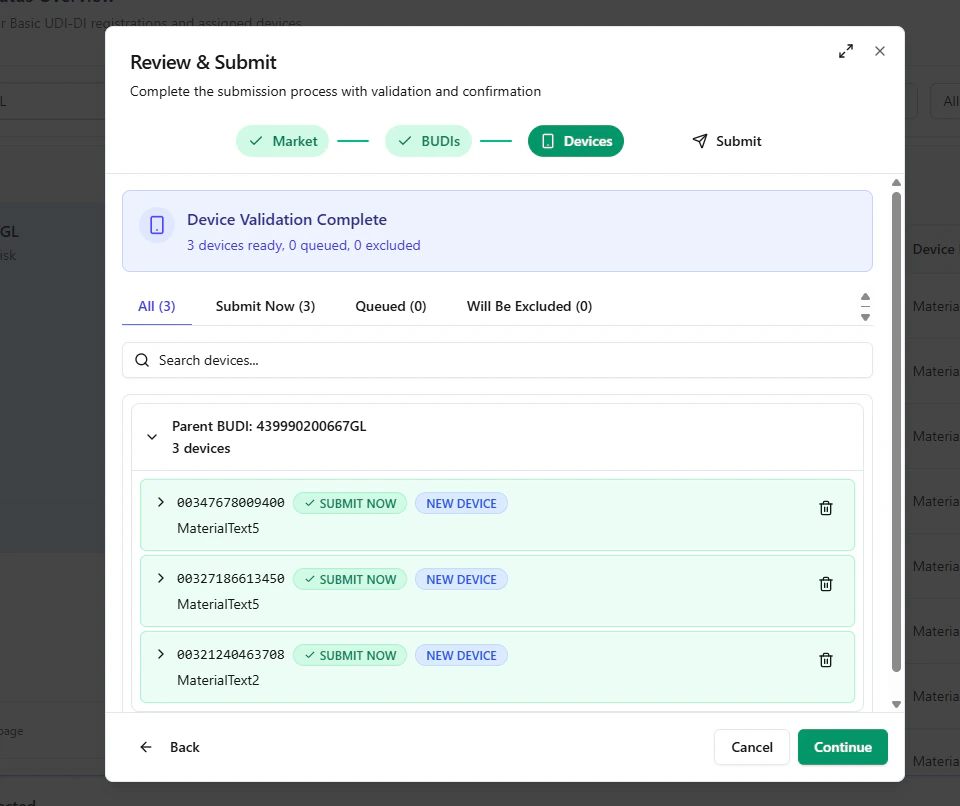 Proceed through the summary:
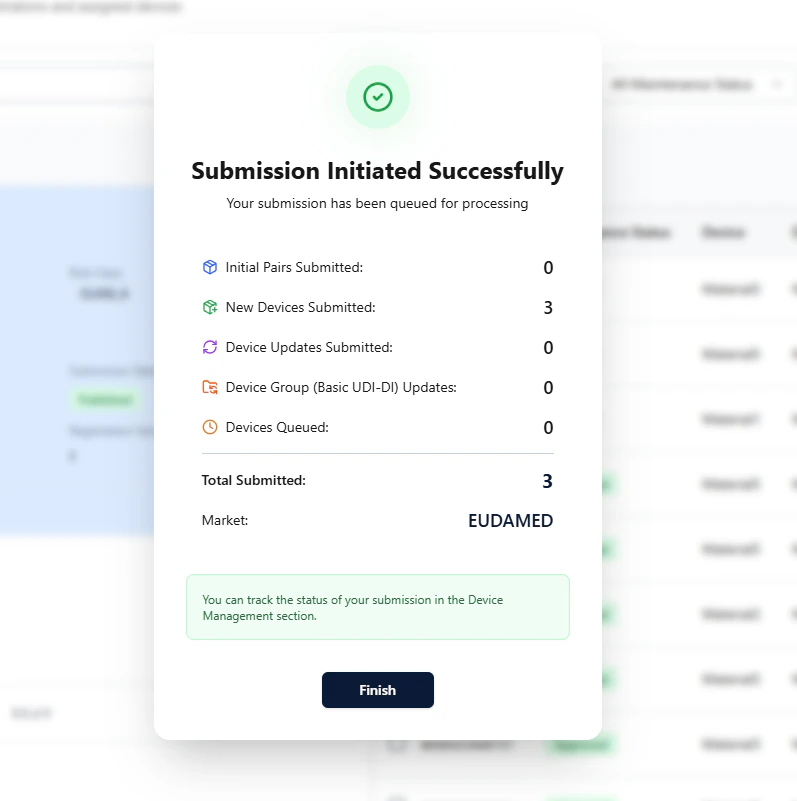 And submit:
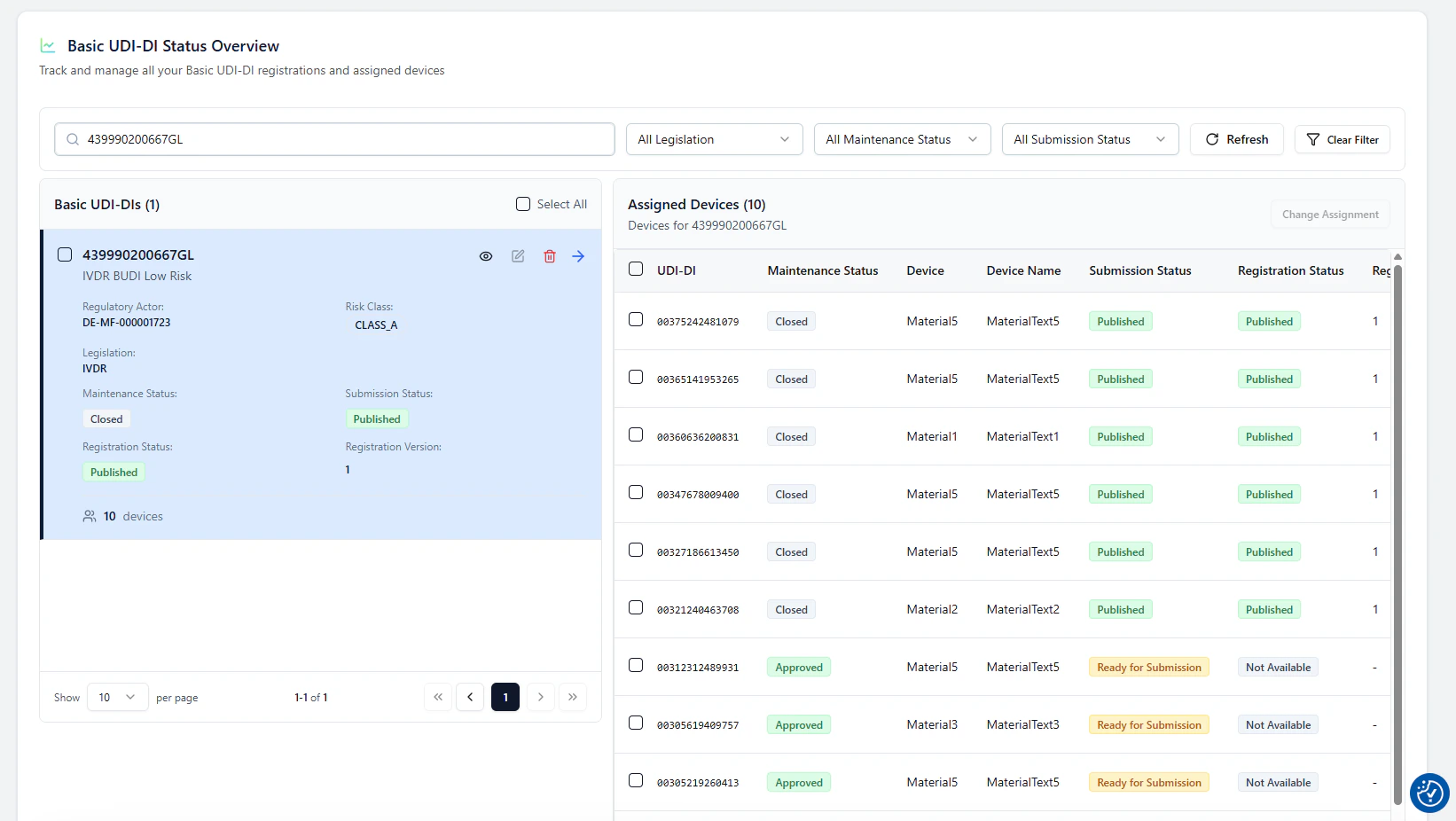 You can either submit **all devices at once** (managed via **Waitlisted** during INITIAL) or submit devices in **portions** via follow-ups.\
For reliability, currently keep each batch **≤ 500 devices** while performance optimizations are ongoing.
***
## Updates after initial registration (BUDI and devices become independent)
After the initial registration is successful (BUDI and at least one device are **Published**):
* **Basic UDI-DI** and **Devices** are considered *decoupled* for updates
* you can submit **BUDI updates** and **device updates** independently
* each update creates a new **Registration Version** for the updated entity
### How updates are triggered
Typically, an update starts when you change data via **Excel upload/import**:
* **Maintenance Status** changes (e.g., to **Approved**)
* **Submission Status** becomes **Ready for Submission**
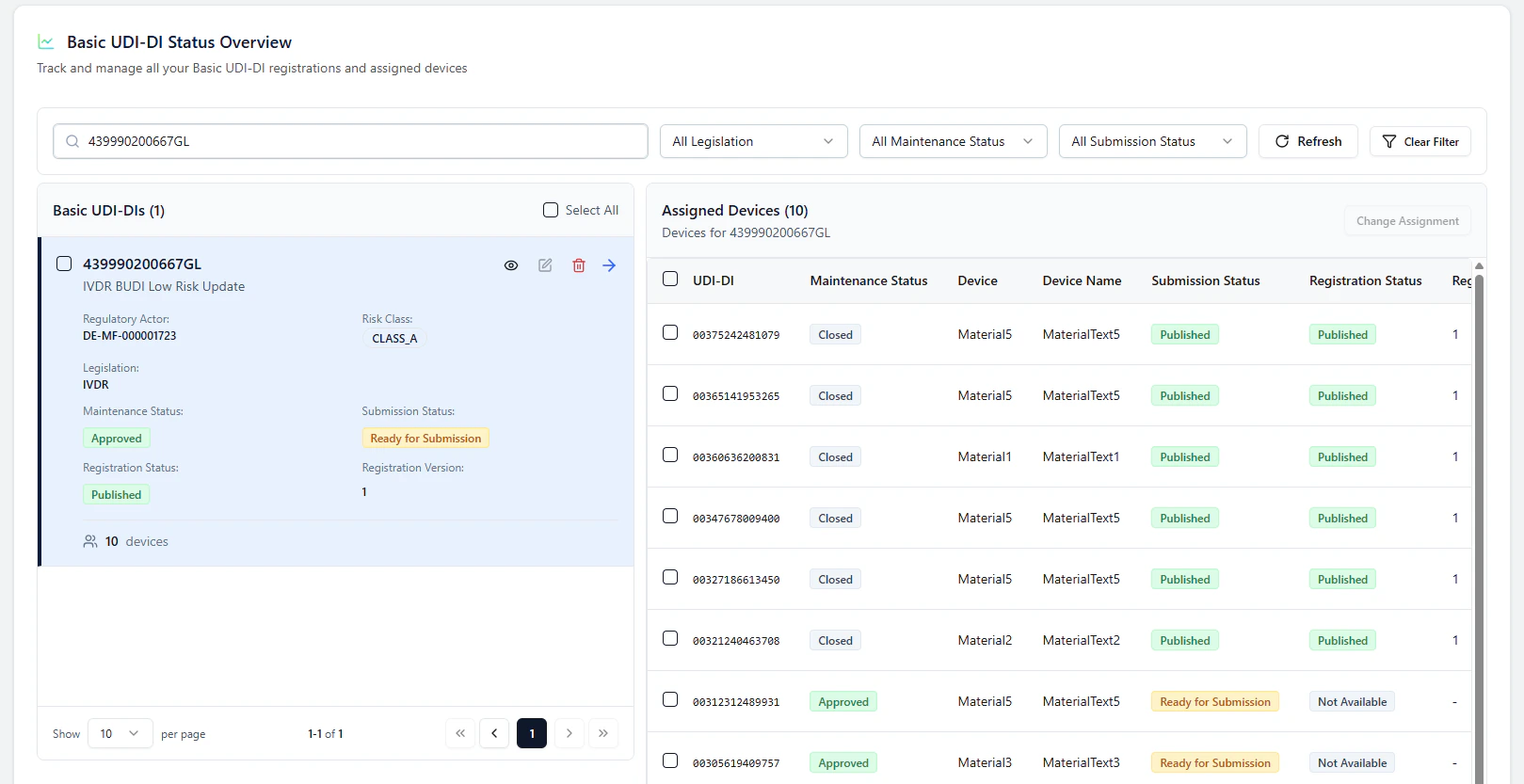
### Example: Basic UDI-DI update
If the Basic UDI-DI is **Ready for Submission**, select the **Basic UDI-DI** and click **Review & Submit**.
You can either submit **all devices at once** (managed via **Waitlisted** during INITIAL) or submit devices in **portions** via follow-ups.\
For reliability, currently keep each batch **≤ 500 devices** while performance optimizations are ongoing.
***
## Updates after initial registration (BUDI and devices become independent)
After the initial registration is successful (BUDI and at least one device are **Published**):
* **Basic UDI-DI** and **Devices** are considered *decoupled* for updates
* you can submit **BUDI updates** and **device updates** independently
* each update creates a new **Registration Version** for the updated entity
### How updates are triggered
Typically, an update starts when you change data via **Excel upload/import**:
* **Maintenance Status** changes (e.g., to **Approved**)
* **Submission Status** becomes **Ready for Submission**
### Example: Basic UDI-DI update
If the Basic UDI-DI is **Ready for Submission**, select the **Basic UDI-DI** and click **Review & Submit**.
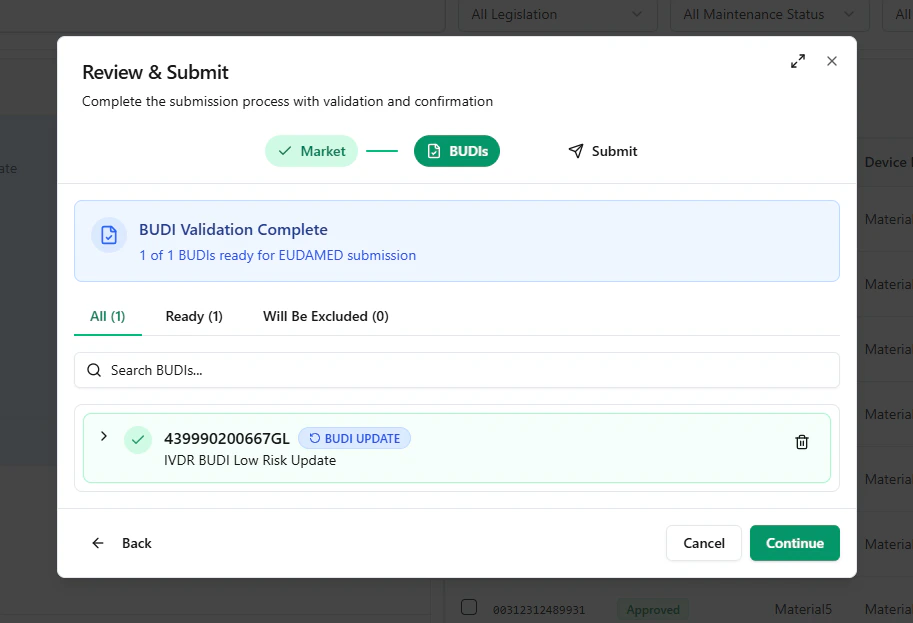
 In the modal, only the **BUDIs** step is relevant and the item is labeled as **BUDI UPDATE**.
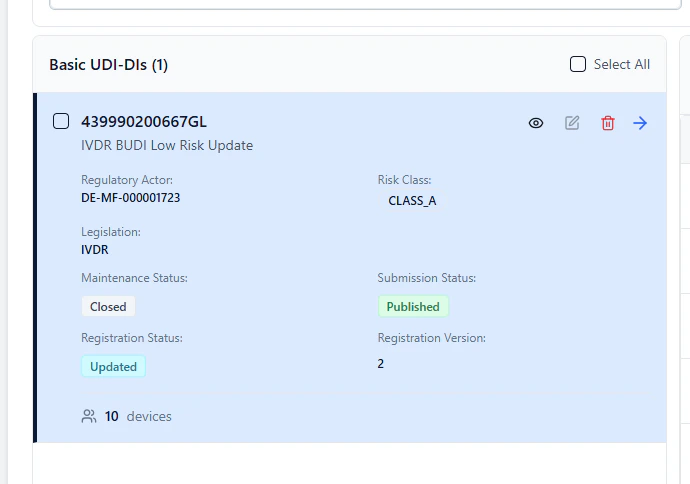
 After successful submission, the Basic UDI-DI switches to:
* **Registration Status: Updated**
* **Registration Version: 2** (or higher for subsequent updates)
After successful submission, the Basic UDI-DI switches to:
* **Registration Status: Updated**
* **Registration Version: 2** (or higher for subsequent updates)
 ***
## Blocked / excluded items and filtering
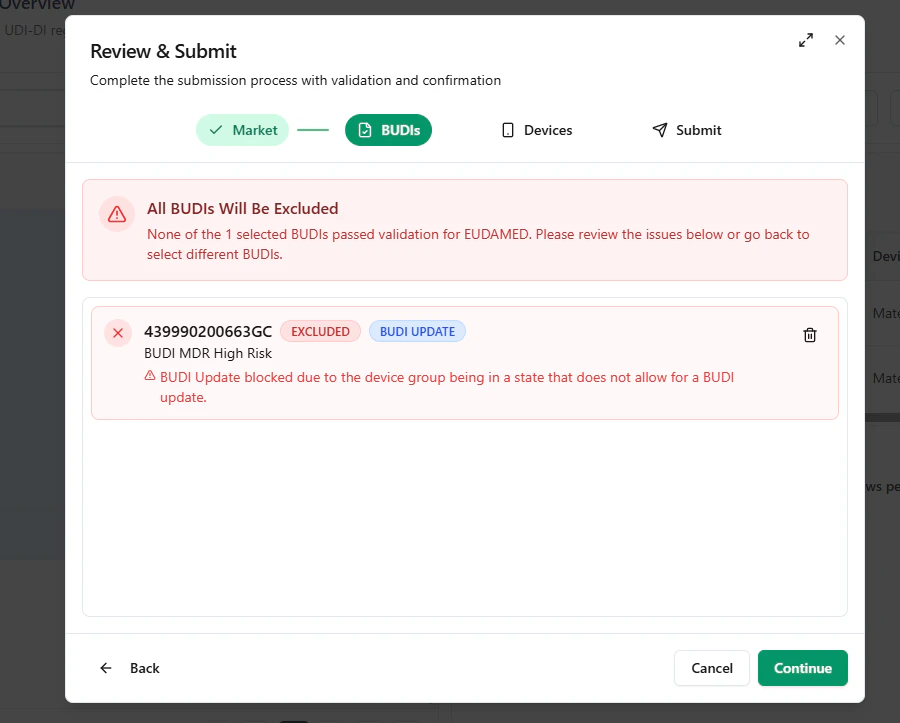
UDI Hub can validate mixed selections (BUDIs and/or devices).\
If some items cannot be submitted (e.g., invalid status or rule violations), the modal highlights them as **excluded**.
### Blocked BUDI example
***
## Blocked / excluded items and filtering
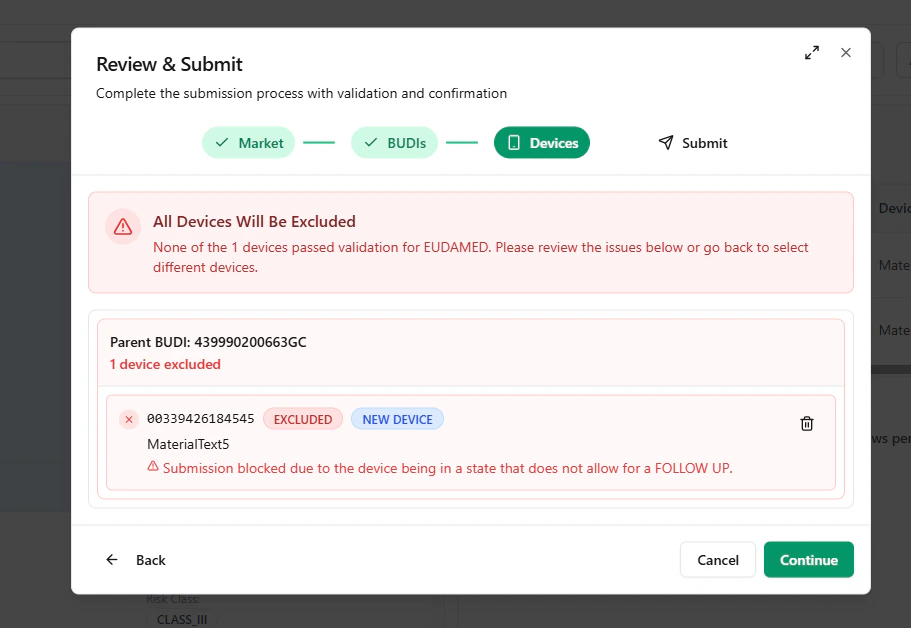
UDI Hub can validate mixed selections (BUDIs and/or devices).\
If some items cannot be submitted (e.g., invalid status or rule violations), the modal highlights them as **excluded**.
### Blocked BUDI example
 ### Blocked device example
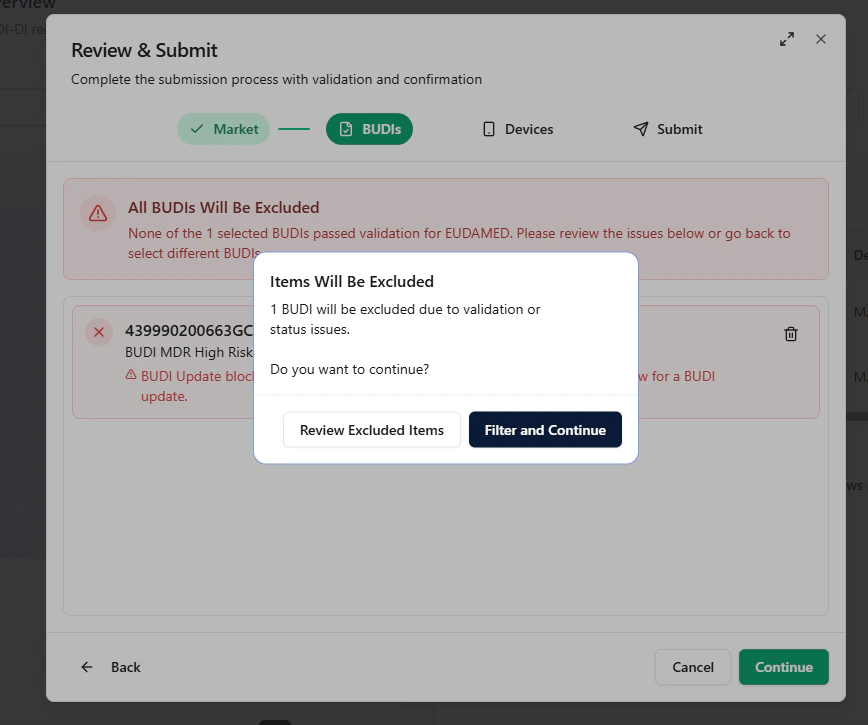
 If your selection contains both **submittable** and **non-submittable** items, UDI Hub offers to:
* **Review Excluded Items** (inspect the issues), or
* **Filter and Continue** (proceed only with valid items)
If your selection contains both **submittable** and **non-submittable** items, UDI Hub offers to:
* **Review Excluded Items** (inspect the issues), or
* **Filter and Continue** (proceed only with valid items)
 ***
## Important note: High Risk devices with certificates (feature gap)
For **Basic UDI-DIs / devices** where **certificates** are provided and a **Notified Body** approval is required, the end-to-end status synchronization is **not fully implemented yet**.
Current behavior:
* the item may remain in **Submitted**
* follow-up **updates** may be blocked until the authoritative status is retrieved
Planned improvement:
* a **GET Device Status** feature to pull the final status back into UDI Hub automatically
***
## Important note: High Risk devices with certificates (feature gap)
For **Basic UDI-DIs / devices** where **certificates** are provided and a **Notified Body** approval is required, the end-to-end status synchronization is **not fully implemented yet**.
Current behavior:
* the item may remain in **Submitted**
* follow-up **updates** may be blocked until the authoritative status is retrieved
Planned improvement:
* a **GET Device Status** feature to pull the final status back into UDI Hub automatically
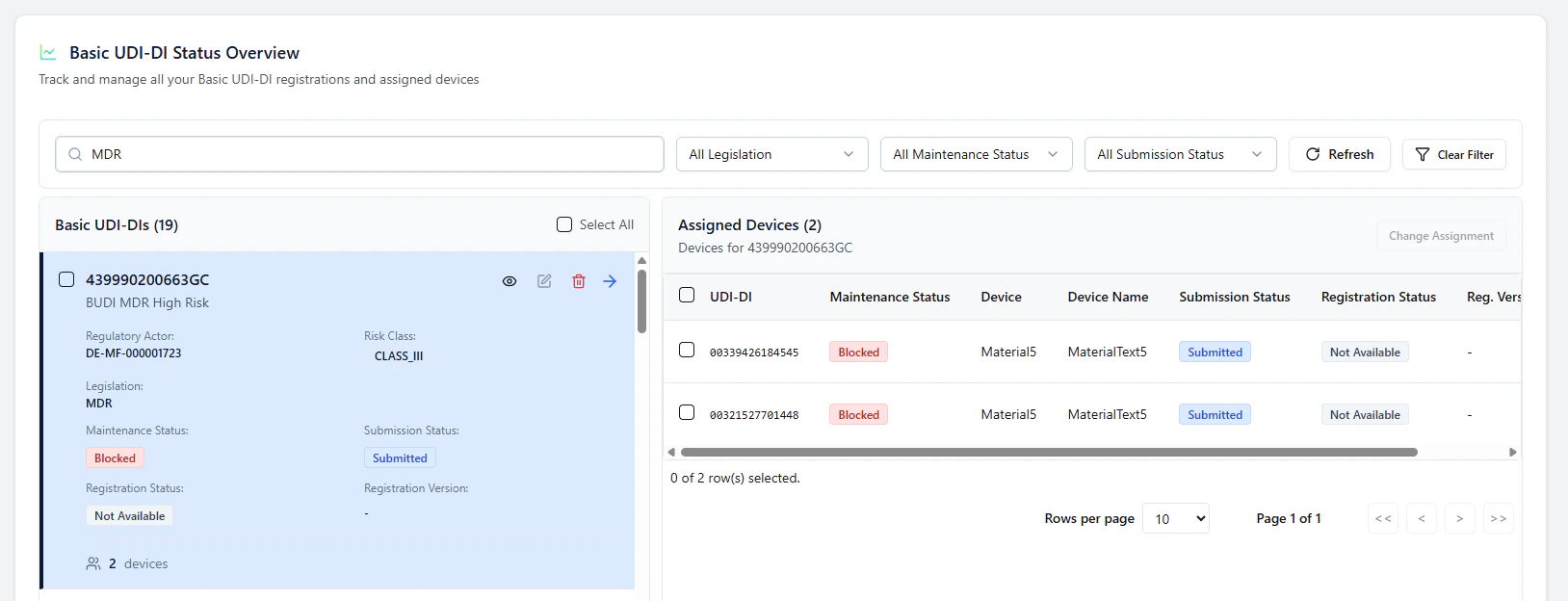 If certificates / Notified Body approval are involved, UDI Hub may currently not transition items from Submitted to Published automatically.\
This can prevent subsequent updates until status retrieval is available.
***
## Submission types & concepts (cheat sheet)
| Concept / Label | When it happens | What it means | Typical system behavior |
| -------------------------- | ------------------------------------------------------------- | --------------------------------------------------------------- | ----------------------------------------------------------------------------------------------------------- |
| **INITIAL** | First ever successful EUDAMED registration for a Basic UDI-DI | EUDAMED requires **1 BUDI + 1 paired device** | You must pick a **paired device**; only that pair is submitted immediately |
| **QUEUED / Waitlisted** | During INITIAL, when you selected **additional devices** | Devices are queued for later follow-up once INITIAL is accepted | Devices stay **Waitlisted** and are triggered automatically after BUDI + paired device become **Published** |
| **Follow Up / NEW DEVICE** | Adding devices to an **already published** Basic UDI-DI | New device registration under an existing BUDI | Devices are labeled **NEW DEVICE** and can be submitted directly |
| **BUDI UPDATE** | After data changes to a published Basic UDI-DI | Update of the Basic UDI-DI registration | Registration version increases (e.g., **2**) and status becomes **Updated** |
| **Device Update** | After data changes to a published device | Update of an individual device registration | Device can be updated independently from the BUDI (after initial registration) |
***
For an INITIAL registration, decide early whether you want to submit **all devices at once** (managed via waitlisting) or in **smaller follow-up batches**.\
Until performance improvements are complete, stay below **500 devices per submission** for best reliability.
If certificates / Notified Body approval are involved, UDI Hub may currently not transition items from Submitted to Published automatically.\
This can prevent subsequent updates until status retrieval is available.
***
## Submission types & concepts (cheat sheet)
| Concept / Label | When it happens | What it means | Typical system behavior |
| -------------------------- | ------------------------------------------------------------- | --------------------------------------------------------------- | ----------------------------------------------------------------------------------------------------------- |
| **INITIAL** | First ever successful EUDAMED registration for a Basic UDI-DI | EUDAMED requires **1 BUDI + 1 paired device** | You must pick a **paired device**; only that pair is submitted immediately |
| **QUEUED / Waitlisted** | During INITIAL, when you selected **additional devices** | Devices are queued for later follow-up once INITIAL is accepted | Devices stay **Waitlisted** and are triggered automatically after BUDI + paired device become **Published** |
| **Follow Up / NEW DEVICE** | Adding devices to an **already published** Basic UDI-DI | New device registration under an existing BUDI | Devices are labeled **NEW DEVICE** and can be submitted directly |
| **BUDI UPDATE** | After data changes to a published Basic UDI-DI | Update of the Basic UDI-DI registration | Registration version increases (e.g., **2**) and status becomes **Updated** |
| **Device Update** | After data changes to a published device | Update of an individual device registration | Device can be updated independently from the BUDI (after initial registration) |
***
For an INITIAL registration, decide early whether you want to submit **all devices at once** (managed via waitlisting) or in **smaller follow-up batches**.\
Until performance improvements are complete, stay below **500 devices per submission** for best reliability.