> ## Documentation Index
> Fetch the complete documentation index at: https://docs.udiconnect.io/llms.txt
> Use this file to discover all available pages before exploring further.
# Details Modal
> Open the Details modal from UDI Management to review version-specific data stored in UDI Hub and key statuses at a glance.
## Overview
The **Details modal** shows a consolidated, read-only view of a **Basic UDI-DI** or **Device** record in UDI Hub.\
It is mainly used to review the **data snapshot per registration version** and the current status indicators.
***
## Open the modal
### Devices
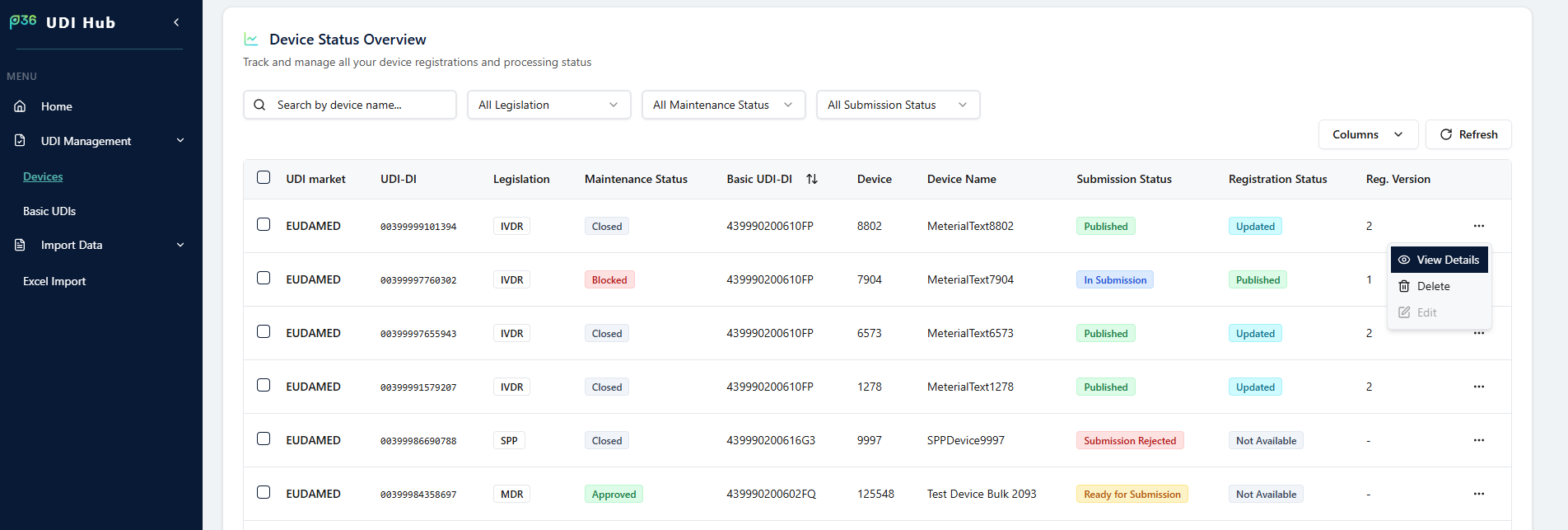
In **UDI Management → Devices**:
1. Open the row actions menu (**⋯**)
2. Click **View Details**
 ### Basic UDI-DIs
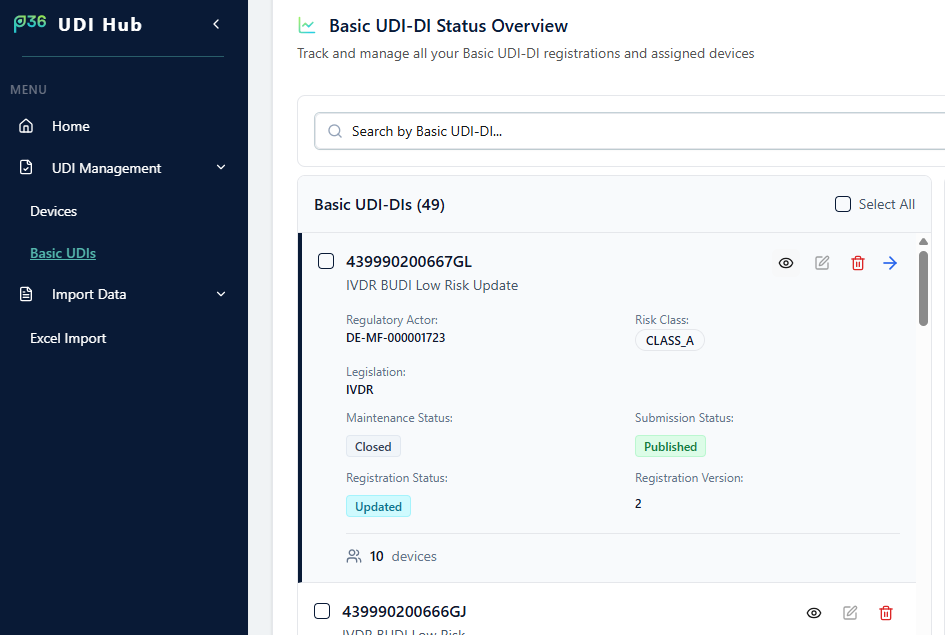
In **UDI Management → Basic UDIs**, open details via the **eye icon** on the Basic UDI-DI card.
### Basic UDI-DIs
In **UDI Management → Basic UDIs**, open details via the **eye icon** on the Basic UDI-DI card.
 ***
## What you can do
* See key indicators: **Maintenance Status**, **Submission Status**, **Registration Status**, **Registration Version**
* Use the **Version** dropdown (top right) to switch versions
* On **Device Data**, review the version-specific values stored in UDI Hub (snapshot for that version)
The Submission Status and Change Log tabs are explained in separate handbook entries.
***
## What you can do
* See key indicators: **Maintenance Status**, **Submission Status**, **Registration Status**, **Registration Version**
* Use the **Version** dropdown (top right) to switch versions
* On **Device Data**, review the version-specific values stored in UDI Hub (snapshot for that version)
The Submission Status and Change Log tabs are explained in separate handbook entries.