> ## Documentation Index
> Fetch the complete documentation index at: https://docs.udiconnect.io/llms.txt
> Use this file to discover all available pages before exploring further.
# Download Templates
> Learn how to download and understand the official Excel templates in UDI Hub for preparing and importing UDI data.
## Overview
The **Download Templates** feature in **UDI Hub** provides ready‑to‑use Excel workbooks that follow the required data model for each regulatory market.\
These templates define the exact structure and field naming needed for successful imports and validations — ensuring your data aligns with each authority’s submission format.
Currently, **EUDAMED** is available as the first supported market within UDI Hub.\
More markets and legislation types will be added as the global UDI coverage expands.
Within EUDAMED, you can choose between the following legislation types:
* **MDR** – Medical Device Regulation
* **IVDR** – In Vitro Diagnostic Regulation
* **SPP** – Systems and Procedure Packs
Each legislation type provides templates for both **Basic UDI‑DI** and **Device** records.
***
## How to Download Templates
1. Navigate to **Import Data → Excel Import** in the sidebar.
2. Under **Market**, select the target market (currently EUDAMED).
3. If available, choose the **Legislation Type** (MDR, IVDR, or SPP).
4. Select the **Template Type** you need — either **Basic UDI‑DI** or **Device**.
5. Click **Download Template** to generate and save the Excel file.
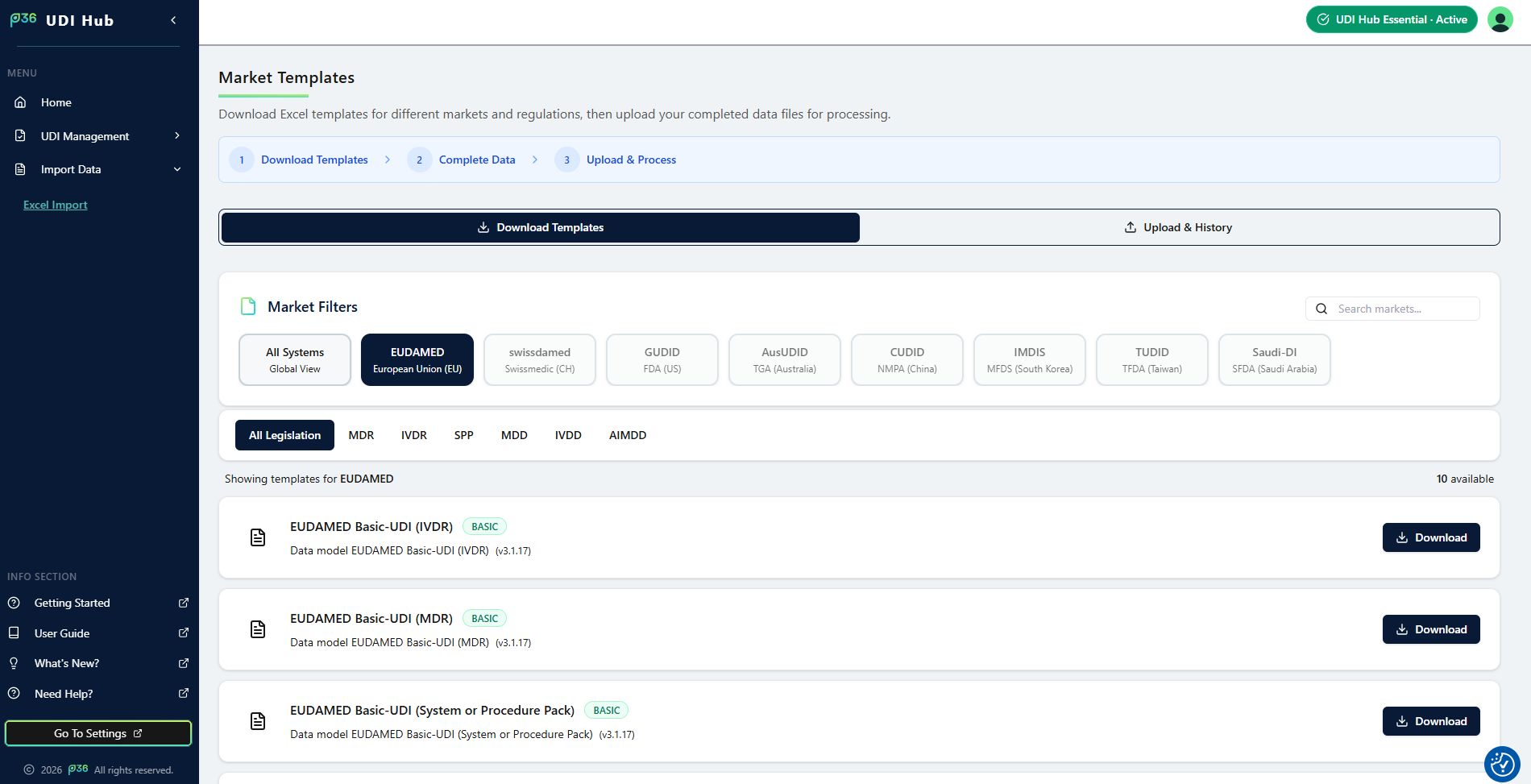 You can now use this Excel workbook to prepare new data or update existing records before uploading them back into UDI Hub.
***
## Understanding the Excel Template Structure
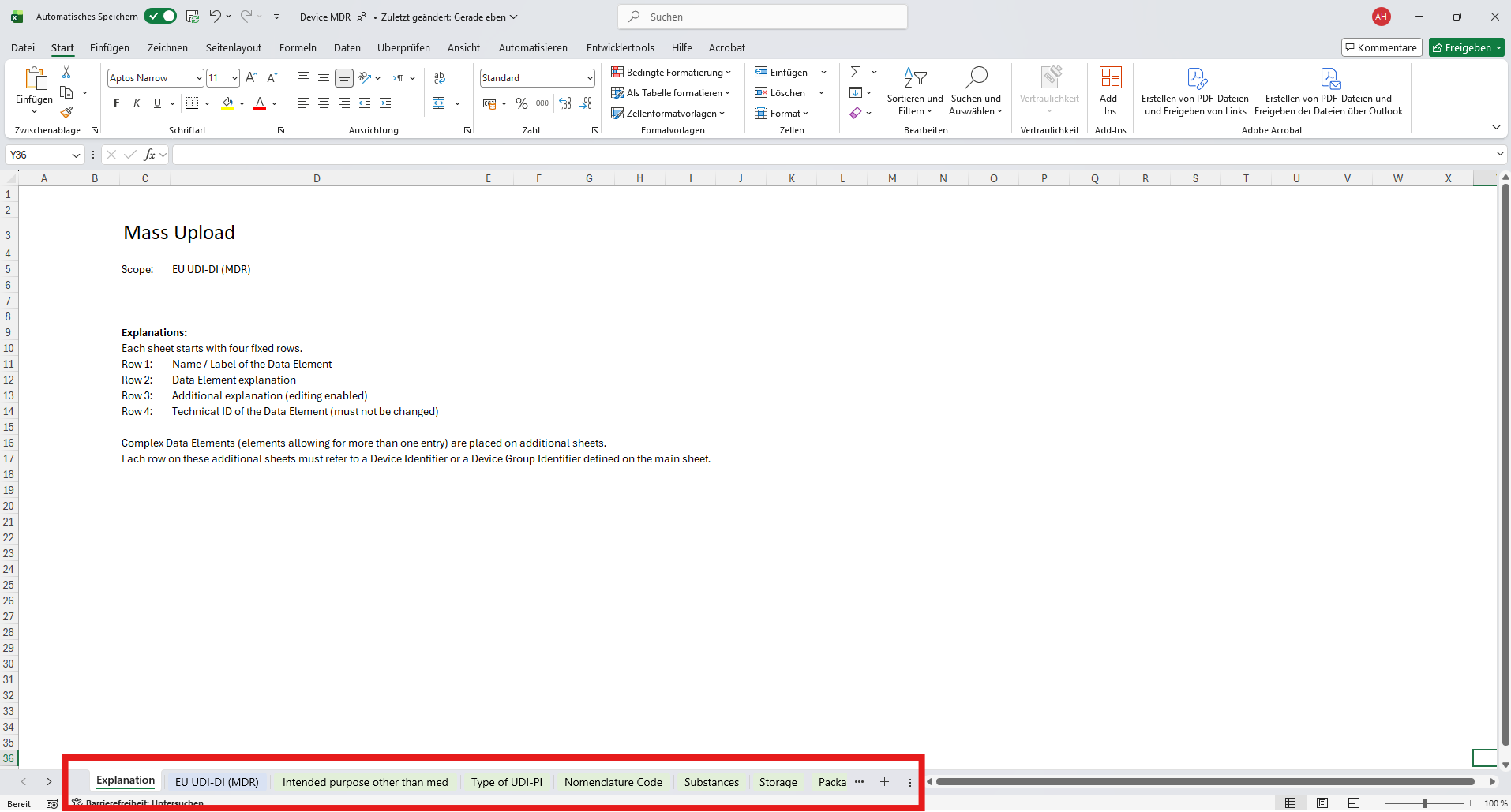
Each Excel template in UDI Hub is structured into multiple worksheets to reflect how data is modeled in the authority database.\
This design allows clear separation between one‑to‑one fields, multi‑select values, and complex repeatable elements.
You can now use this Excel workbook to prepare new data or update existing records before uploading them back into UDI Hub.
***
## Understanding the Excel Template Structure
Each Excel template in UDI Hub is structured into multiple worksheets to reflect how data is modeled in the authority database.\
This design allows clear separation between one‑to‑one fields, multi‑select values, and complex repeatable elements.
 ### 1. Main Sheet – Primary Device Data
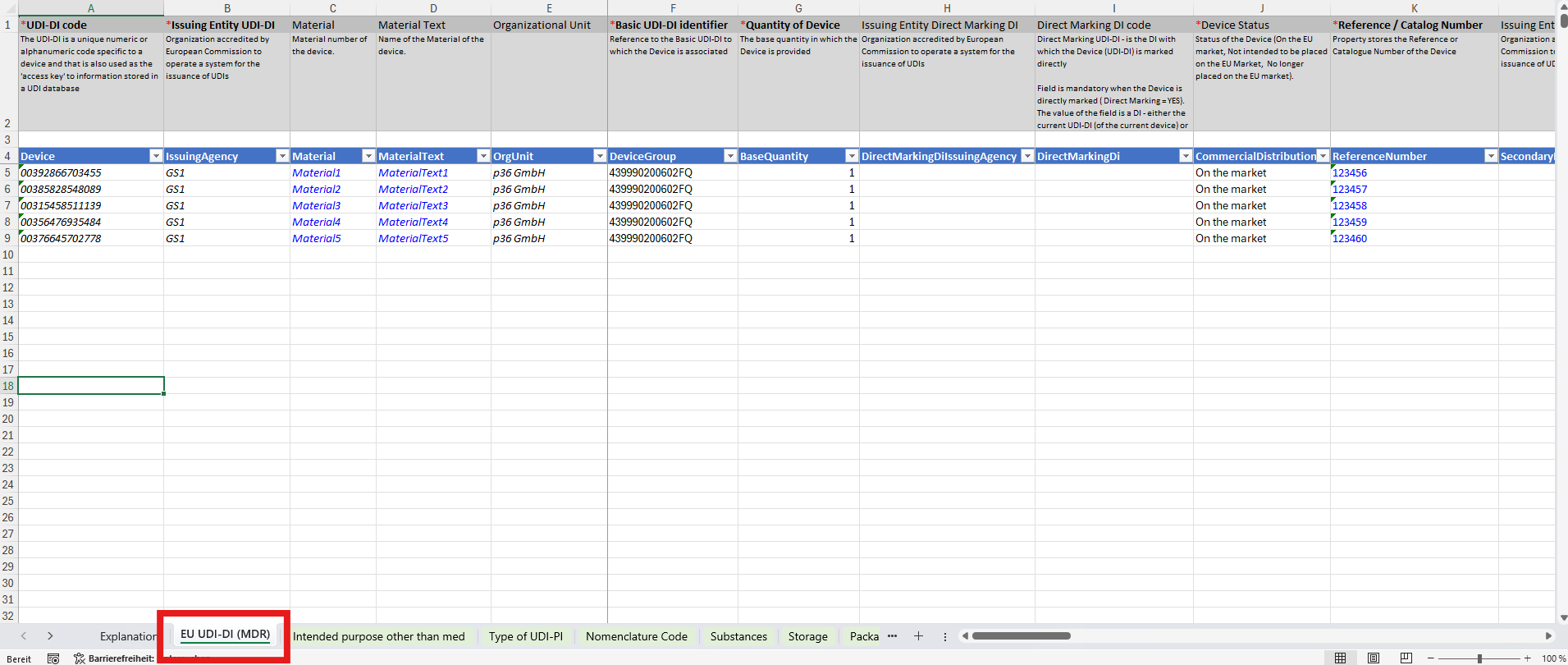
The first working tab contains all information in a **1:1 relationship** with the device identifier (UDI‑DI).
Typical data points include:
* Device# (Article Number)
* Device Description
* Reference Number
* Manufacturer SRN
* Single Use
* Sterilization
* ...
Each row in this sheet represents **one unique device record**.
### 1. Main Sheet – Primary Device Data
The first working tab contains all information in a **1:1 relationship** with the device identifier (UDI‑DI).
Typical data points include:
* Device# (Article Number)
* Device Description
* Reference Number
* Manufacturer SRN
* Single Use
* Sterilization
* ...
Each row in this sheet represents **one unique device record**.
 ***
### 2. Multiselect Sheets – Values with Multiple Options
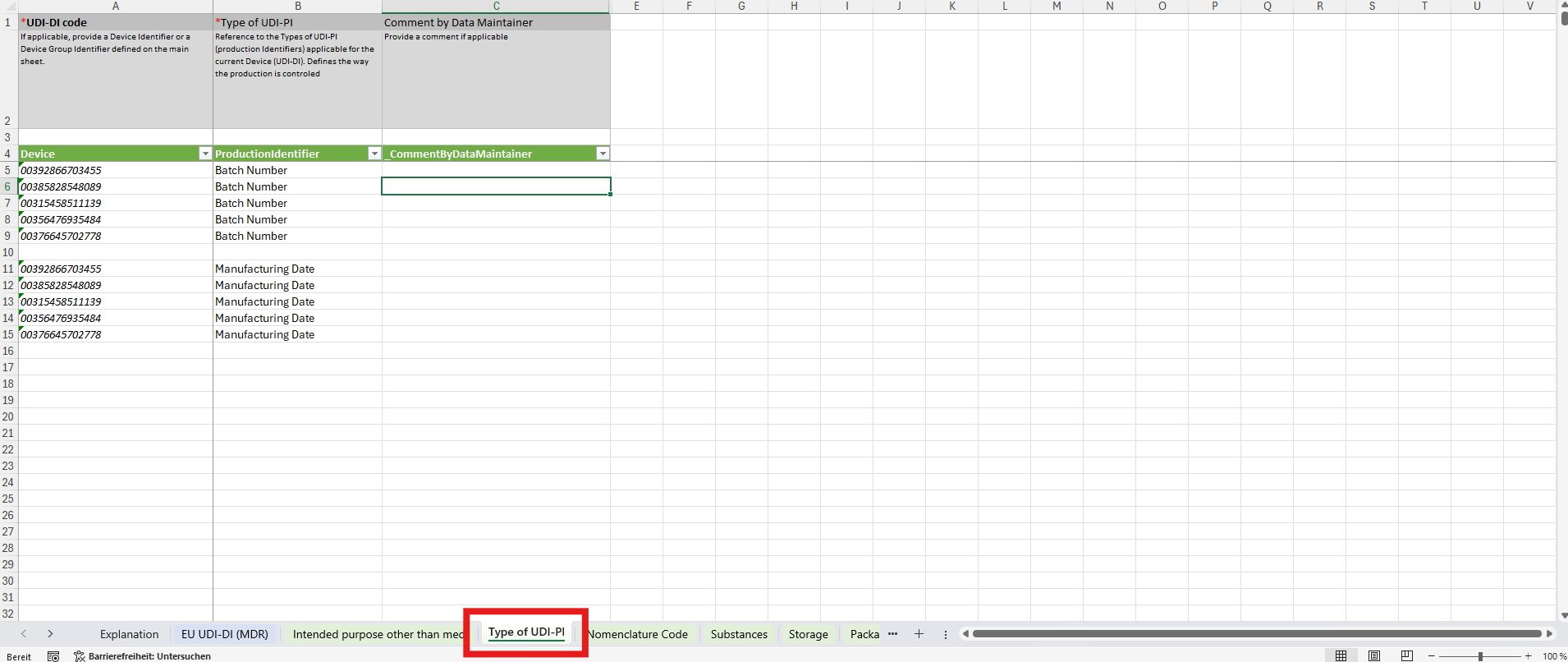
Some data points allow multiple values for one device.\
For these, additional sheets are provided to capture all possible entries.
A key example is **Production Identifier**, where you can define multiple identifiers for a single device:
* Manufacturing Date
* Expiration Date
* Serial Number
* Batch Number
Each entry in these sheets links back to the device in the main sheet using a reference field.
***
### 2. Multiselect Sheets – Values with Multiple Options
Some data points allow multiple values for one device.\
For these, additional sheets are provided to capture all possible entries.
A key example is **Production Identifier**, where you can define multiple identifiers for a single device:
* Manufacturing Date
* Expiration Date
* Serial Number
* Batch Number
Each entry in these sheets links back to the device in the main sheet using a reference field.
 ***
### 3. Complex Elements – Repeated Attribute Groups
Certain data sets require multiple detailed values per device. These are represented as **complex elements**, stored on separate sheets.
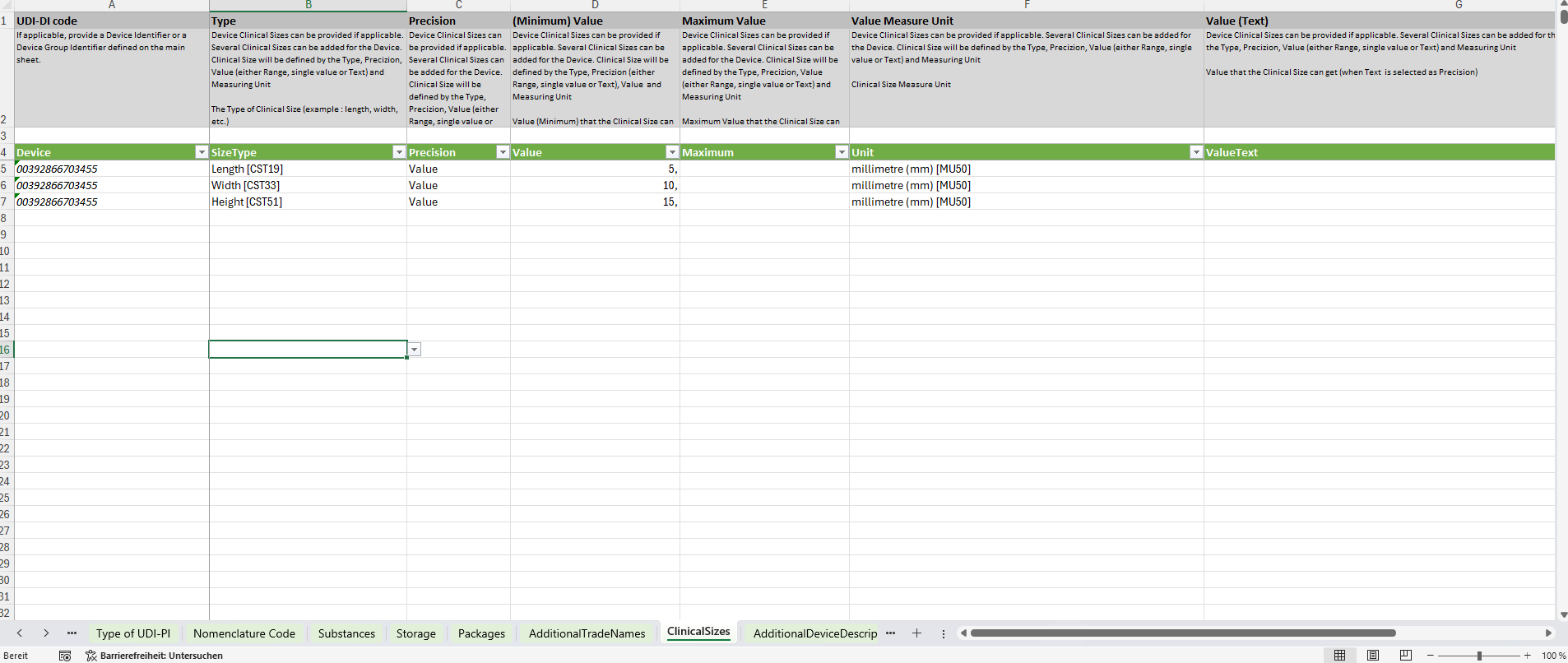
A common example is **Clinical Sizes**.\
This sheet allows you to specify multiple dimension attributes for one product.\
For instance, a device can have several size indicators, each with its own value and unit:
* Length – 15 mm
* Width – 5 mm
* Height – 3 mm
Each combination is associated with the corresponding device record, ensuring proper linkage during validation.
***
### 3. Complex Elements – Repeated Attribute Groups
Certain data sets require multiple detailed values per device. These are represented as **complex elements**, stored on separate sheets.
A common example is **Clinical Sizes**.\
This sheet allows you to specify multiple dimension attributes for one product.\
For instance, a device can have several size indicators, each with its own value and unit:
* Length – 15 mm
* Width – 5 mm
* Height – 3 mm
Each combination is associated with the corresponding device record, ensuring proper linkage during validation.
 ***
## Summary of Sheet Types
**Main Sheet**\
Contains general product details (1:1 relationship per UDI‑DI).\
Example: Device sheet for identifiers, references, and general product data.
**Multiselect Sheet**\
Used for lists of values linked to a single device.\
Example: Production Identifier sheet for manufacturing and batch data.
**Complex Element Sheet**\
Used for structured data with multiple attributes per device.\
Example: Clinical Sizes sheet for physical measurements.
***
## Best Practices
* Always download the **latest template version** for the selected market and legislation.
* Do not edit sheet names or column headers — these must remain unchanged for validation.
* Fill out all **mandatory fields** before import. Otherwise they will run into a validation error as not comply to regulatory requirements.
* You can test in Preview (Test Environment) before uploading to Production.
* The filled templates can be downloaded again after upload.
## Troubleshooting
* **Use Copy & Paste carefully:**\
Hidden columns at the end of the template contain technical keys required for upload. Copying entire rows or including hidden columns can overwrite or delete these keys.
⚠️ **If keys are changed or lost, uploads may fail even if data looks correct.**
**Recommendations:**
* Copy only visible cells — never full rows.
* Avoid editing or un-hiding system columns.
* Use the latest template if errors persist.
* Test uploads in the Preview environment before Production.
***
Work **per product group** when filling your templates.\
This helps you reuse shared values across products by copying them down consistently, which improves data integrity, reduces manual effort, and makes potential errors easier to identify.
***
## Summary of Sheet Types
**Main Sheet**\
Contains general product details (1:1 relationship per UDI‑DI).\
Example: Device sheet for identifiers, references, and general product data.
**Multiselect Sheet**\
Used for lists of values linked to a single device.\
Example: Production Identifier sheet for manufacturing and batch data.
**Complex Element Sheet**\
Used for structured data with multiple attributes per device.\
Example: Clinical Sizes sheet for physical measurements.
***
## Best Practices
* Always download the **latest template version** for the selected market and legislation.
* Do not edit sheet names or column headers — these must remain unchanged for validation.
* Fill out all **mandatory fields** before import. Otherwise they will run into a validation error as not comply to regulatory requirements.
* You can test in Preview (Test Environment) before uploading to Production.
* The filled templates can be downloaded again after upload.
## Troubleshooting
* **Use Copy & Paste carefully:**\
Hidden columns at the end of the template contain technical keys required for upload. Copying entire rows or including hidden columns can overwrite or delete these keys.
⚠️ **If keys are changed or lost, uploads may fail even if data looks correct.**
**Recommendations:**
* Copy only visible cells — never full rows.
* Avoid editing or un-hiding system columns.
* Use the latest template if errors persist.
* Test uploads in the Preview environment before Production.
***
Work **per product group** when filling your templates.\
This helps you reuse shared values across products by copying them down consistently, which improves data integrity, reduces manual effort, and makes potential errors easier to identify.