> ## Documentation Index
> Fetch the complete documentation index at: https://docs.udiconnect.io/llms.txt
> Use this file to discover all available pages before exploring further.
# Change Log (Audit Trail)
> See who changed what and when in UDI Hub, including Upload, Import, and Submit actions, system-driven status changes, validation outcomes, and PDF audit trail export.
## Overview
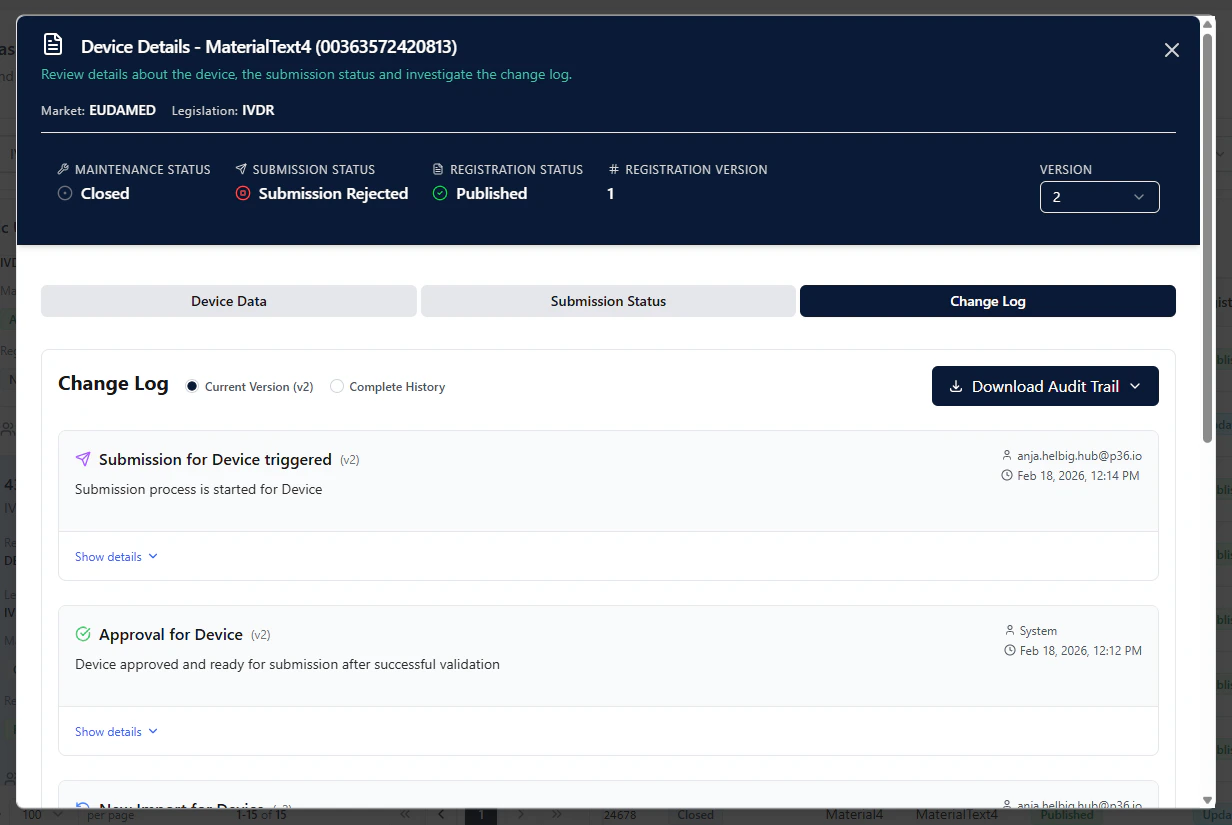
The **Change Log** provides a complete audit-friendly history of actions and status changes for a **Basic UDI-DI** or **Device** in UDI Hub.
It helps you answer:
* **Who** performed an action (user or system)
* **What** happened (Upload / Import / Submit, approvals, validations, status changes)
* **When** it happened (timestamp)
* Whether validation was **successful** or **not successful**
* How the history differs between **versions** (e.g., initial registration vs. updates)
 ***
## Where to find it
1. Open **UDI Management**
2. Open the **Details** modal of a **Basic UDI-DI** or **Device**
3. Go to the **Change Log** tab
***
## Version-specific view vs. complete history
In the Change Log you can switch between:
* **Current Version (vX)** — shows changes related to the currently selected **version**
* **Complete History** — shows the full history across all versions
This is useful to distinguish what happened during:
* **Version 1** (initial registration), versus
* **later versions** (updates / follow-ups)
***
## What you will see in the log
Each log entry typically includes:
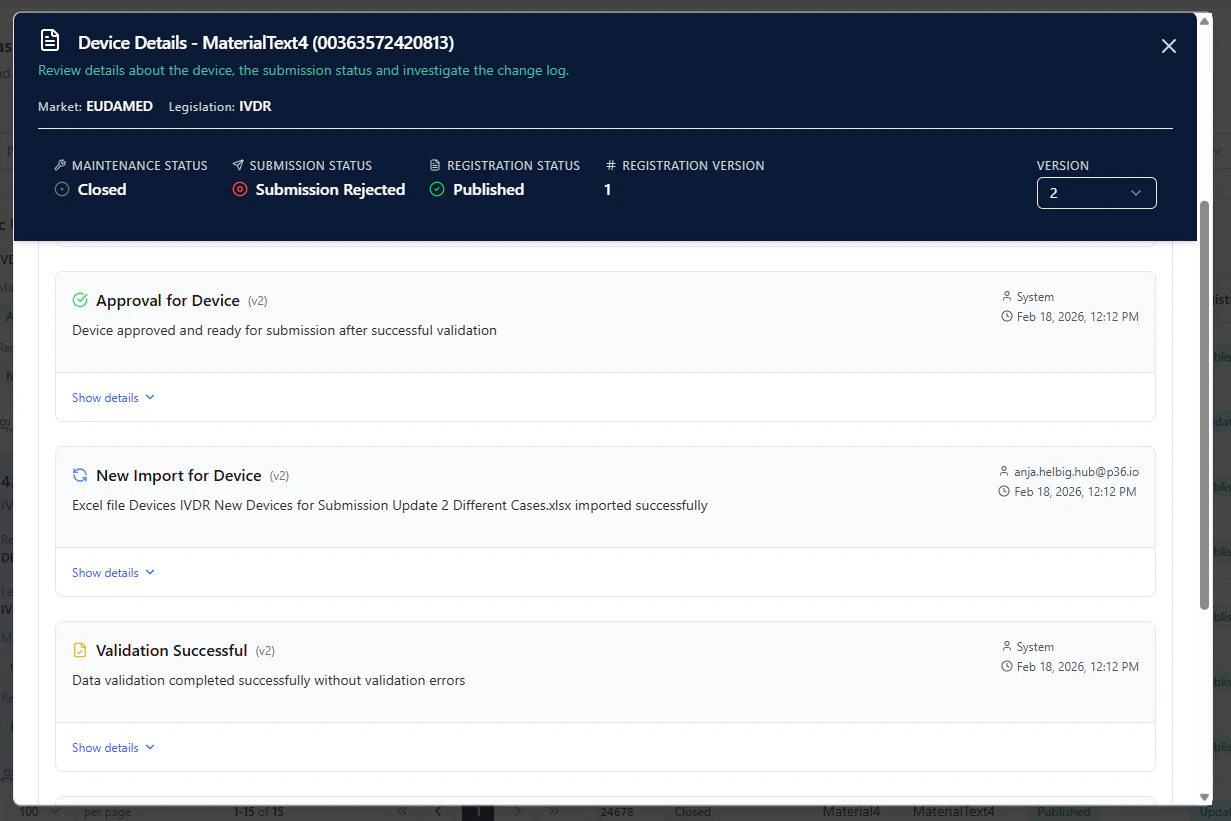
* an **event title** (e.g., *New Import for Device*, *Submission triggered*, *Approval for Device*)
* the **actor**
* a **user** (when triggered manually, e.g., import or submission)
* **System** (when statuses are set automatically in the background)
* a **timestamp**
* optional **details** you can expand via **Show details**
The Change Log includes, among others, these types of events:
* **Upload**: file upload activity that leads into validation
* **Import**: import actions
* **Submit**: a submission being triggered for a Basic UDI-DI or Device
* **Validation**: e.g., *Validation Successful* or validation failures
* **System status updates**: e.g., approvals set after successful import
***
## Where to find it
1. Open **UDI Management**
2. Open the **Details** modal of a **Basic UDI-DI** or **Device**
3. Go to the **Change Log** tab
***
## Version-specific view vs. complete history
In the Change Log you can switch between:
* **Current Version (vX)** — shows changes related to the currently selected **version**
* **Complete History** — shows the full history across all versions
This is useful to distinguish what happened during:
* **Version 1** (initial registration), versus
* **later versions** (updates / follow-ups)
***
## What you will see in the log
Each log entry typically includes:
* an **event title** (e.g., *New Import for Device*, *Submission triggered*, *Approval for Device*)
* the **actor**
* a **user** (when triggered manually, e.g., import or submission)
* **System** (when statuses are set automatically in the background)
* a **timestamp**
* optional **details** you can expand via **Show details**
The Change Log includes, among others, these types of events:
* **Upload**: file upload activity that leads into validation
* **Import**: import actions
* **Submit**: a submission being triggered for a Basic UDI-DI or Device
* **Validation**: e.g., *Validation Successful* or validation failures
* **System status updates**: e.g., approvals set after successful import
 ***
## Export an Audit Trail (PDF)
For audits and internal documentation, you can export the audit trail as a PDF:
1. Open the **Change Log** tab
2. Click **Download Audit Trail**
3. Choose the required export option (e.g., for the current version or complete history, depending on your configuration)
This export provides a shareable audit document containing the recorded history.
***
Use Current Version when you want to explain or troubleshoot a single submission/update cycle.\
Use Complete History to provide a full audit trail across initial registration and all updates.
***
## Export an Audit Trail (PDF)
For audits and internal documentation, you can export the audit trail as a PDF:
1. Open the **Change Log** tab
2. Click **Download Audit Trail**
3. Choose the required export option (e.g., for the current version or complete history, depending on your configuration)
This export provides a shareable audit document containing the recorded history.
***
Use Current Version when you want to explain or troubleshoot a single submission/update cycle.\
Use Complete History to provide a full audit trail across initial registration and all updates.