> ## Documentation Index
> Fetch the complete documentation index at: https://docs.udiconnect.io/llms.txt
> Use this file to discover all available pages before exploring further.
# Manage Team Members
> How to invite and manage team members in your organization.
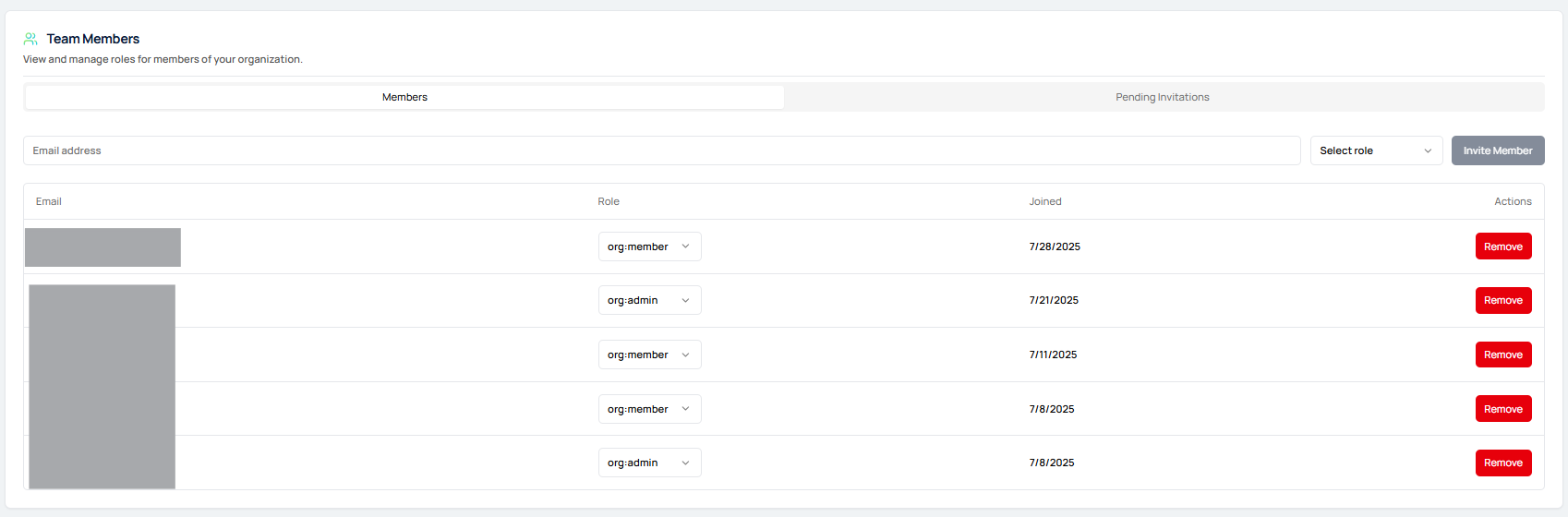
* Navigate to the **Settings** section in the sidebar.
* Click on **Team** to view and manage your organization's members.
* In the **Team Members** section, enter the email address of the person you want to invite.
* Select the appropriate role (**org:member** or **org:admin**) from the dropdown.
* Once both fields are filled, the **Invite Member** button becomes active.
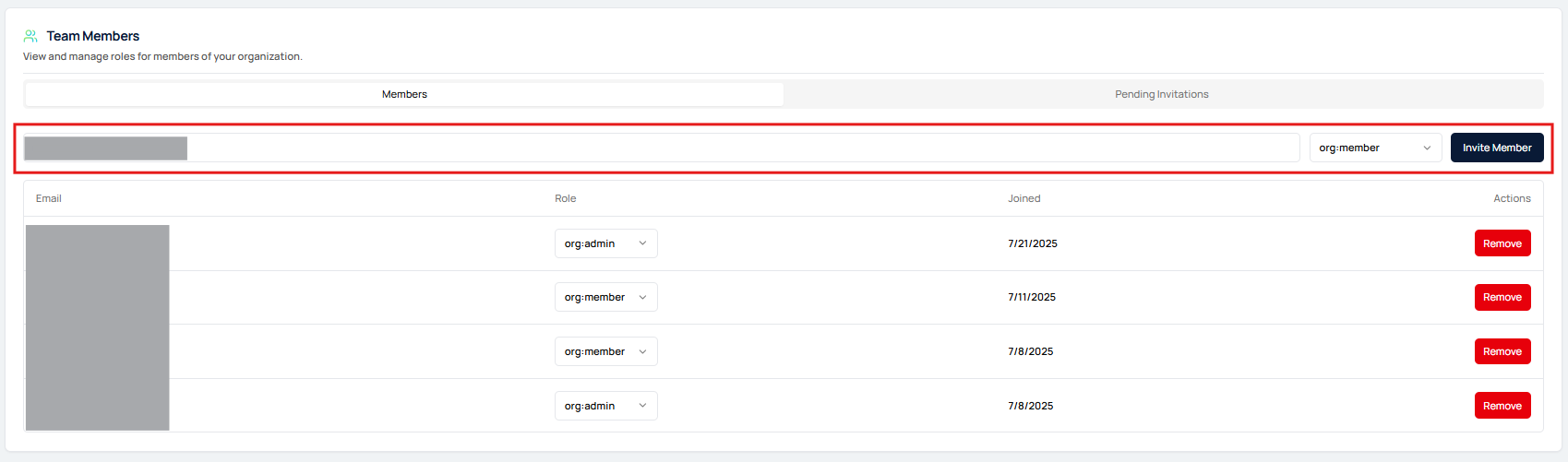 * Click **Invite Member** to send the invitation.
* The invited user will receive an email with a link to join your organization.
* Pending invitations appear under the **Pending Invitations** tab.
* You can resend the invitation by clicking **Resend** or cancel it by clicking **Cancel** if needed.
* Click **Invite Member** to send the invitation.
* The invited user will receive an email with a link to join your organization.
* Pending invitations appear under the **Pending Invitations** tab.
* You can resend the invitation by clicking **Resend** or cancel it by clicking **Cancel** if needed.
 * The invited user needs to click on the link in the email invitation.
* Please check your **SPAM** folder if you don't see it in your usual inbox.
* The link will open a screen to set up a password.
* After setting up an account, they are redirected to the application.
* Once the invited user accepts the invitation, they will appear under **Members**.
* The new member now has access to the system according to their assigned role.
* The invited user needs to click on the link in the email invitation.
* Please check your **SPAM** folder if you don't see it in your usual inbox.
* The link will open a screen to set up a password.
* After setting up an account, they are redirected to the application.
* Once the invited user accepts the invitation, they will appear under **Members**.
* The new member now has access to the system according to their assigned role.