> ## Documentation Index
> Fetch the complete documentation index at: https://docs.udiconnect.io/llms.txt
> Use this file to discover all available pages before exploring further.
# EUDAMED Test Submission
> Automated test submission process for verifying EUDAMED connectivity using standard payloads.
## Overview
The **EUDAMED Test Submission** automates the submission test process to simplify onboarding.\
Once the key data — **SRN**, **Role**, **Regulatory Actor**, and **Security Token** — are available, the system can execute a background test submission using a predefined payload.\
This minimizes manual effort and ensures that the required **Proof of Testing** is automatically generated.
***
* Start by navigating to the **EUDAMED Test Submission** section.
* If no economic operators are available yet, click **Add Economic Operator** to create a new entry.
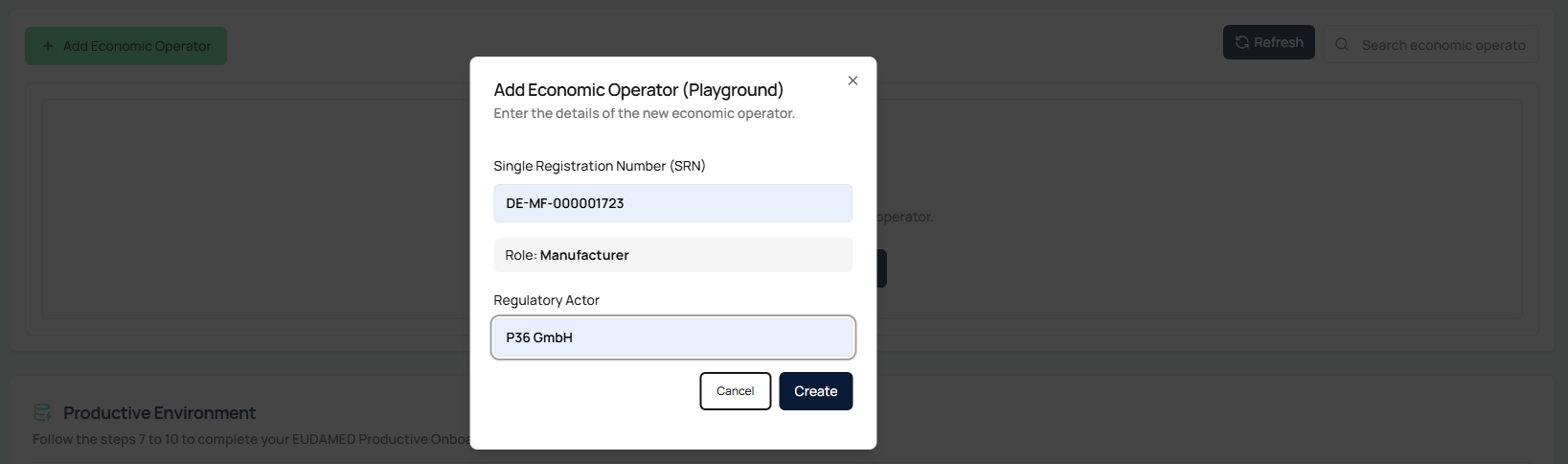
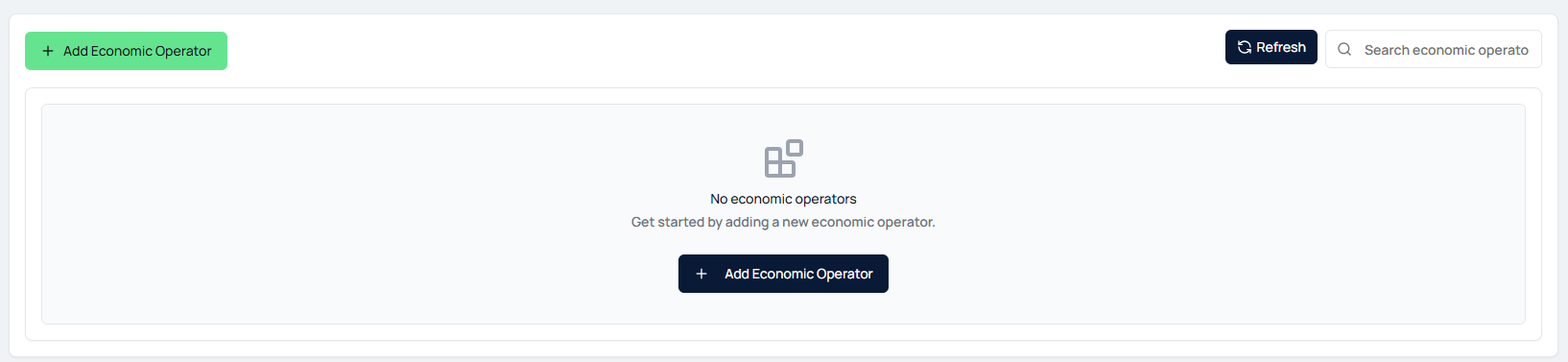 * In the pop-up window, provide the following:
* **Single Registration Number (SRN)**
* **Role** (e.g., Manufacturer, System and Procedure Pack Producer)
* **Regulatory Actor Name**
* Ensure that all information matches the data registered in EUDAMED.
We check the SRN format and country code to define if an Authorized Representative needs to be added as well. System and Procedure Pack Producer outside of EU do not need an Authorized Representative, only manufacturers need to comply.
* In the pop-up window, provide the following:
* **Single Registration Number (SRN)**
* **Role** (e.g., Manufacturer, System and Procedure Pack Producer)
* **Regulatory Actor Name**
* Ensure that all information matches the data registered in EUDAMED.
We check the SRN format and country code to define if an Authorized Representative needs to be added as well. System and Procedure Pack Producer outside of EU do not need an Authorized Representative, only manufacturers need to comply.
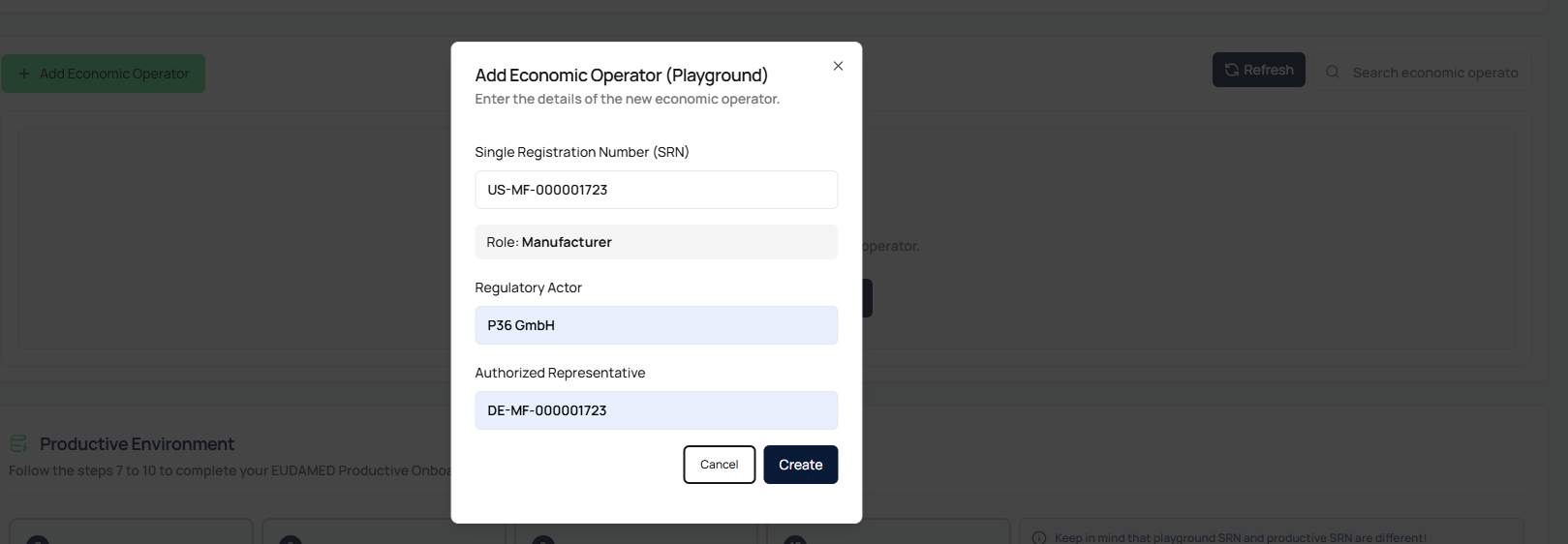
 * When adding an actor **outside the EU**, an additional field for **Authorized Representative** will appear automatically.
* Enter the SRN of the EU-based Authorized Representative.
* This information is mandatory for non-EU operators.
We check the SRN format and only allow european country codes used for Authorized Representative.
* When adding an actor **outside the EU**, an additional field for **Authorized Representative** will appear automatically.
* Enter the SRN of the EU-based Authorized Representative.
* This information is mandatory for non-EU operators.
We check the SRN format and only allow european country codes used for Authorized Representative.
 * After successfully adding the actor, a table entry will appear.
* Paste the **EUDAMED Playground Security Token** for the corresponding SRN into the designated field.
* The token is **securely stored in the background** and **not visible** afterwards.
* After successfully adding the actor, a table entry will appear.
* Paste the **EUDAMED Playground Security Token** for the corresponding SRN into the designated field.
* The token is **securely stored in the background** and **not visible** afterwards.
 * Once the token is entered, the **Test Submission** button becomes active.
* Click the button to start the automatic submission.
* The button will display:
* **Submission in Progress** while running
* **Successful** (green) once the process completes successfully
* Once the token is entered, the **Test Submission** button becomes active.
* Click the button to start the automatic submission.
* The button will display:
* **Submission in Progress** while running
* **Successful** (green) once the process completes successfully
 * After a successful test submission, the system will automatically generate a **Proof of Testing** document.
* You can download this document directly from the interface.
* It serves as a prerequisite for configuring the access point in the **Productive EUDAMED environment**.
* After a successful test submission, the system will automatically generate a **Proof of Testing** document.
* You can download this document directly from the interface.
* It serves as a prerequisite for configuring the access point in the **Productive EUDAMED environment**.
 * If a submission fails, you can correct the **SRN** or **Security Token** in the Actions menu.
* After updating the details, restart the test submission process.
* If a submission fails, you can correct the **SRN** or **Security Token** in the Actions menu.
* After updating the details, restart the test submission process.