> ## Documentation Index
> Fetch the complete documentation index at: https://docs.udiconnect.io/llms.txt
> Use this file to discover all available pages before exploring further.

# API Key Generation

> How to generate and manage API keys for authenticating API requests.

<Steps>
  <Step title="Go to API Keys">
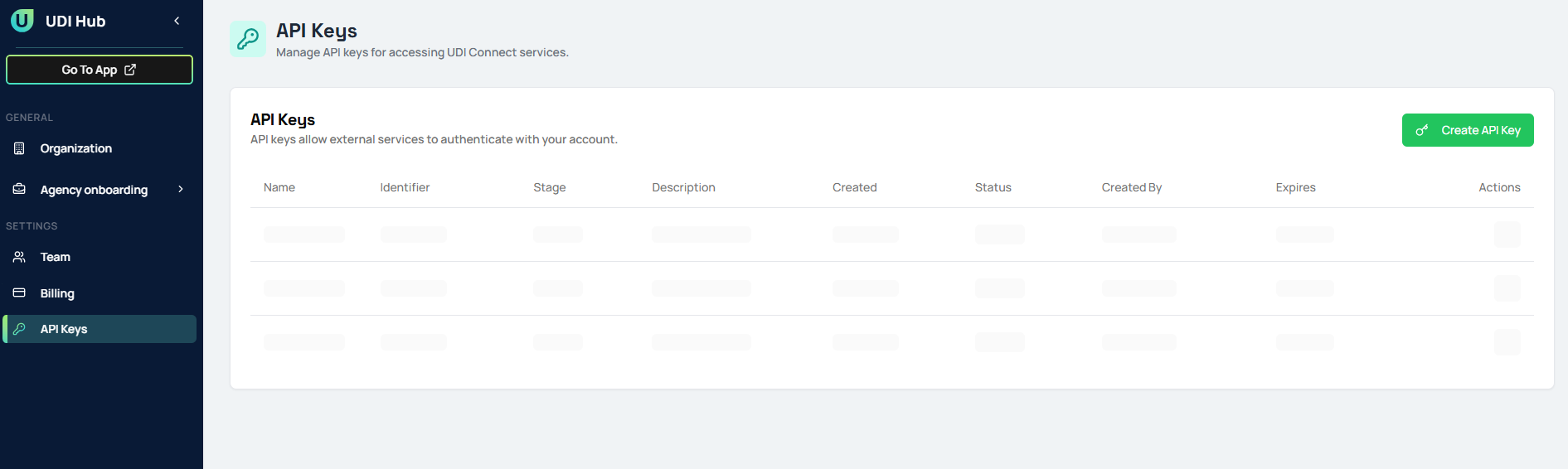
    * In the sidebar, navigate to **API Keys** under the **Settings** section.
    * Here you can view and manage all API keys for your organization.
    <img className="block dark:hidden" src="https://mintcdn.com/p36/qvNpV9fkiMEDUHGu/images/apikeygeneration/api_keys_overview.png?fit=max&auto=format&n=qvNpV9fkiMEDUHGu&q=85&s=41fa11bcd49d41bb851ad751128acbfb" alt="API Keys overview" width="1891" height="566" data-path="images/apikeygeneration/api_keys_overview.png" />

    <img className="hidden dark:block" src="https://mintcdn.com/p36/qvNpV9fkiMEDUHGu/images/apikeygeneration/api_keys_overview.png?fit=max&auto=format&n=qvNpV9fkiMEDUHGu&q=85&s=41fa11bcd49d41bb851ad751128acbfb" alt="API Keys overview" width="1891" height="566" data-path="images/apikeygeneration/api_keys_overview.png" />
  </Step>

  <Step title="Create a New API Key">
    * Click the **Create API Key** button in the top right corner.
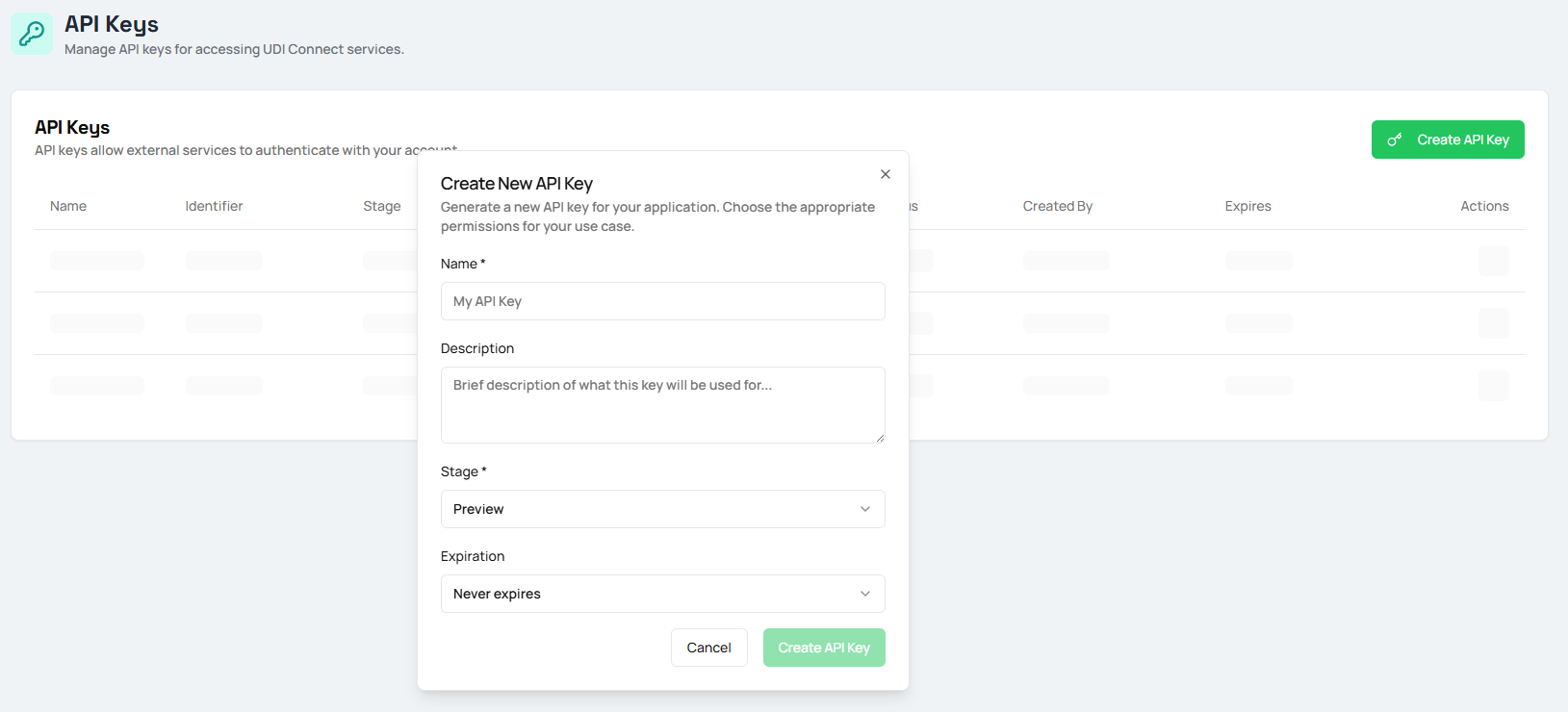
    * A dialog will appear to enter details for your new API key.
    <img className="block dark:hidden" src="https://mintcdn.com/p36/qvNpV9fkiMEDUHGu/images/apikeygeneration/create_api_key_popup.png?fit=max&auto=format&n=qvNpV9fkiMEDUHGu&q=85&s=09032f07daabfae0ebb19cb81c2839c8" alt="Create API Key popup" width="1629" height="740" data-path="images/apikeygeneration/create_api_key_popup.png" />

    <img className="hidden dark:block" src="https://mintcdn.com/p36/qvNpV9fkiMEDUHGu/images/apikeygeneration/create_api_key_popup.png?fit=max&auto=format&n=qvNpV9fkiMEDUHGu&q=85&s=09032f07daabfae0ebb19cb81c2839c8" alt="Create API Key popup" width="1629" height="740" data-path="images/apikeygeneration/create_api_key_popup.png" />
  </Step>

  <Step title="Enter API Key Details">
    * Enter a **Name** for your API key.
    * Optionally, add a **Description** for what this key will be used for.
    * Select the **Stage** (e.g., Preview, Production).
    * Set an **Expiration** if desired, or leave as "Never expires".
    * Click **Create API Key** to generate the key.
  </Step>

  <Step title="Copy and Store Your API Key">
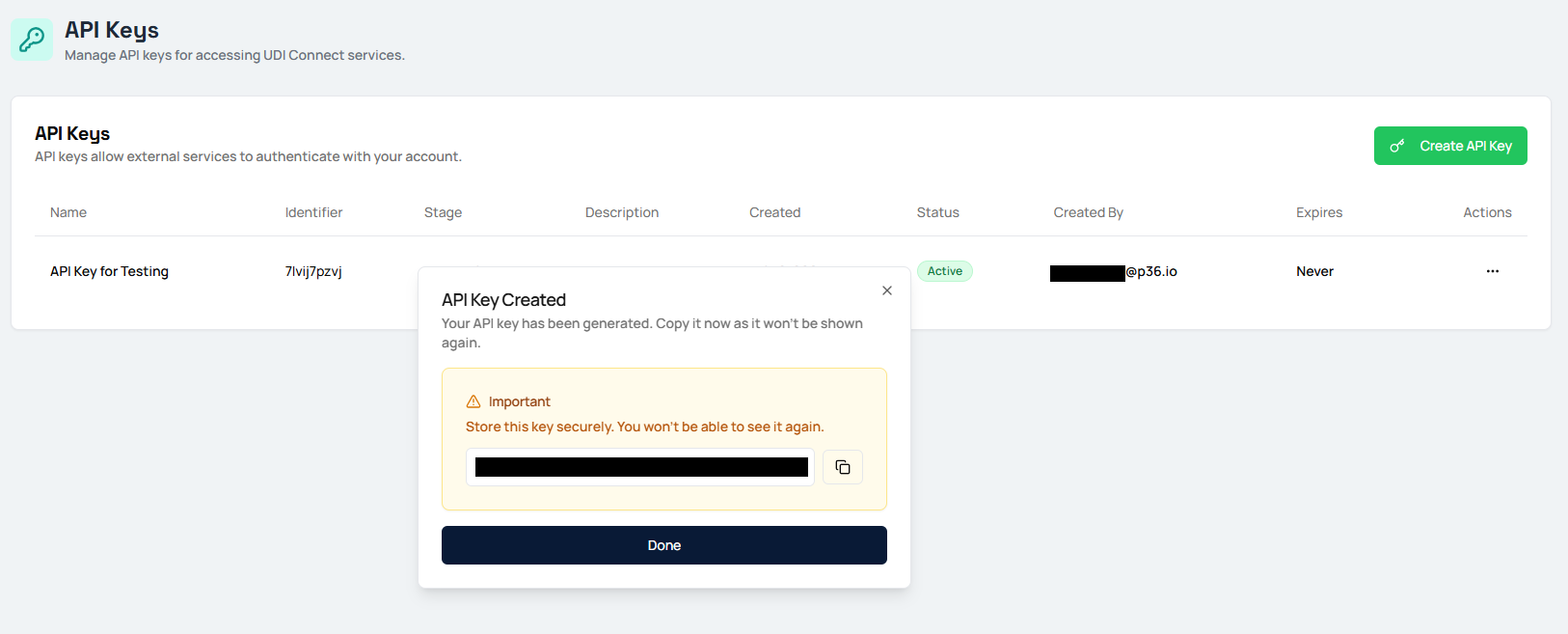
    * Once the key is generated, a popup will display your new API key.
    * Click **Done** to finish.

    <Danger>**Important:** Copy and store this key securely. You will not be able to see it again after closing the popup.</Danger>

    <img className="block dark:hidden" src="https://mintcdn.com/p36/qvNpV9fkiMEDUHGu/images/apikeygeneration/api_key_created.png?fit=max&auto=format&n=qvNpV9fkiMEDUHGu&q=85&s=d1951465ad93d727f7be62771af54f48" alt="API Key created popup" width="1626" height="657" data-path="images/apikeygeneration/api_key_created.png" />

    <img className="hidden dark:block" src="https://mintcdn.com/p36/qvNpV9fkiMEDUHGu/images/apikeygeneration/api_key_created.png?fit=max&auto=format&n=qvNpV9fkiMEDUHGu&q=85&s=d1951465ad93d727f7be62771af54f48" alt="API Key created popup" width="1626" height="657" data-path="images/apikeygeneration/api_key_created.png" />
  </Step>

  <Step title="Use Your API Key">
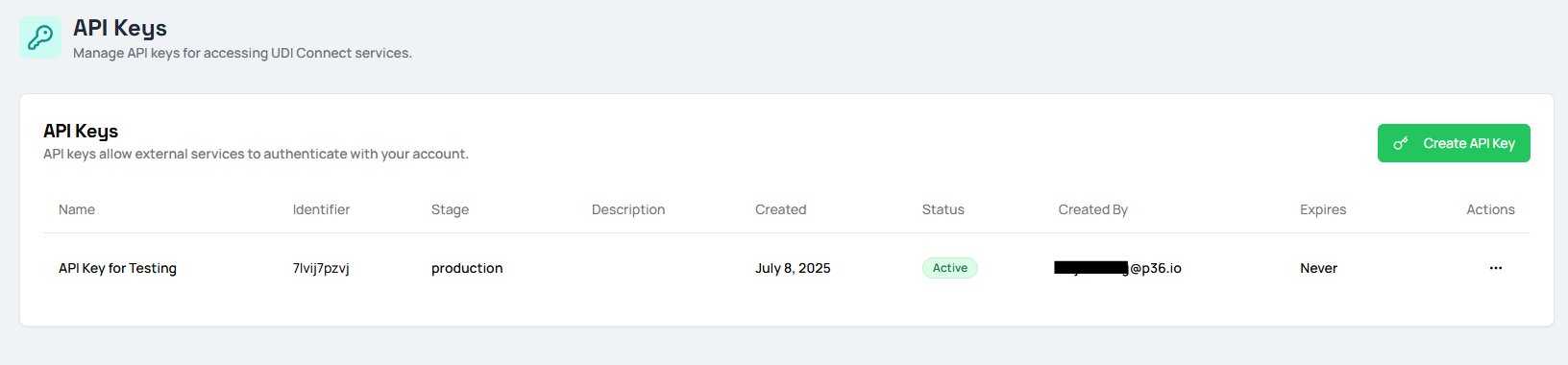
    * After closing the popup, your API key will appear in the list of API keys.
    * Use this key for authenticating and authorizing your API requests with UDI Connect.
    <img className="block dark:hidden" src="https://mintcdn.com/p36/qvNpV9fkiMEDUHGu/images/apikeygeneration/api_key_list.png?fit=max&auto=format&n=qvNpV9fkiMEDUHGu&q=85&s=a0f4ad1fbc10f4379d22481082eef264" alt="API Key in list" width="1632" height="380" data-path="images/apikeygeneration/api_key_list.png" />

    <img className="hidden dark:block" src="https://mintcdn.com/p36/qvNpV9fkiMEDUHGu/images/apikeygeneration/api_key_list.png?fit=max&auto=format&n=qvNpV9fkiMEDUHGu&q=85&s=a0f4ad1fbc10f4379d22481082eef264" alt="API Key in list" width="1632" height="380" data-path="images/apikeygeneration/api_key_list.png" />
  </Step>

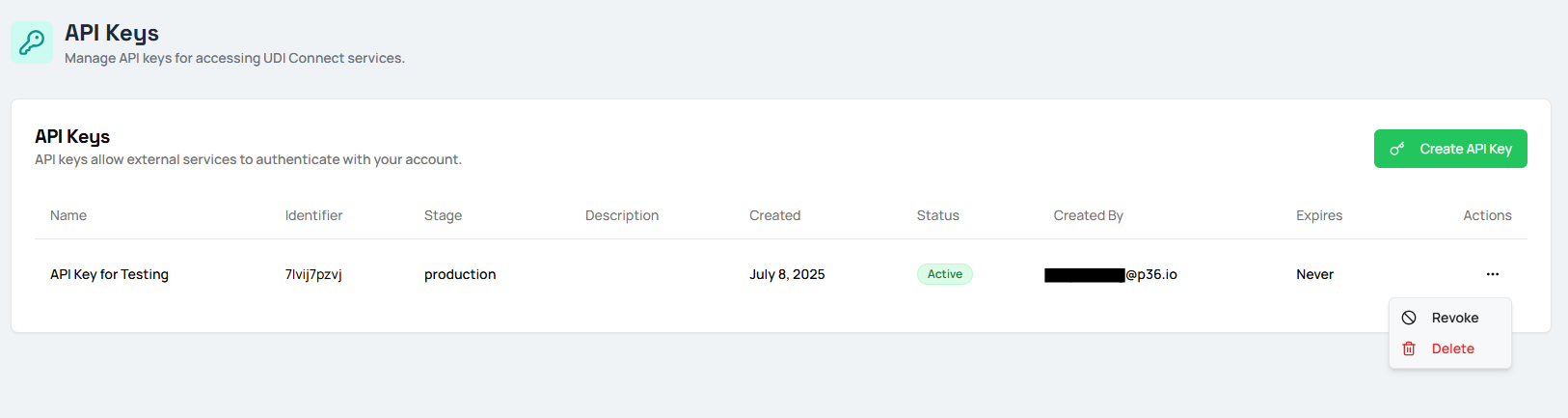
  <Step title="Manage Multiple API Keys">
    * You can generate and manage multiple API keys for different use cases or environments.
    * Each key can be **revoked** (temporarily disable) or **deleted** (permanently remove) from the Actions menu.
    <img className="block dark:hidden" src="https://mintcdn.com/p36/qvNpV9fkiMEDUHGu/images/apikeygeneration/revoke_delete_key.png?fit=max&auto=format&n=qvNpV9fkiMEDUHGu&q=85&s=baec43db2b84c2082424dab1e6b8c1b6" alt="Revoke or delete API Key" width="1626" height="433" data-path="images/apikeygeneration/revoke_delete_key.png" />

    <img className="hidden dark:block" src="https://mintcdn.com/p36/qvNpV9fkiMEDUHGu/images/apikeygeneration/revoke_delete_key.png?fit=max&auto=format&n=qvNpV9fkiMEDUHGu&q=85&s=baec43db2b84c2082424dab1e6b8c1b6" alt="Revoke or delete API Key" width="1626" height="433" data-path="images/apikeygeneration/revoke_delete_key.png" />
  </Step>
</Steps>

<Card title="For security reasons, API keys are only shown once. Always store your keys securely and never share them publicly." icon="key" horizontal="true" />